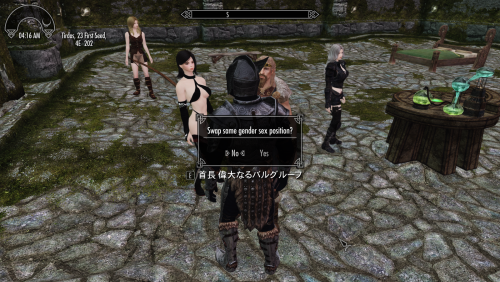
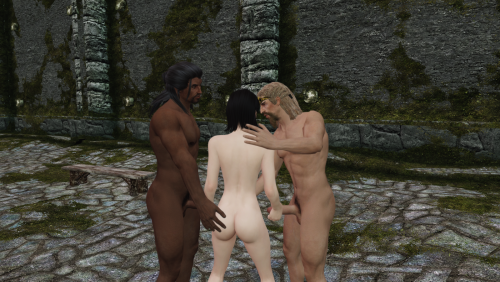
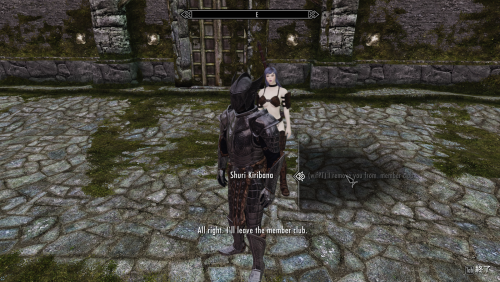
# Work in Progress
This is the successor to SL Tag and Prostitution with 3P.
Add-on for SL Tags and Dialogue Sex V2
Future development and documentation will continue on this page 
For TS prostitution V 2.2.3 please up-date to SL Tags and Dialogue Sex V2.2.0
For TS Prostitution V2.2.2, please continue using SL Tags and Dialogue Sex V2.1.3.
----------------------------------------------------------------------------
2.26 fix
Replaced and rebuild two outdated scripts left over from testing.
(They only caused errors in the Papyrus log,because of removed funciton to debug only,
but I didn't want to leave those annoying errors hanging around, sorry.
 What's new! 2.26
Major Improvements to NPC Behavior! 😄
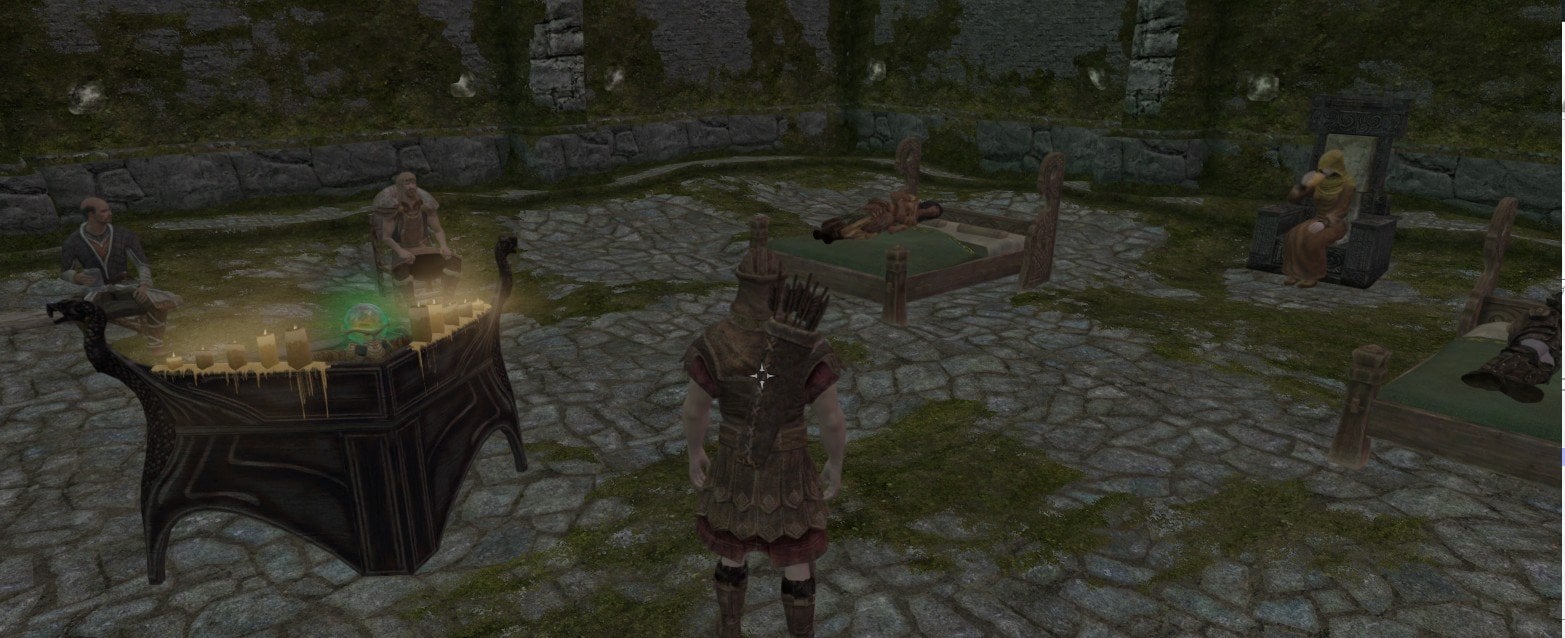
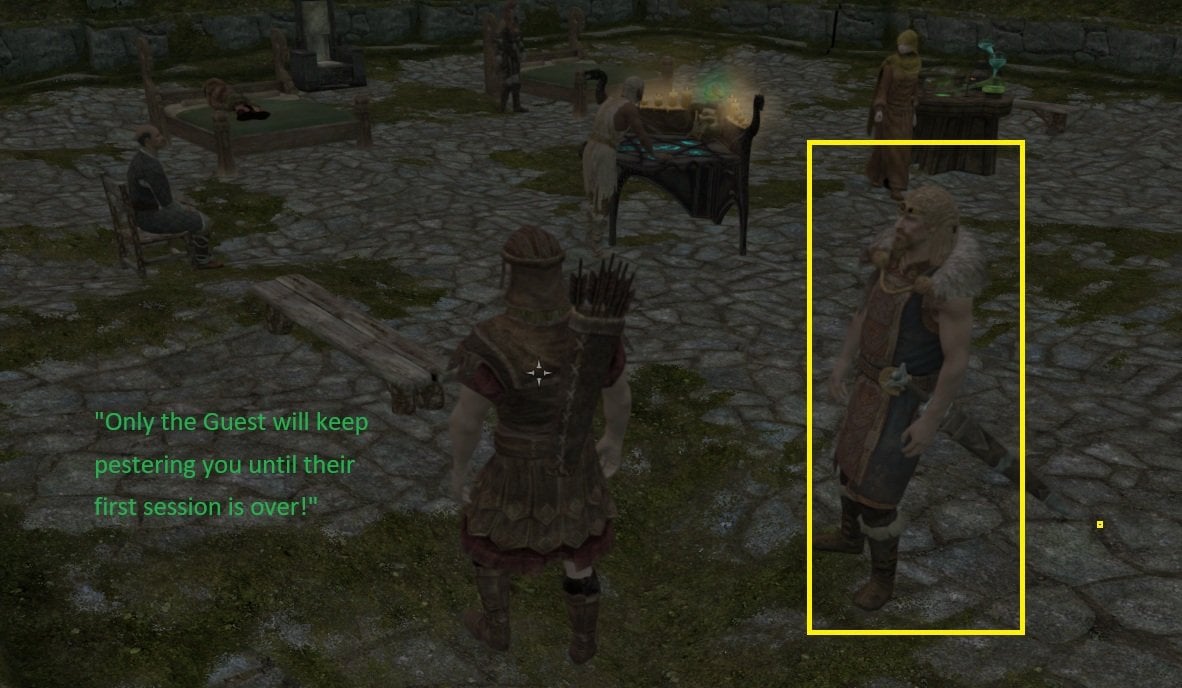
Called Members, Worker, and Guest are now much more lively and responsive!
I've completely reworked their AI packages to combine Follow and Sandbox behaviors.
-
Called Members and Worker can now relax, wander around, and sit down instead of constantly standing around waiting for you!
-
Guest will follow you closely until their first scene. After that, they can relax and enjoy some free time, while still following you when you move too far away.
-
AI package switching has been significantly improved, making NPCs respond much faster and more reliably when being called, assigned roles, dismissed, or returning from animations.
I've also extensively revised the package management scripts, including the timing of AI package evaluation.
The result? NPCs finally behave much more naturally! 😁
Technical details about the new AI packages are included in the Spoiler below.
I've been experimenting with AI Package Templates in the Creation Kit to make Called Members, Workers, and Guests behave more naturally.
Previously, they would just follow the player around and stand there, doing practically nothing. Honestly, they were getting a little annoying!
1. Combining Follow and Sandbox
My first challenge was combining Follow and Sandbox behaviors in a single Package Template.
After quite a bit of trial and error, I managed to make NPCs switch between them depending on their distance from the player.
When they're nearby, they can wander around, sit down, or use furniture. If the player moves too far away, they'll start following again.
2. But Guest Are a Little Different!
Guest have their own special behavior.
Before their first session, they insist on following the player closely. They're apparently very eager to get started! 😆
Once they've had their first session, they can finally relax like everyone else.
3. An Unexpected Problem...
Everything seemed to work beautifully, until I discovered that NPCs could sometimes get stuck after a SexLab animation ended.
After some investigation, I found that manually using the console command evp immediately restored their normal behavior.
That was the breakthrough!
I went back through the Papyrus scripts and improved the timing of EvaluatePackage() calls when assigning roles, removing packages, dismissing NPCs, returning Called Members, and finishing animations.
The difference was remarkable. NPCs now react much more quickly and reliably!
4. Finally, Some Peace and Quiet!
Now Called Members and Workers can enjoy their free time instead of constantly standing around the player.
Guests can relax too, once they've finished their first session.
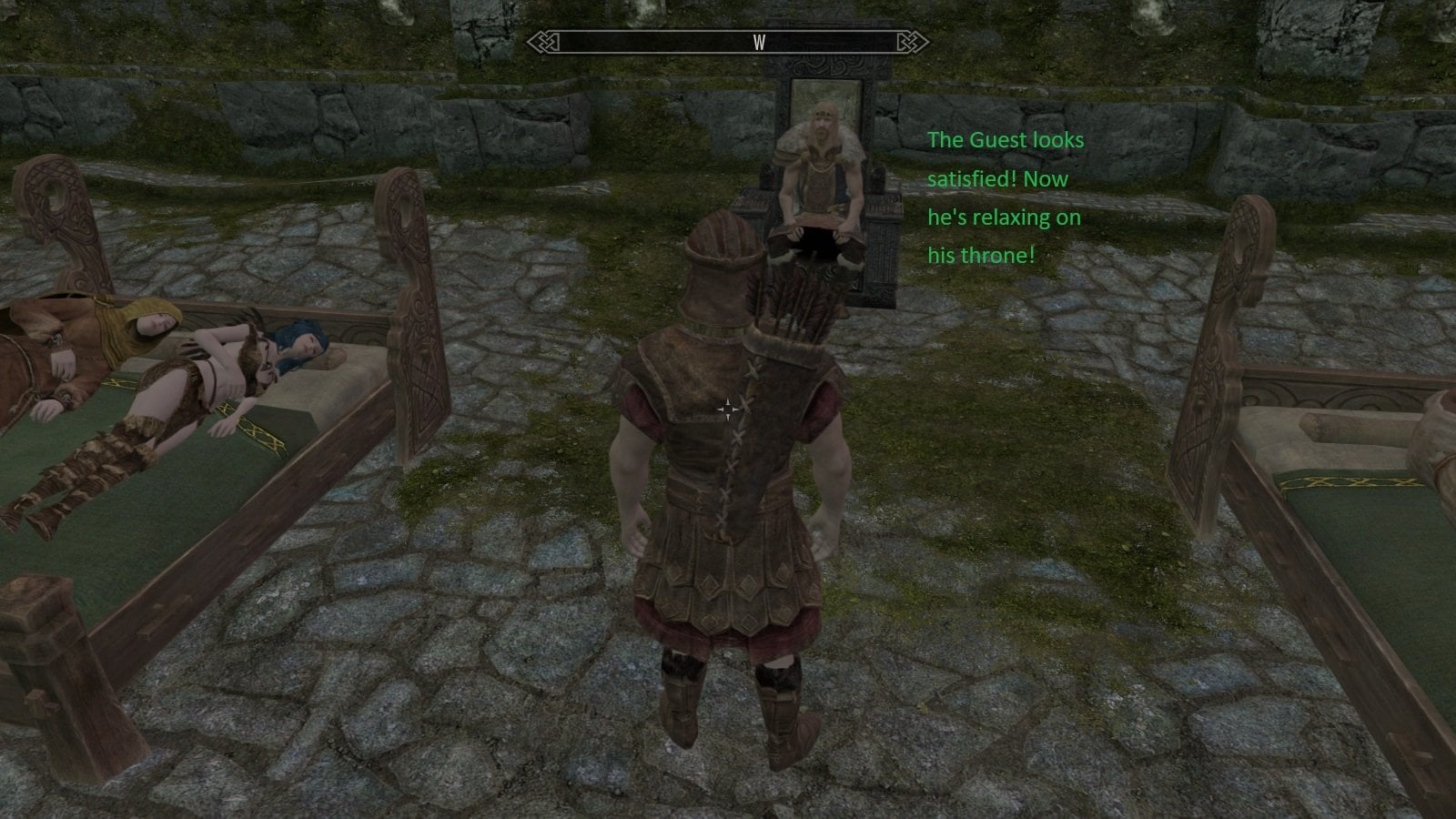
It's a relatively small change from the player's perspective, but it makes the NPCs feel much more alive.
And best of all, these improvements work without requiring an additional follower AI fix! 😄
About This Mod
- "Add on" for tag and sex
This mod originally started as an experiment to extend the use of my Tag and Sex.
I wanted to see if animation slots created and saved in Tag and Sex could be used from another mod, rather than being limited to its own dialogue system.This prostitution-themed mod was originally created as a practical test of that idea.
Because of this, Tag and Sex is required for its main animation-slot features.
As I continued developing and playing with the idea, however, it gradually became something more than just a test.
This is a dialogue-based prostitution-themed mod for SexLab, but its basic concept is a little different from many other prostitution mods.
The player is primarily the manager, not the worker .
Rather than focusing on making the player character work as a prostitute, the main idea is to recruit and manage NPC workers, then choose customers, and arrange NPC vs NPC scenes through dialogue.
The player can still participate, of course. You can start scenes between the player and worker.
3P scenes are also supported, but I'll explain those options separately below.
---------------------------------------
- Members Club
At first, I simply approached random NPCs to test the system, but I soon wanted an easier way to bring workers and customers to my hideout or testing locations and try different NPCs one after another.
That led me to create the Members Club.
Originally, I intended it mainly as a way to keep a reserve of workers and customers. Later, however, I began using club members as the third actor in 3P scenes, and the Members Club gradually became an important part of enjoying the mod to its fullest.
Registered members can be called whenever you want, allowing you to gather several NPCs first and then decide their roles.
A teleport system also lets you safely send them back when you are finished.
The necessary AI package is applied only while a member is called and is removed when they are sent back, so conflicts with follower mods should be minimal.
There are very few restrictions on who can become a member,
but please use important quest-related NPCs at your own risk.
-----------------------------------------------------------
- Enjoy 3P animations easily and reliably (Under Construction / Now Testing )
)
The mod also includes several ways to start and manage 3P scenes through dialogue.
There are currently two main types of 3P play:
a) Starting a new 3P scene
You can arrange different combinations depending on who you talk to and how the current prostitution or club roles are set up.
For example, you can start scenes with:
Customer + Worker + Called Club Member
Customer + Worker + Player
Player + Worker/Called Club Member + Called Club Member
The first two extend the normal prostitution flow, while the last is a more player-controlled club skill test, independent of the customer system.
b) Joining an existing 2P scene
There are also dialogue options for turning an ongoing 2P scene into a 3P scene by adding another participant.
This system has its own conditions and variations, so I will explain it separately in the guide.
You can also use the “Stop sex now!” dialogue option to immediately stop an active sexlab- scene, which can be especially useful when managing NPC-only scenes.
The 3P system is still under construction and may be adjusted as I continue testing it.
More detailed instructions, requirements, and examples for each 3P option will be added to the guide.
---------------------------------------
Quick start 1 - Basic NPC vs NPC Play
Important: This guide is based on Version 2.0.8.
Please update SL Tag and Prostitution V2 to Version 2.0.8 or later before following this guide! 
In this first tutorial, we'll learn the most basic way to start NPC vs NPC SL animation.
Our goal is simple:
Use the Prostitution dialogue to open the animation list currently built in the Tag and Sex Temp Slot, select an animation from that list, and start an NPC vs. NPC animation.
Before starting, make sure you have already set up "tag settings" in Tag and Sex MCM menu, and built an animation list for the Temp Slot. If you haven't done this yet, please see the Tag and Sex Guide first.
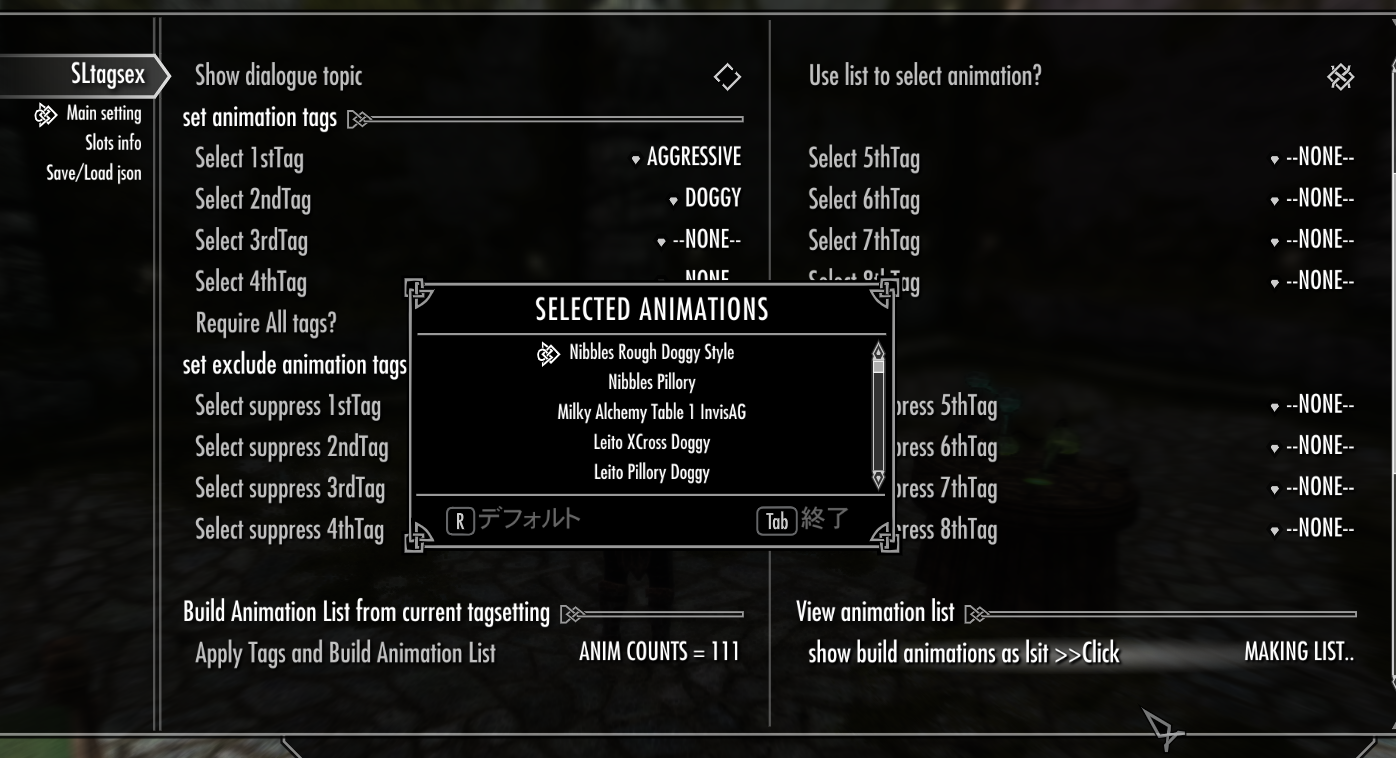
If you already have some tags you'd like to use for Prostitution, feel free to set them here and build your own animation list.
Once your Temp Slot animation list is ready, close Tag and Sex menu , let's move on Step 1!
----------------------------------------------------------------------------
- Step 1 – Open the TS Prostitution MCM
If the MOD has been installed and registered correctly, you should see a page labeled TS Prostitution in the MCM.
Open fist page Main setting.
For this Quick Start, we'll only use a few basic options. You don't need to change or understand the other settings yet.
First, turn Show prostitution Dialogs? ON. This option must be enabled to use the dialogues added by TS Prostitution.
- Use list to select animation?
Turn this option ON for this tutorial. This allows you to choose the animation you want from a list.
- Show all animation (>125) as list page?
If your animation list contains more than 125 animations, you can enable this option to browse all animations matching your tags using multiple list pages. However, displaying the list may take longer.This works the same way as the corresponding option in Tag and Sex, so choose whichever method you prefer.If your animation list contains 125 animations or fewer, there is no need to enable this option.
---First Sex Settings---
From here, we'll set up the options for the first animation.
- Use Temp slot for 1st sex
Turn this option ON for this tutorial.When enabled, the other First Sex slot settings are overridden, and the animation list currently built in the Temp Slot will be used.
- Swap actor role
This option is up to you. Turn it ON if you want to swap the roles of the two actors.
- Use tag setting to search animation
This option is also up to you. It works the same way as the corresponding option in Tag and Sex, so choose whichever setting you prefer. For this Quick Start, you don't need to change the other **First Sex** settings. With **Use Temp slot for 1st sex** enabled, we'll use the animation list you prepared in the Temp Slot.
If you're unsure about any of these settings, simply use the same settings shown in the screenshot below.
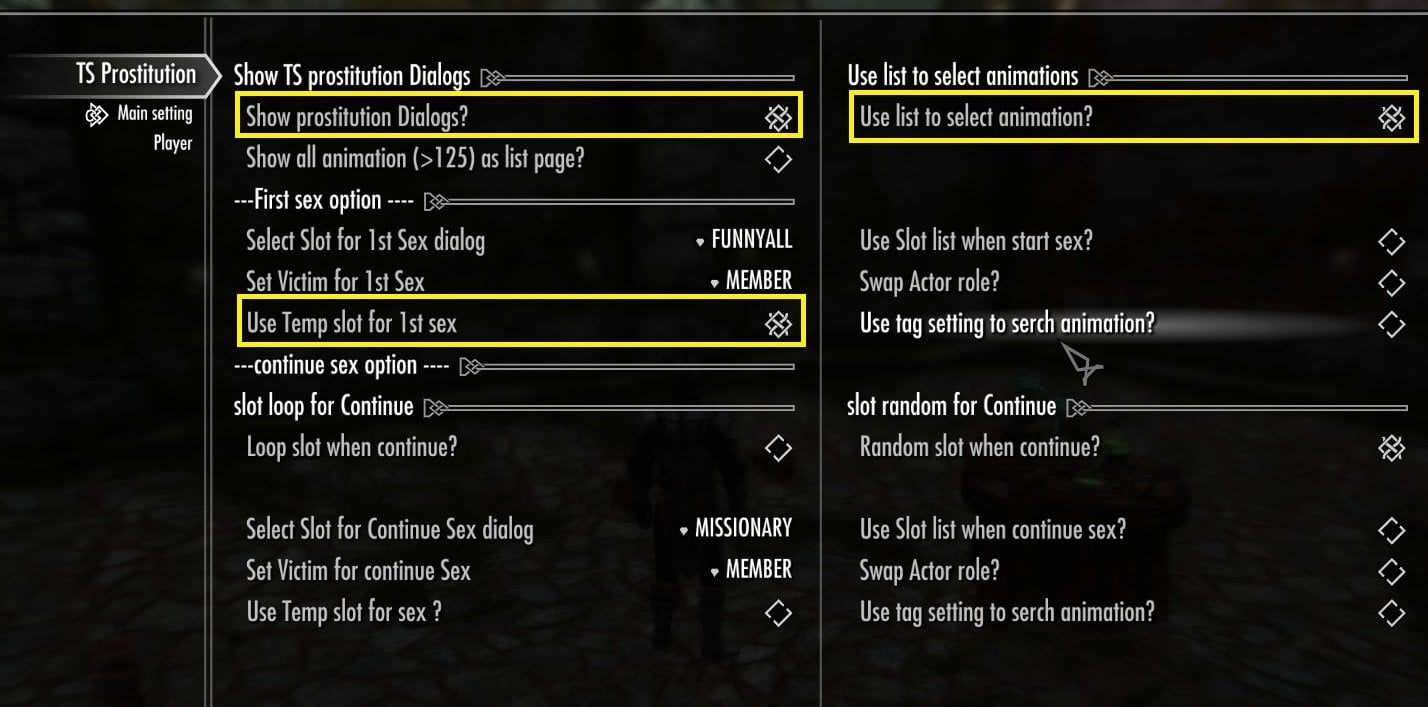
That's all the settings we need for this tutorial. Close the MCM for now. let's move on to the step 2!
----------------------------------------------------------------------------
- Step 2 – Choose Your Actors: (Worker and Guest)
In TS Prostitution, the player chooses two actors: a Worker (Member) and a Customer(Guest). You can choose any NPC you like.
However, I cannot guarantee that all NPC will work safely with this MOD.
I recommend using a dedicated test save. Then, assign the roles and check how the packages and factions behave on your setup.
### Set a Worker (Member) ###
let's assign an NPC as the **Worker (Member)**. You must assign a **Worker** before you can choose a **Guest**, so always start by selecting your Worker.
It's very simple. Choose any NPC you like, activate them, and use the prostitution start dialogue
Most dialogues added by this MOD begin with **(wif-pt)**, so they should be easy to recognize.
For this tutorial, I chose Ria from the Companions as my Worker. Because she was one of the first Companions to welcome me!
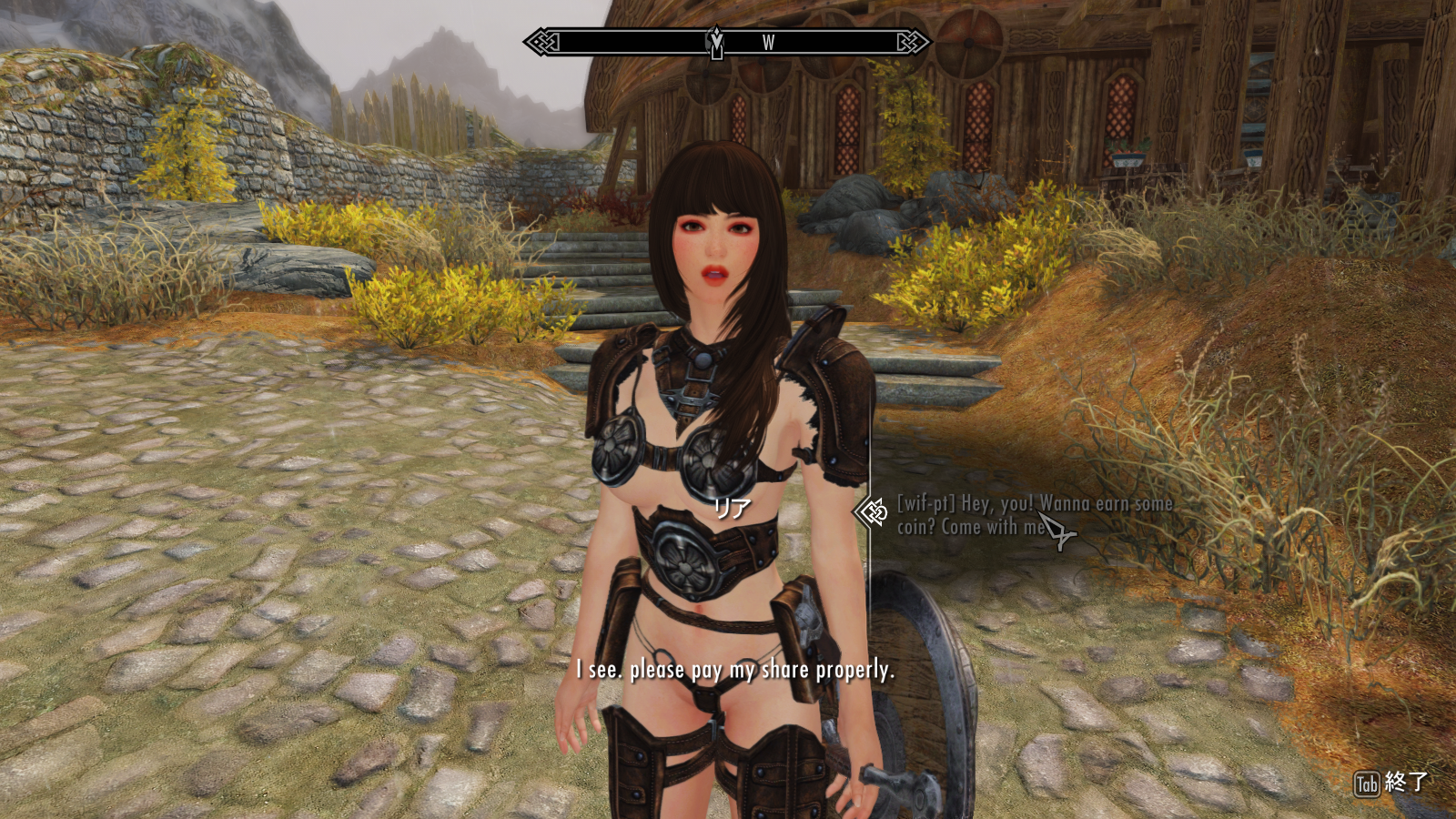
After assigning NPC as your **Worker (Member)**, she will follow you when you move around.
If she doesn't start following immediately, don't worry. Just move to another cell, and in most cases, she should catch up with you.
### Set a Customer (Guest) ###
You can also choose to participate yourself, but for this tutorial, we're going to start an **NPC vs. NPC** animation. So, let's find a **Guest for Worker**!
Assigning a Guest is just as easy. Activate the NPC and select the appropriate **(wif-pt)** dialogue.
I thought about choosing another member of the Companions, but I didn't want to cause any trouble between them. So, I decided to invite **Farengar**, who always seems to have plenty of free time!
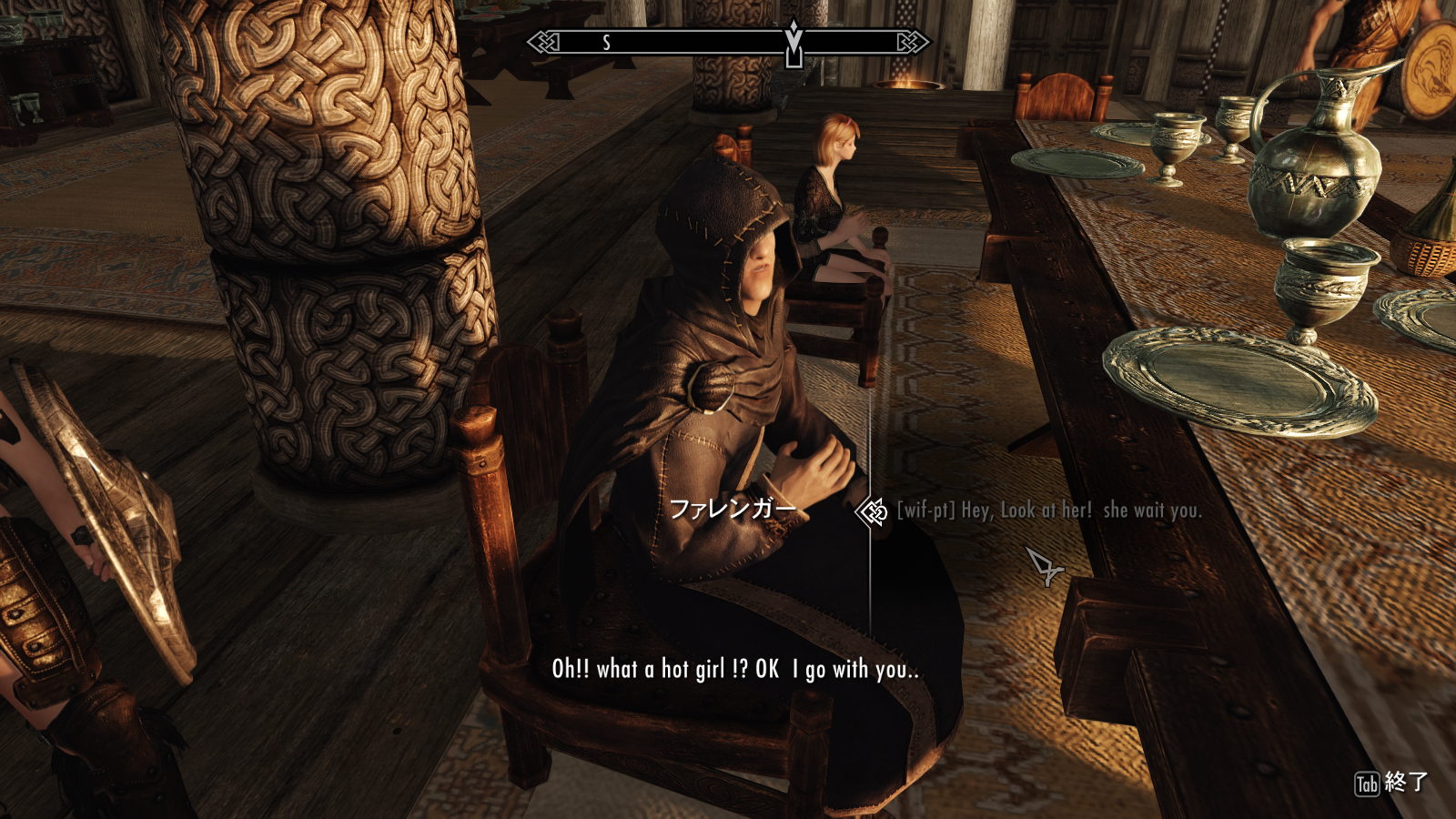
After assigning an NPC as your **Guest**, they will also follow you when you move around.
If they don't start following immediately, just keep moving or try changing cells.
**BTW:** Farengar followed me without any trouble, but some NPCs have strongly controlled AI behavior and may refuse to leave their usual location even after being assigned as a Guest.
Heimskr, for example, doesn't want to leave his usual spot. You can still use the Magic to move such an NPC to you or start an animation with them right there. However, if you notice that a Guest refuses to follow you, I recommend simply removing them from the Guest role through the dialogue like this.
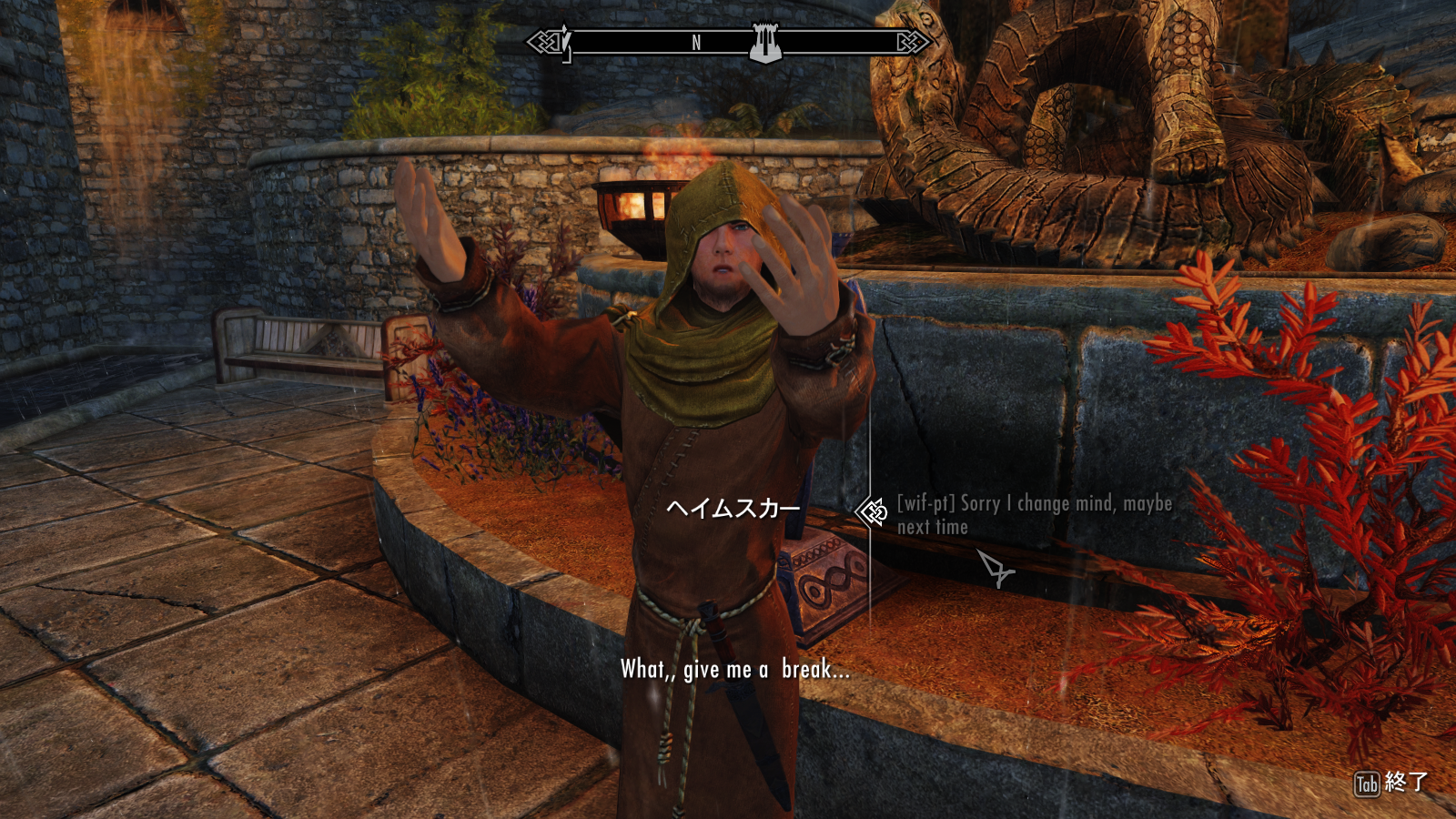
----------------------------------------------------
- Step 3 – Choose a Location
Now that you've chosen your actors **Worker** and **Guest**, find a place where you want to start the animation.
Once you've found a good spot, you can use the TS Prostitution auto add **Shout magic** "wifComeHere" to call both actors closer to you.
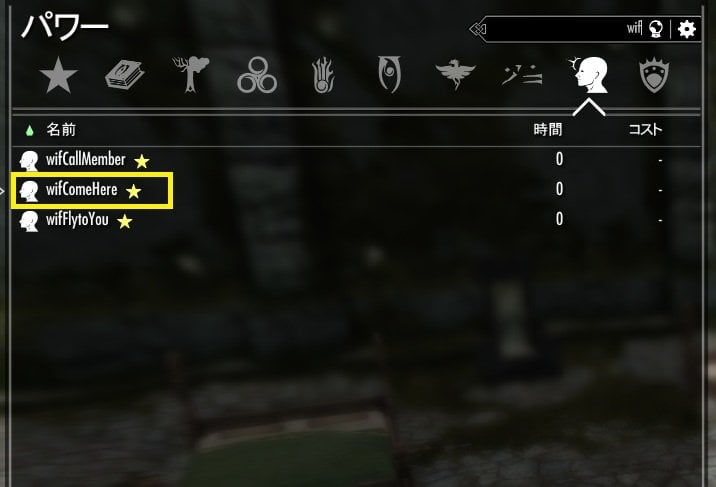
This Shout is very useful because it can bring your current "Worker (Member) and Guest" to you even if they are in a different cell.
For example, I used custom magic to travel to one of my custom test cells. Since this cell isn't connected to anywhere else, Ria and Farengar couldn't follow me there normally. So, I used **wifComeHere** to call them to me. As you can see, both of them arrived right next to me!
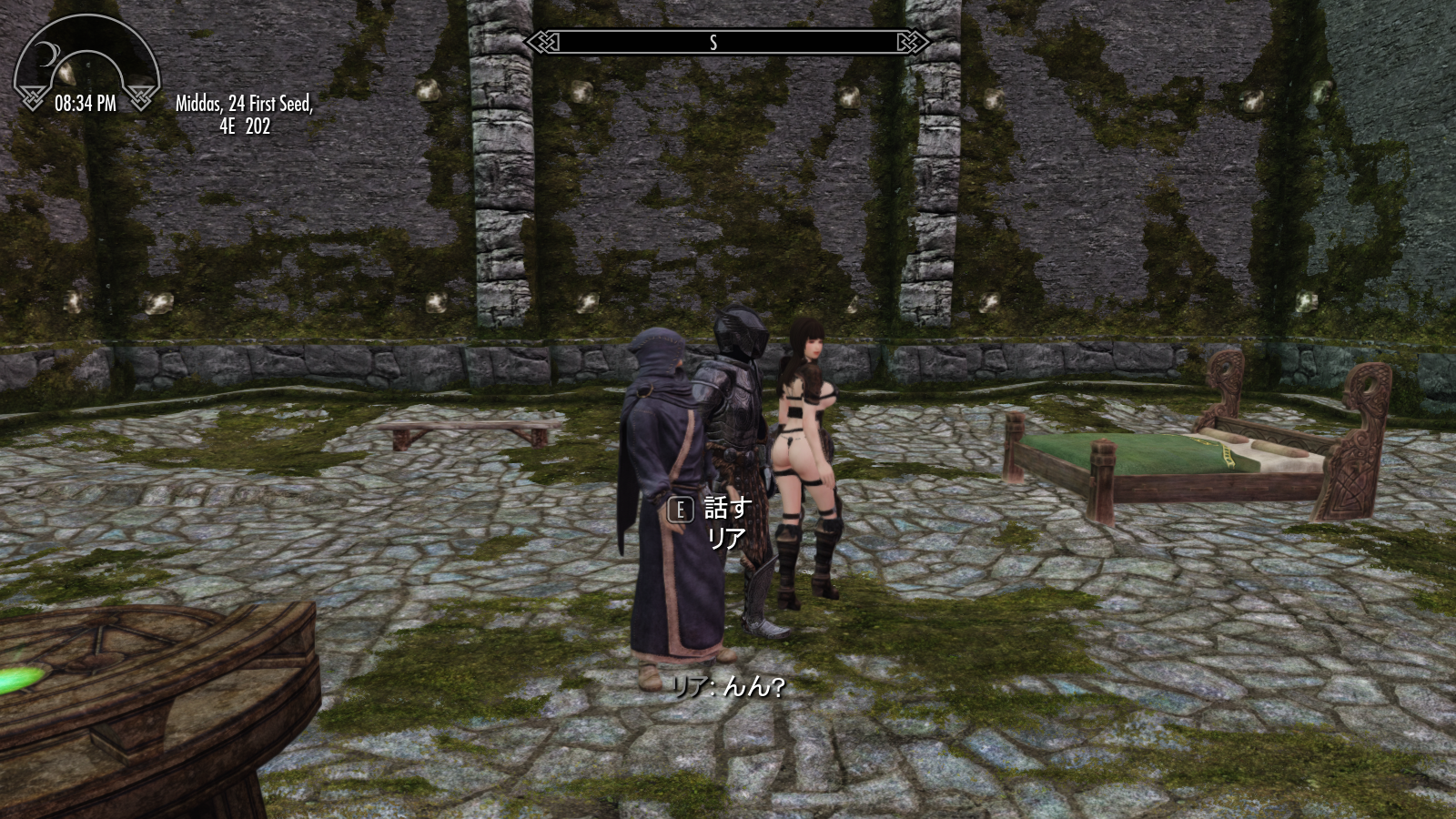
----------------------------------------------------
- Step 4 – Start Prostitution
Now we're ready to start! At the location you've chosen, activate the **Guest** and select the **(wif-pt)** dialogue for starting Prostitution. Select the dialogue shown in the screenshot below.
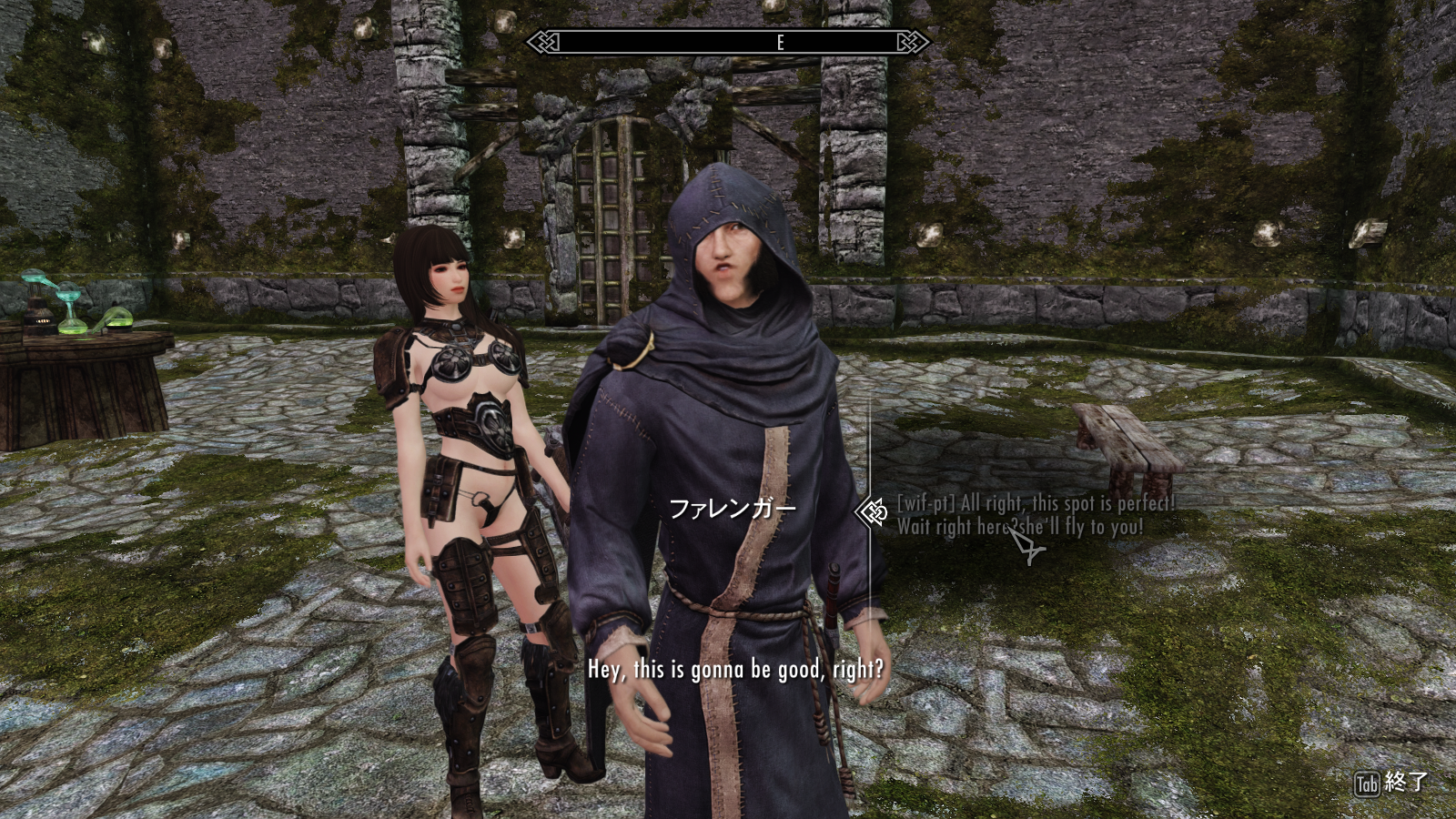
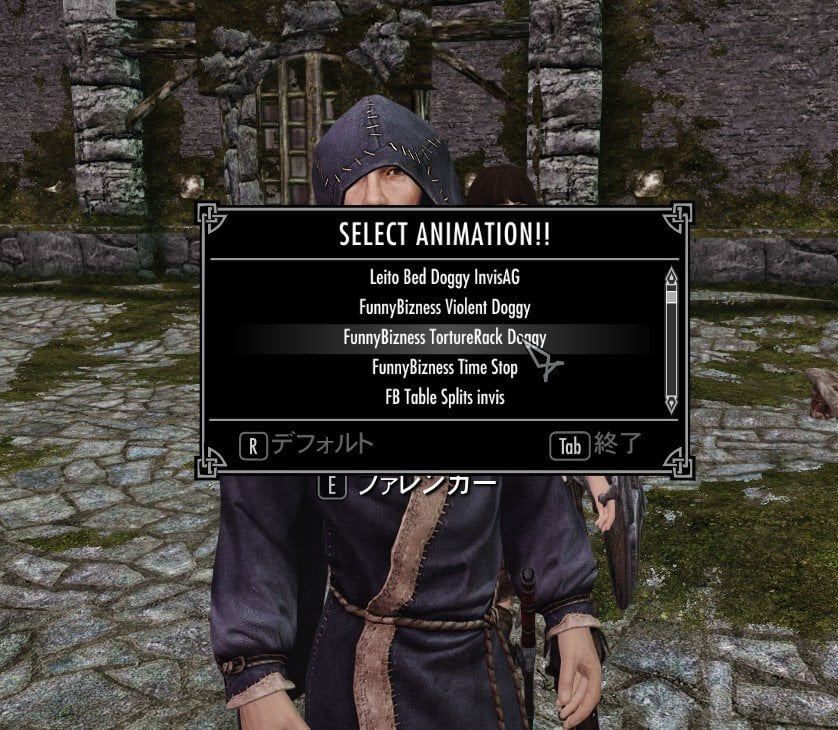
The animation list currently built in your Tag and Sex **Temp Slot** will now appear, just as we set up in the MCM.
Choose the animation you want to use from the list!!
After you select an animation, the **Worker** will first teleport near the **Guest**. The animation will then start.
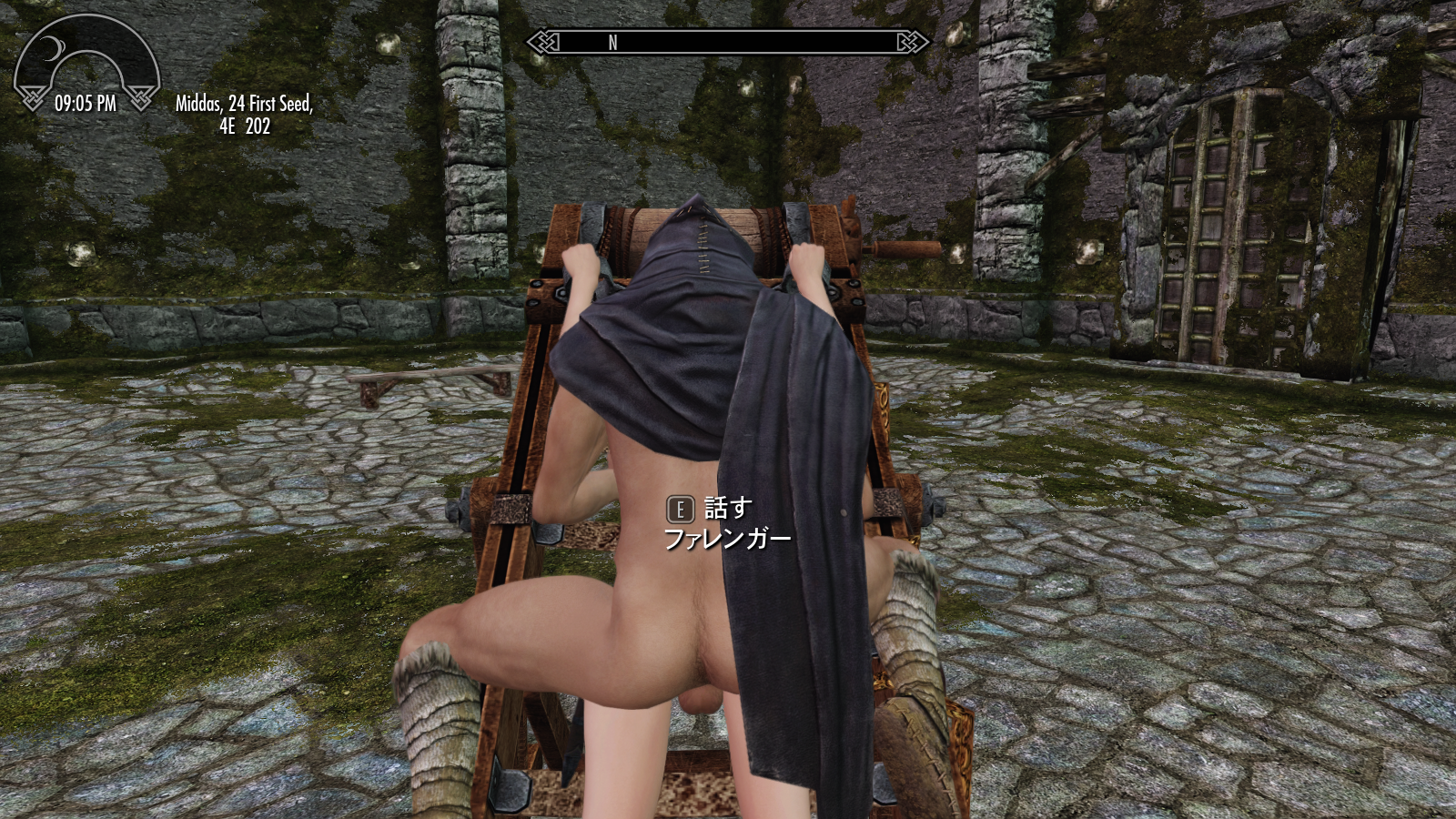
You've successfully started your first NPC vs. NPC animation with TS Prostitution
- Step 5 – Remove the Prostitution Roles
Now that the animation is finished, let's remove the **Worker** and **Guest** roles and clean up the actors. There are several ways to remove these roles, but for this Quick Start, we'll use the **MCM** to clean up both actors at the same time.
Open the **TS Prostitution MCM → 1st page Main setting** page and scroll down. Just below the **Continue Sex option** section, you'll find the **Clean up Member and Customer** section.
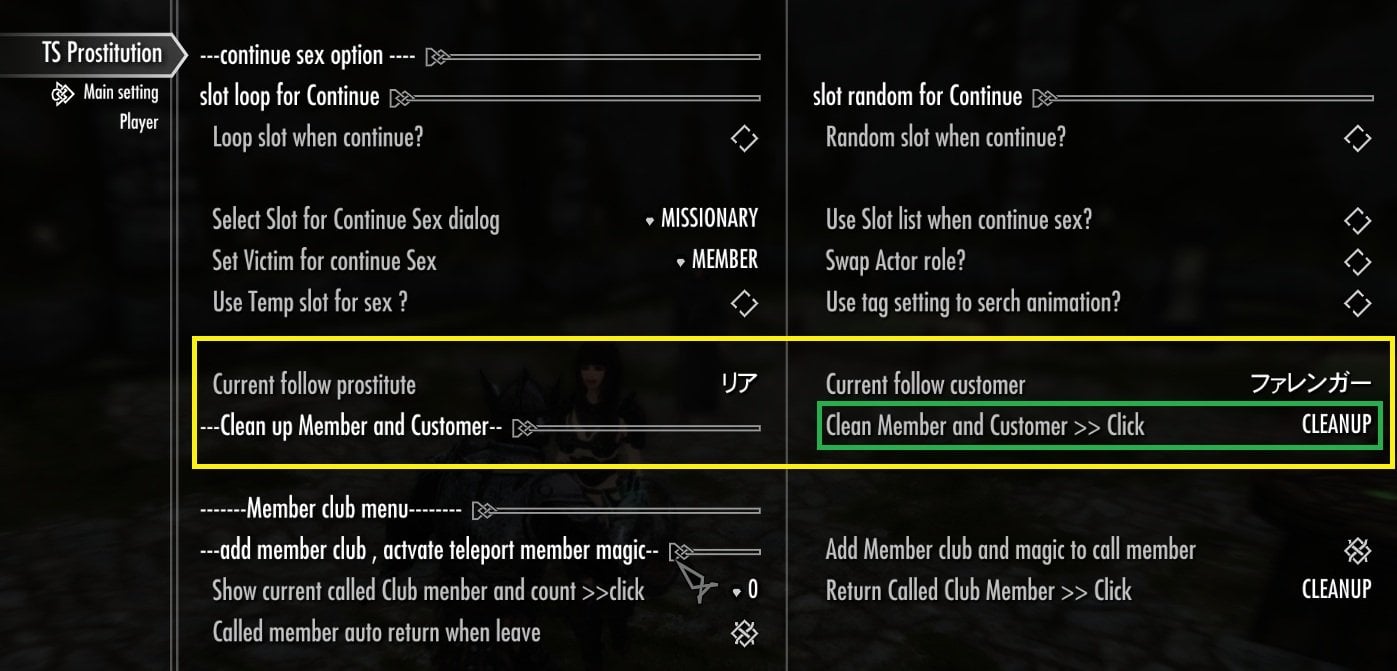
You can check your currently assigned **Worker** and **Guest** here. For this tutorial, you should see **Ria** and **Farengar**. Click **Clean Member and Customer >> Click** to remove both roles at the same time.
After clicking **CLEANUP**, a message box will ask you to close the MCM and wait.
Close the MCM and return to the game. The cleanup process should begin immediately. Factions and the packages added by TS Prostitution will be removed from both actors, and they should be teleported back to the locations where you originally assigned their roles.
This isn't a very roleplay-friendly way to end their jobs, but it's very useful when one or both actors are no longer nearby and you simply want to clean up their roles.You should see notifications as the cleanup is completed. Once both actors have returned, go back to their original locations and make sure they have returned to their normal behavior.
That's all for this Quick Start tutorial 1.
To be continued...
-----------------------------------
Quick start 2 - Club Members and 3 Shouts
In this tutorial, we'll use the simple NPC management tools added by TS Prostitution, together with the three Shouts that are added automatically by the MOD.
We'll learn how to quickly assign and change actor roles, and we'll also look at a few different ways to manage your actors.
First, let's register some NPCs as your secret Club Members!
- Step 1 – Enable Members Club
First, open the **TS Prostitution MCM** scroll down, find the **Members Club** options.
Before you enable it, don't worry—Members Club is simply a lightweight NPC management feature. Enabling it won't automatically assign Prostitution roles to anyone or force your registered NPCs to do anything. It simply creates a list where you can register NPCs for easy access later. Turn **Members Club** ON.
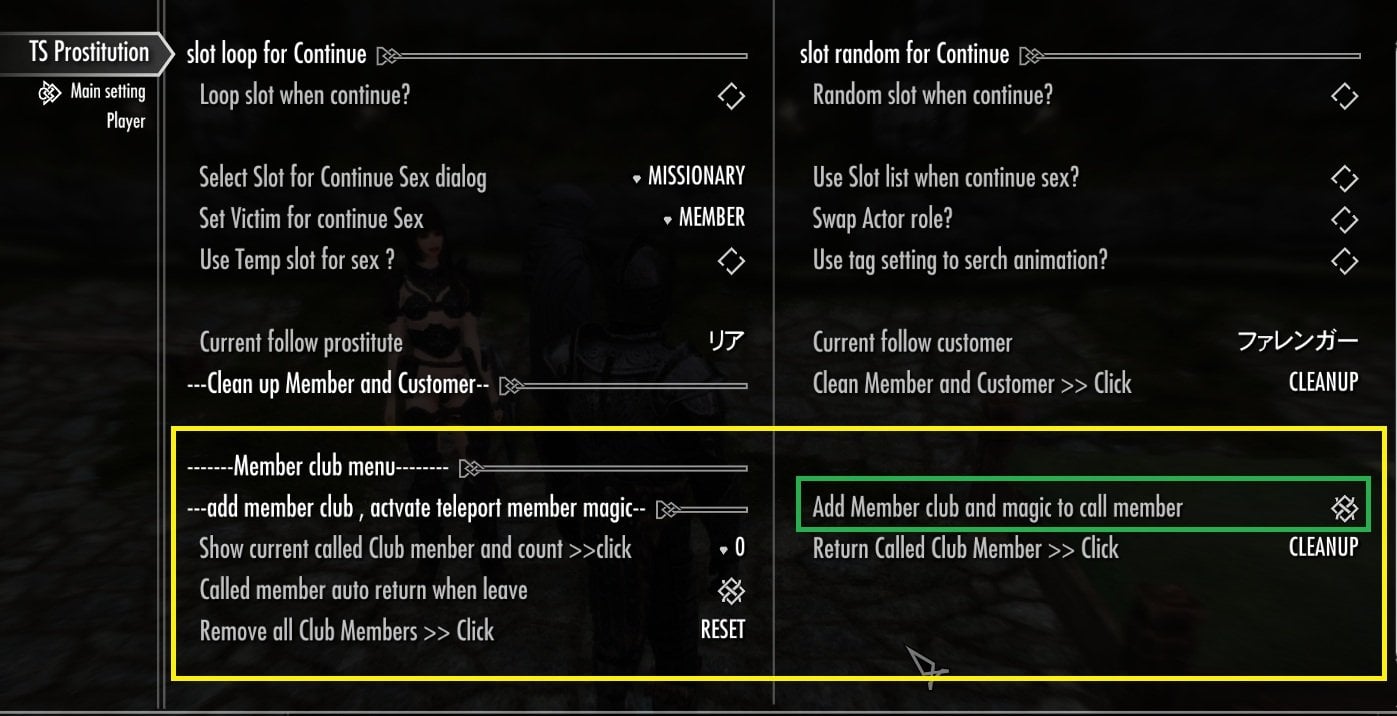
Members Club is a simple list of NPCs you want to keep available for later use. Club Members can be used as candidates when choosing actors for Prostitution, as spectators, or as possible actors for the 3P features that will be explained later.
You don't have to use every Club Member for Prostitution. Some of the Shouts and management tools are useful on their own, so feel free to register any NPCs you're interested in.
-------------------------------------------------------------
- Step 2 – Recruit Club Members
Now it's time to recruit some members for your secret club! You can choose any NPCs you like.
For this tutorial, let's recruit 4 NPCs and see how the Members Club works.
Recruiting a Club Member works just like choosing a Worker or Guest. Simply activate the NPC and select the appropriate dialogue.
Of course, NPCs won't refuse your invitation! Almost any NPC can be registered as a Club Member.
Don't worry! — simply registering an NPC does not add or change any AI packages. At this point, the MOD is only adding the NPC to your Members Club list.
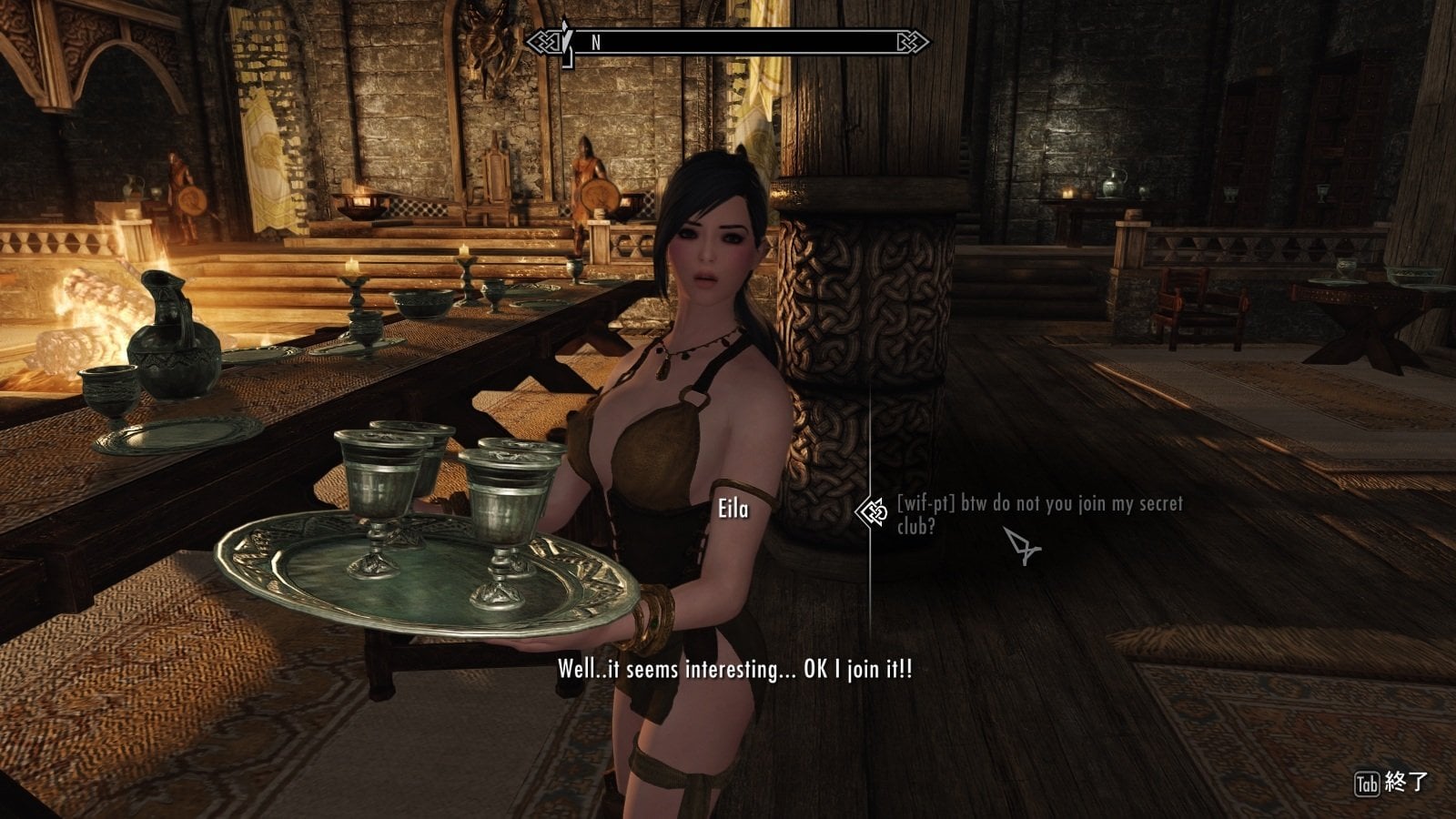
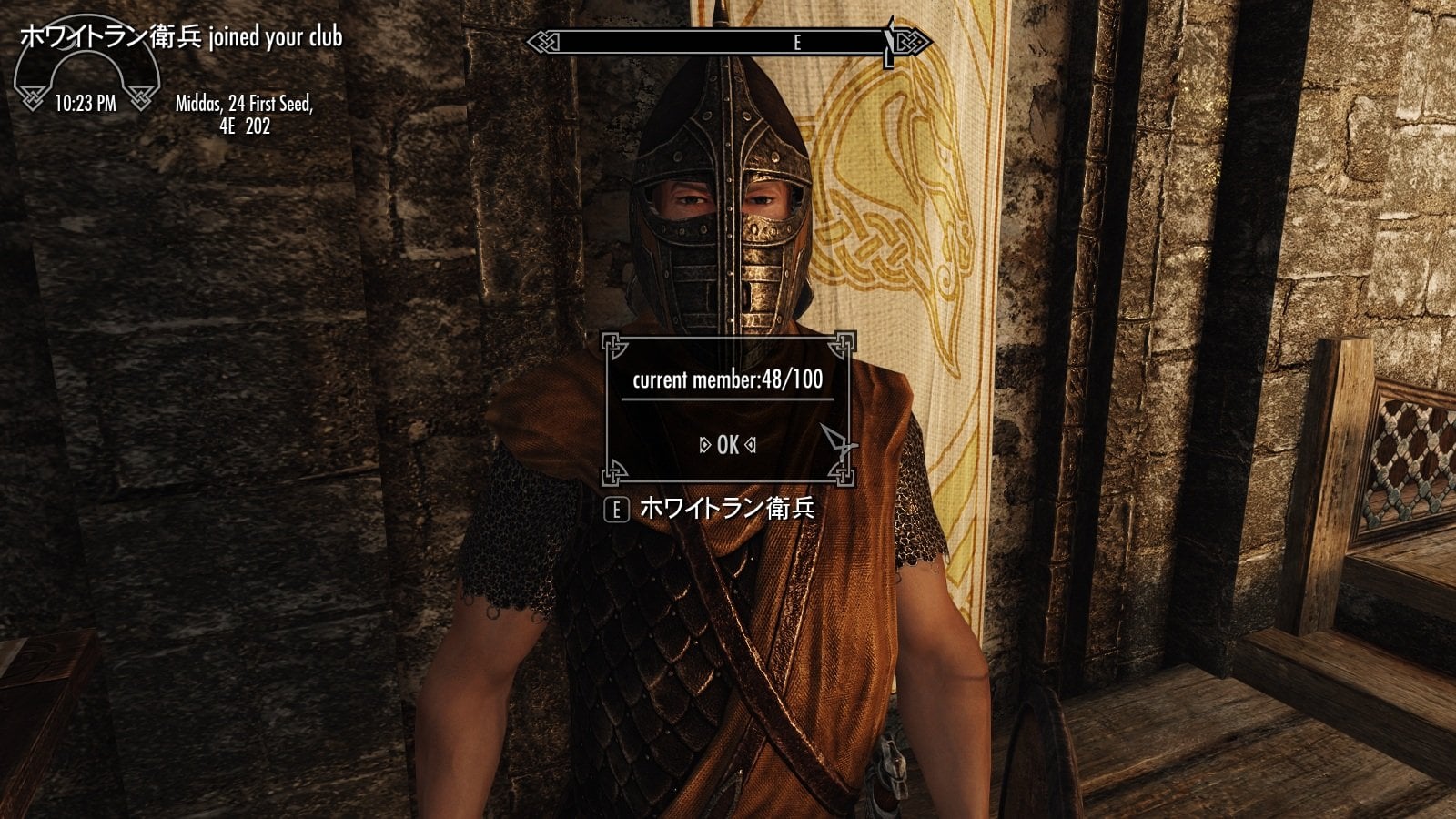
When an NPC joins your Club, you'll see a notification, along with the current number of registered members, as shown in the screenshot above.
In the current version, you can register up to 100 Club Members. If you try to recruit a 101st member, you'll be given the option to remove someone from the Club—but we don't need to worry about that yet.
For now, think about which combinations of actors you might want to use for animations, and recruit 4 NPCs to your Club!
----------------------------------------------------
- Step 3 – Call Your Club Members
First, move to any cell you like. You may want to choose a good place for starting SexLab animations, since we'll use Called Club Members again later!
Now, we'll use one of the Shouts automatically added by this MOD to call our Club Members.
In SKYUI → Magic → Shouts, filter the list by "wif". This should show all three Shouts added by this MOD.
For now, select wifCallMember, the Shout used to call your Club Members.
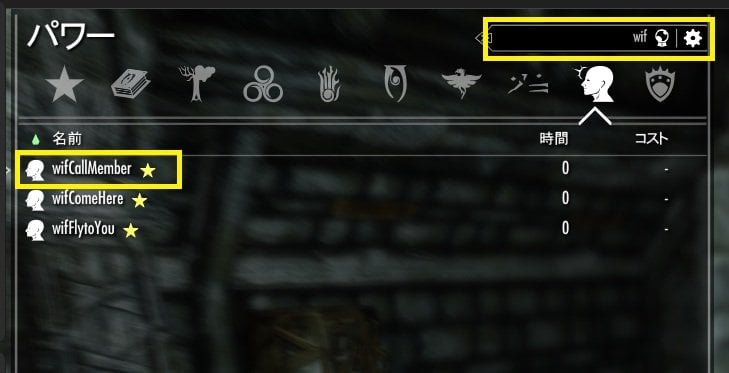
Now, use wifCallMember. I assume you already know how to use a Shout, so we'll skip that part!
When you use the Shout, a list of your available Club Members will appear. For now, select one of the four NPCs you registered earlier.
The selected NPC will be called to your location, now she become a Called Member, and start following you.
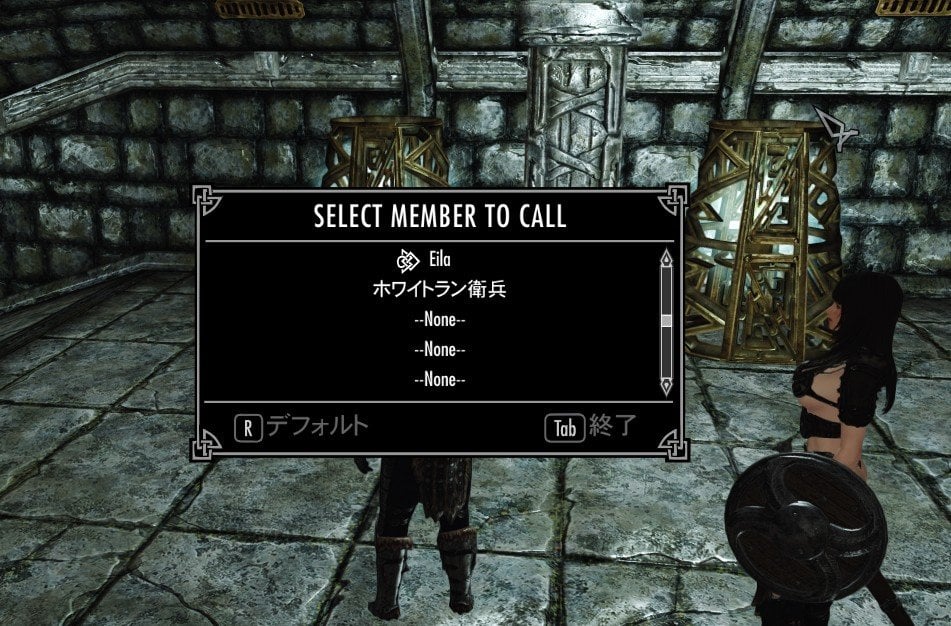
-------------------------------------------------------------
- A Few Rules for wifCallMember
wifCallMember is a very simple Shout, but there are a few things you should know.
1. NPCs who are currently assigned as a Worker or Guest cannot be called with this Shout.
If you try to call one of them, a message will appear instead.
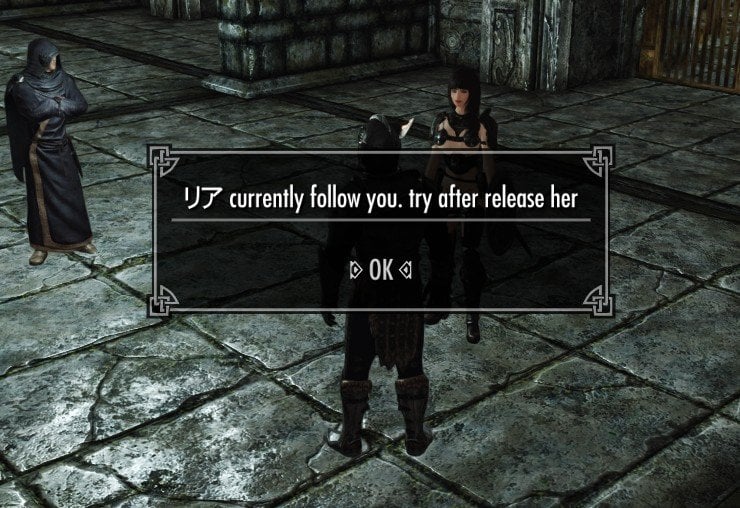
2. Sometimes a Called Member may not start following you immediately.
They may even try to leave and return to their normal location. If this happens, use wifComeHere to gather them again. In most cases, they should then start following you normally.
Remember the difference between these two Shouts:
wifCallMember calls one Club Member of your choice and makes them a Called Member.
wifComeHere gathers your current Called Members, Worker, and Guest around the PC.
------------------------------
Now, use wifCallMember to call the 4 Club Members you registered earlier, one by one. Make sure all four of them are now Called Members and following you.
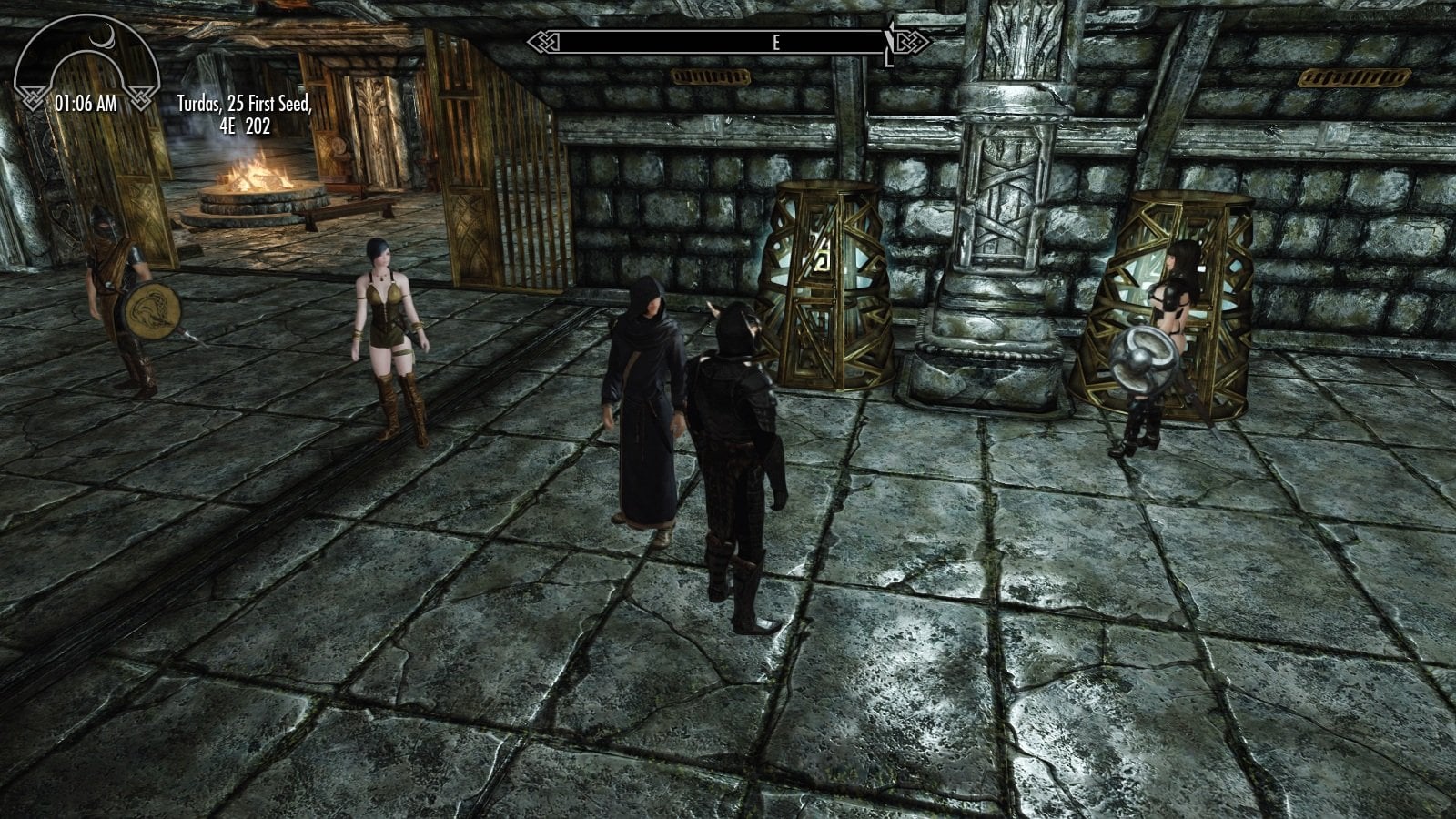
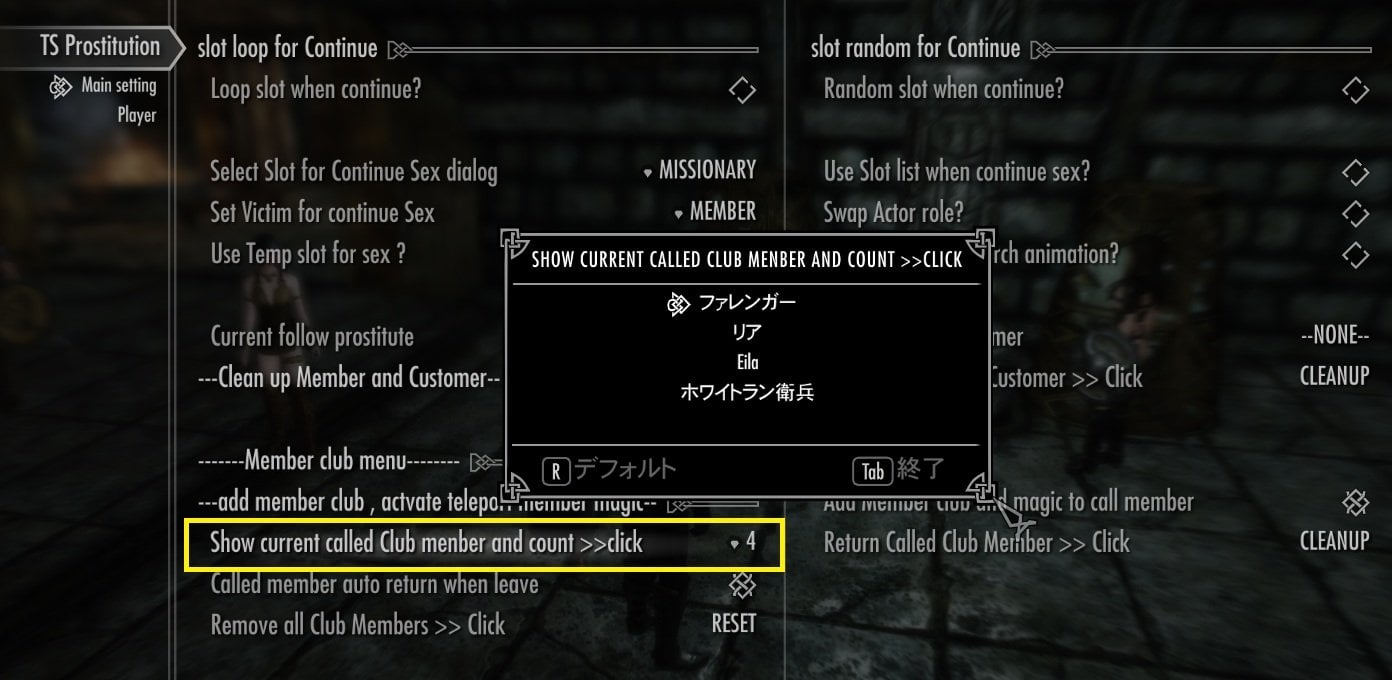
You can also check your current Called Members from the MCM.
Click “Show current called Club member and count >> click”
to see how many members are currently called and who they are.
----------------------------------------
-Step 4 – Review: Assign Roles and Start an Animation
Now that you've called all four Club Members, let's review how to assign a Worker and Guest and start an animation.
first, let's get everyone together!
Use wifComeHere to gather all four Called Members around you.
As we learned earlier, wifComeHere gathers your current Called Members, Worker, and Guest around the Player Character, even if they are in another cell.
Now that everyone is here, choose one of them as your Worker and another as your Guest, just as you did in Quick Start 1.
If you're already familiar with SL Tag and Sex, you probably understand most of the MCM options by now, so feel free to change the settings to start SL animation however you like.
If you're not sure, simply use the same settings from Quick Start 1 and follow the same steps as before.
- Example Settings
Here's one example of how you can set it up.
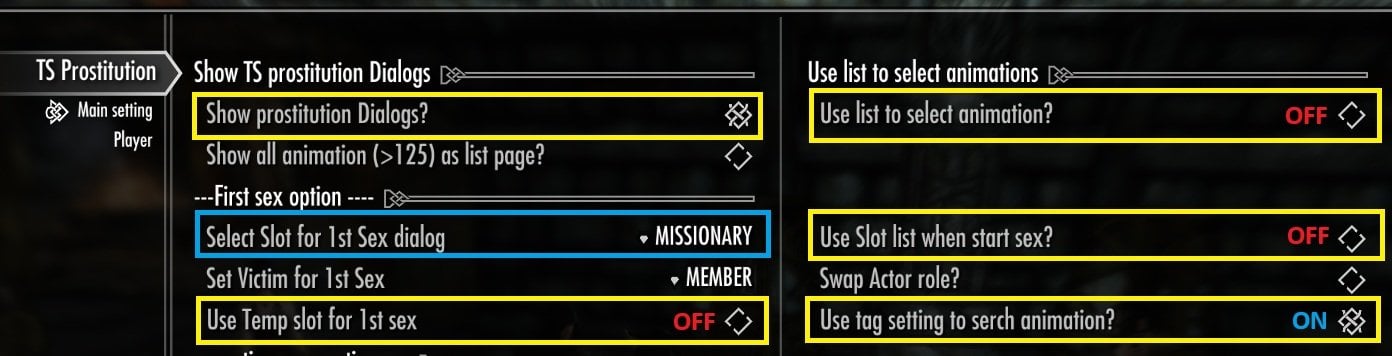
In this example, MISSIONARY is selected as the slot for the first animation.
(Of course, you'll need to save a Slot in SL Tag and Sex first to use this setting. ^^;)
Use Temp slot for 1st sex is OFF,
so the Temp Slot will not override the selected MISSIONARY slot.
Use Slot list when start sex? is OFF,
so the game will not display your saved Slot list and ask you to choose a different slot when the scene starts.
Use tag setting to search animation? is ON,
so TS Prostitution uses the tag settings saved in the MISSIONARY slot to perform a new animation search.
Use list to select animation? is OFF,
so no animation selection list will appear. An animation found by the search will be selected and started automatically.
In short: MISSIONARY slot saved tags → new search → automatic animation selection → start!
Please check the SL Tag and Sex Guide as well, and try different combinations of settings to find the setup you like!
-------------------------------------------------
Now we're ready!
Just like before, find a suitable location, activate the Guest, and select the dialogue to start Prostitution.
Depending on your MCM settings, an animation list may appear for you to choose from, or the animation may start automatically.
About my setting it auto serch and choolse one SL animation, with Missionary slot tags
-Stop the Animation
You can wait for the animation to finish normally, or stop it using SexLab or another MOD if you prefer.
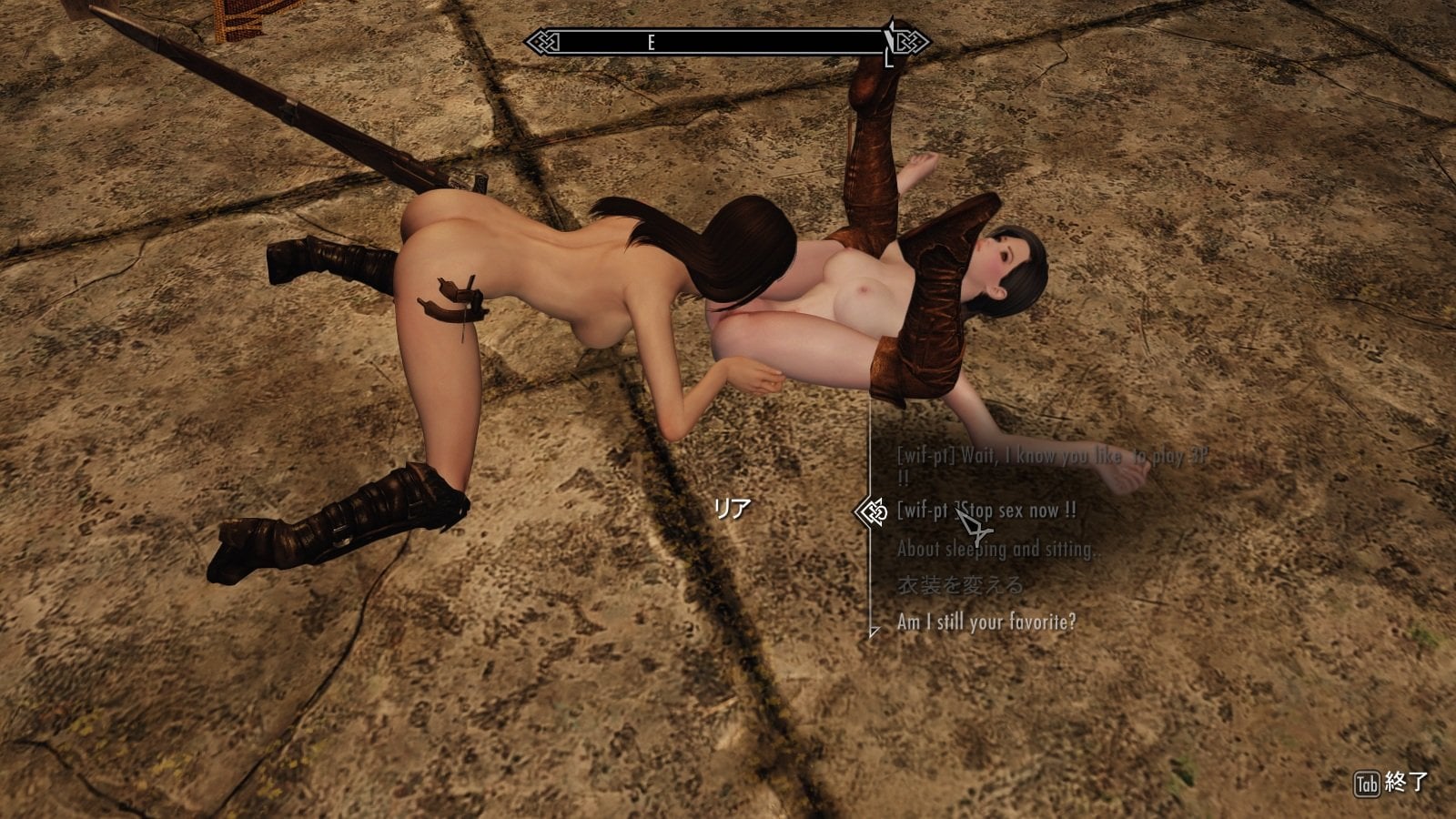
TS Prostitution also has its own dialogue specifically for stopping NPC vs. NPC SL animation.
Activate either actor and select “Stop sex now!”
This will forcibly stop the current animation. It's a little forceful... sorry! ^^;
-------------------------------------------
- Step 5 – Removing and Changing Roles
In Quick Start 1, we used the MCM to remove both Prostitution roles at the same time.
This time, we'll learn how to remove or change each role individually using dialogue.
You can change only the Worker, only the Guest, or remove either role without starting an animation at all.
In either case, the basic procedure is simple. Activate the NPC whose role you want to end, then select the appropriate cancel / end dialogue.
Both the Worker and Guest have dialogues for canceling the job before any animation takes place, as well as dialogues for ending the job normally after they have already participated in an animation.
As a small extra feature, the amount of gold gained or paid by the Player may change depending on how many Prostitution animations have taken place. However, the basic role-removal process is the same.
In this tutorial, they should have already completed one animation, so let's start by ending the Guest's role.
Activate your Guest and select the dialogue to finish Guest's role.
[wif-pt] It's time, you, satisfied?
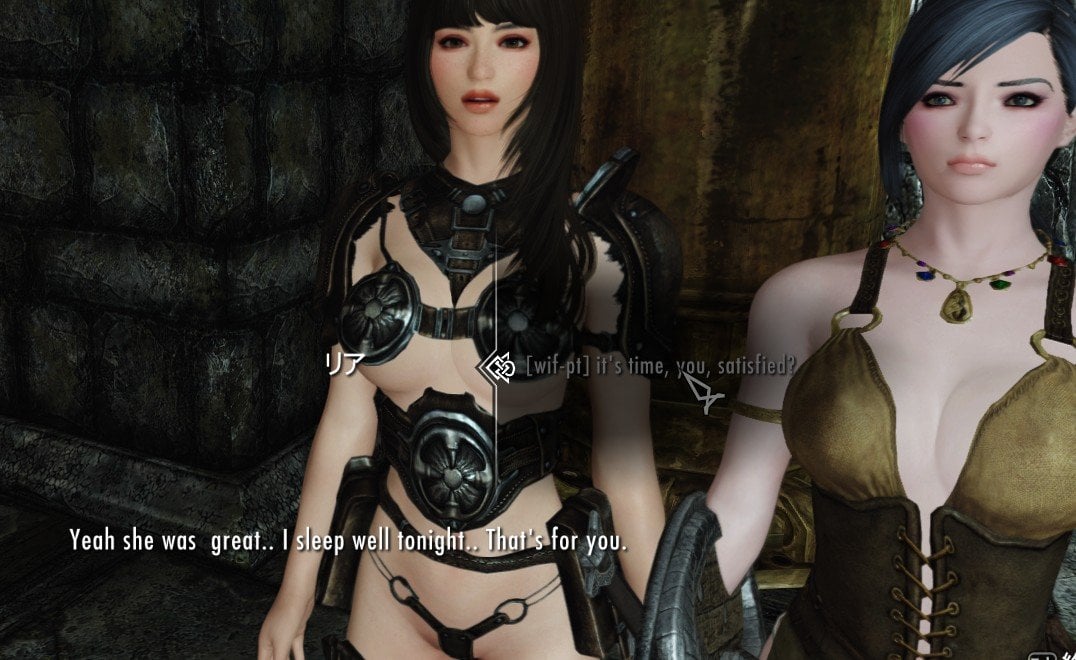
Then you may see this option window, (cancel / return self / auto return)
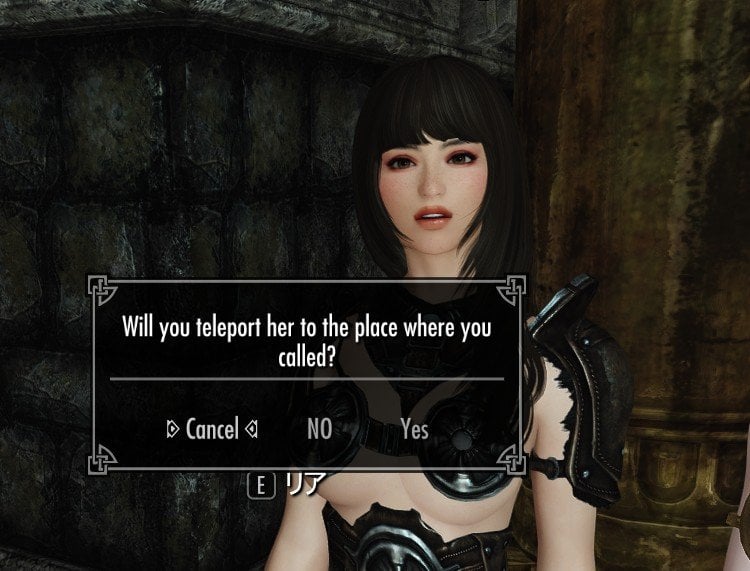
Cancel = Guest cancel to finish role ,then continue the guest role.
No = Guest will return by themselfs
Yes / Teleport = The Guest will be teleported back to the location where they were recruited, if a guest return marker was saved.
For now, simply click “Yes” and see what happens!
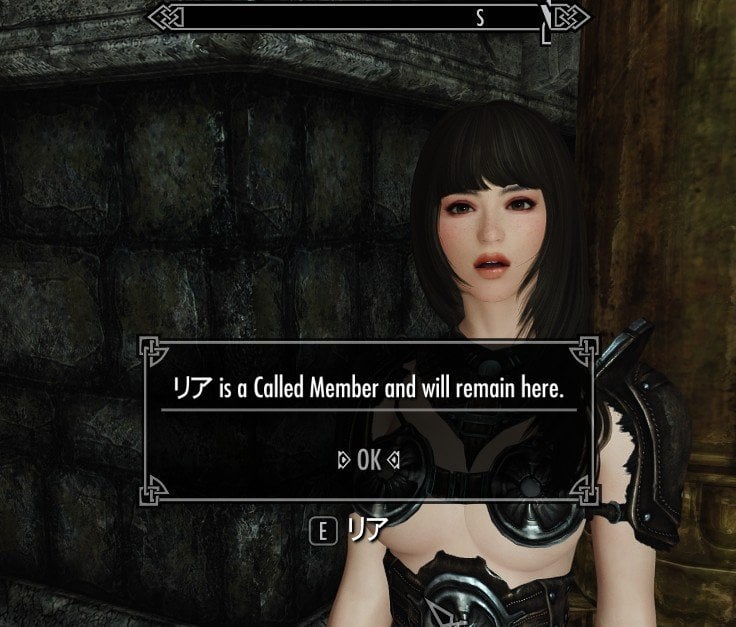
As the message explains, Ria was already a Called Member when she was assigned the Guest role.
Because she already had a ”Called Member marker memo”, the MOD did not create a separate Guest marker memo for her. So when her Guest role ends, she is not teleported back. Instead, she simply returns to being a Called Member and remains here.
However, if your Guest was not already a Called Member—in other words, the NPC was not called using the wifCallMember Shout—the MOD will normally create a Guest marker memo when you assign the Guest role through dialogue.
In that case, choosing the teleport return option = YES, will send the NPC back to the location saved in their Guest marker memo.
In practice, you don't really need to worry about these marker memos while playing.
The MOD will handle the appropriate return behavior when an NPC's role ends from dialogue and MCM menu.
If you prefer not to use teleportation, you can choose “No” The NPC will be released from the MOD's role package and left to their normal AI behavior.
In most cases, they should eventually follow their normal schedule. However, I don't particularly recommend this option, especially if the NPC is far away from their usual location. Skyrim's AI behavior can vary depending on the NPC and other MODs, so teleporting them back is generally the safer choice 
----------------------------------------
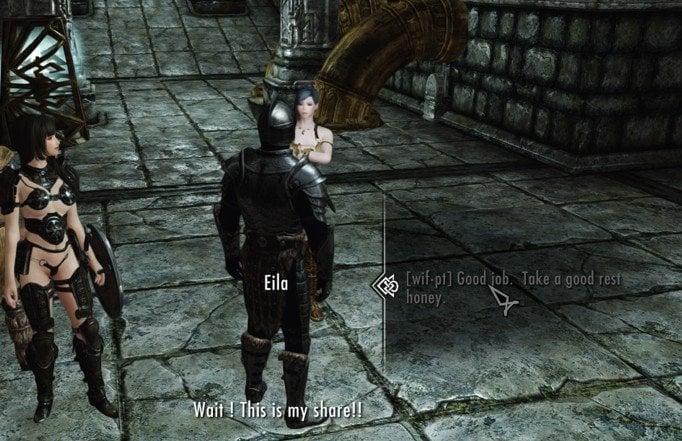
Now, you can try the same procedure with your Worker NPC using the finish job dialogue
[wif-pt] good job! take a good rest honey!
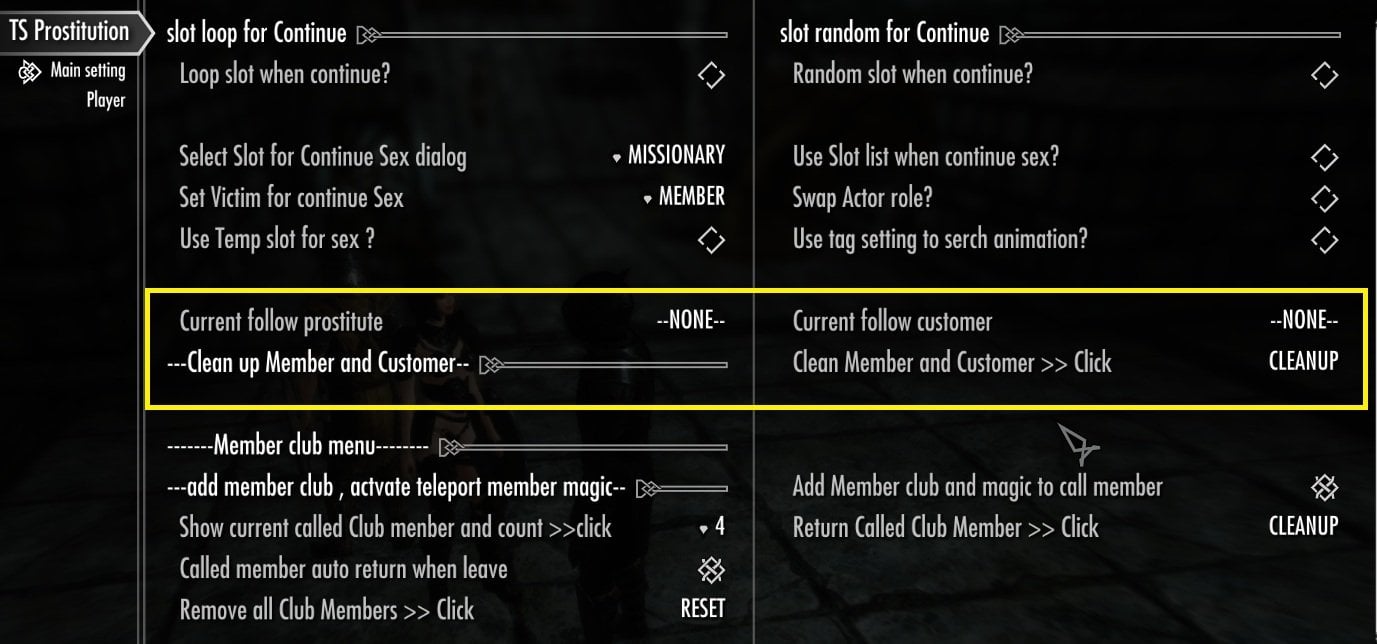
Now, let's check the MCM to make sure that both actors have actually been released from their Prostitution roles.
The Worker and Guest should now both be empty.
At this stage, the role system is very simple:
1.You must always assign one Worker first.
2.after that, you can assign one Guest.
3.You can remove the roles in either order.
4.You can replace only the Worker or only the Guest while keeping the other actor in their current role.
5. Only one Worker and one Guest can be assigned at a time.
Now that you know how to remove and change roles,
feel free to try different Worker and Guest combinations using the Called Members you currently have with you.
You can also experiment with different animation start settings in the MCM and see how they change the way your scenes begin.
-------------------------------------------------------
- Step 6 – Return called club members to Their Ordinary Lives
Once your secret meeting is over, let's make sure everyone gets back to where they belong!
There are two basic ways to return Called Members: you can dismiss them individually through dialogue,
or return them through the MCM.
First, let's return two Called Members individually using dialogue.
Activate a Called Member and select the appropriate dialogue to send them back.
[wif-pt] you may need to return soon...
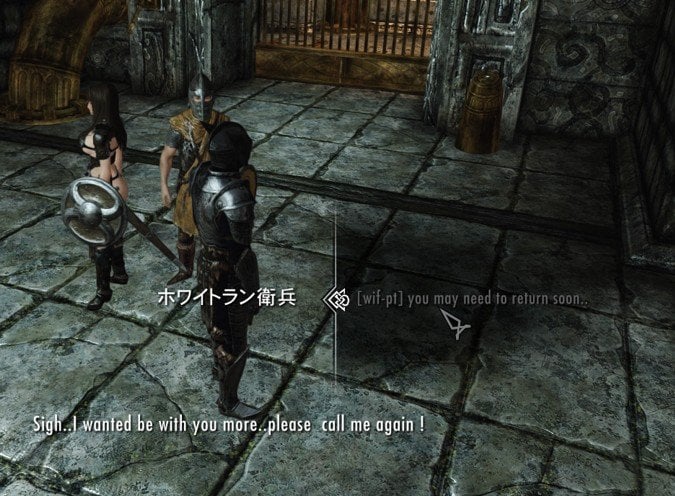
A familiar Return Options window will appear again. The choices work almost the same way as before.
Cancel will cancel the return and leave the NPC here as a Called Member.
For now, choose “Yes” and send them back!
Repeat the same process with one more Called Member.
Be careful not to select the other Members Club dialogue by mistake!
[wif-pt] I remove you from member club !
As the dialogue says, this option literally removes the NPC from your Members Club list. It does not simply dismiss a Called Member and send them back.
We'll use this option later when we actually want to remove an NPC from the Club.
-------------------------------------------------------------
After returning two Called Members through dialogue, open the MCM and check the Called Member list again.You should now see only two Called Members remaining
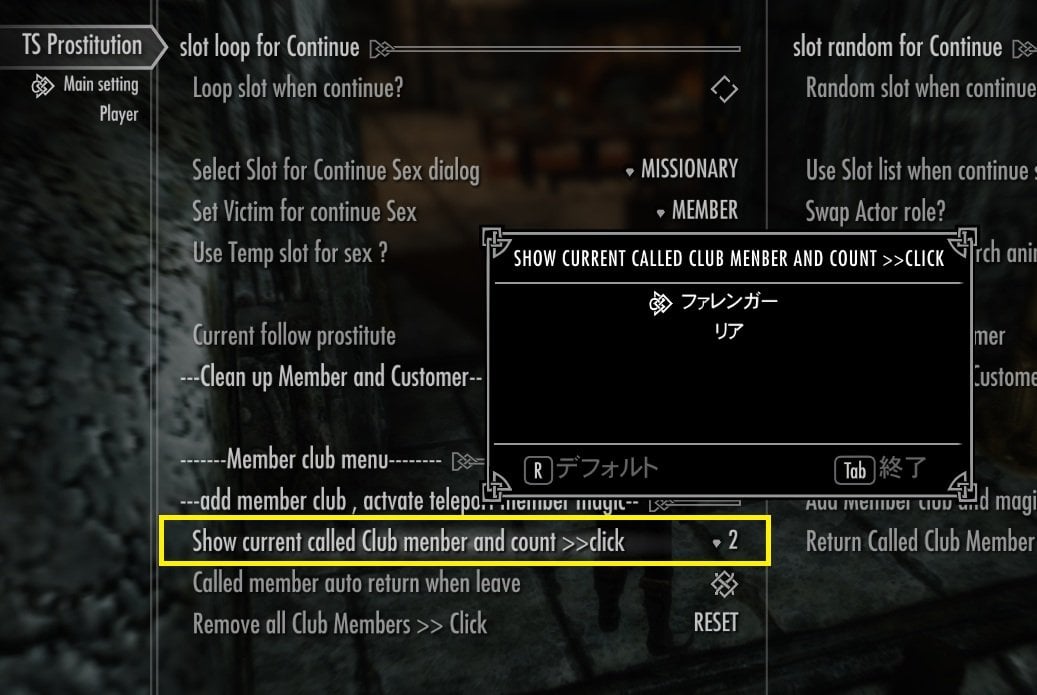
Now, let's return the remaining two Called Members using the MCM.
The MCM also lets you choose whether Called Members return on their own or are teleported back.
- Called member auto return when leave
I recommend keeping the option ON unless you have a specific reason not to.
Also, please don't change the other Members Club options unless you need them.
For example Remove all club member actually removes all NPC from your club member list so be careful!
Now click “Return Called Club Member >> Click” to send the remaining members back safely
Close the MCM and return to the game.
You should see a notification as the remaining Called Members are returned.
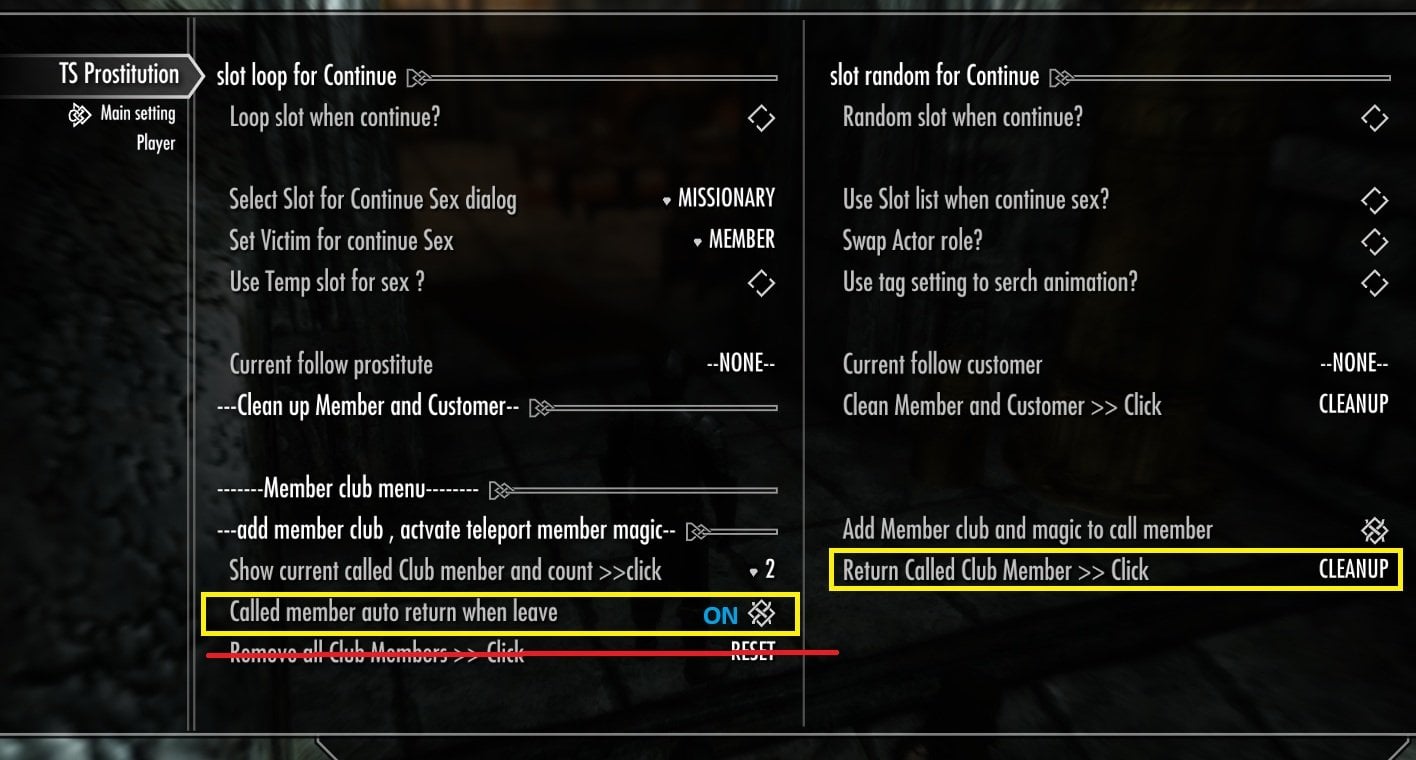
Step 7 – The Meeting Isn't Over Until Everyone Gets Home!
In Japan, teachers often say, “The school trip isn't over until you get home.”
It's such a familiar phrase that it's often used as a oyaji joke whenever an event is over.
Well, the same rule applies to our secret meeting—the meeting isn't over until everyone gets home!
So, let's go and make sure our Club Members really made it back safely.
For that, we have one last useful Shout: wifFlyToYou.
You may have already tried it, but it's a very convenient Shout.
Equip wifFlyToYou and use the Shout!
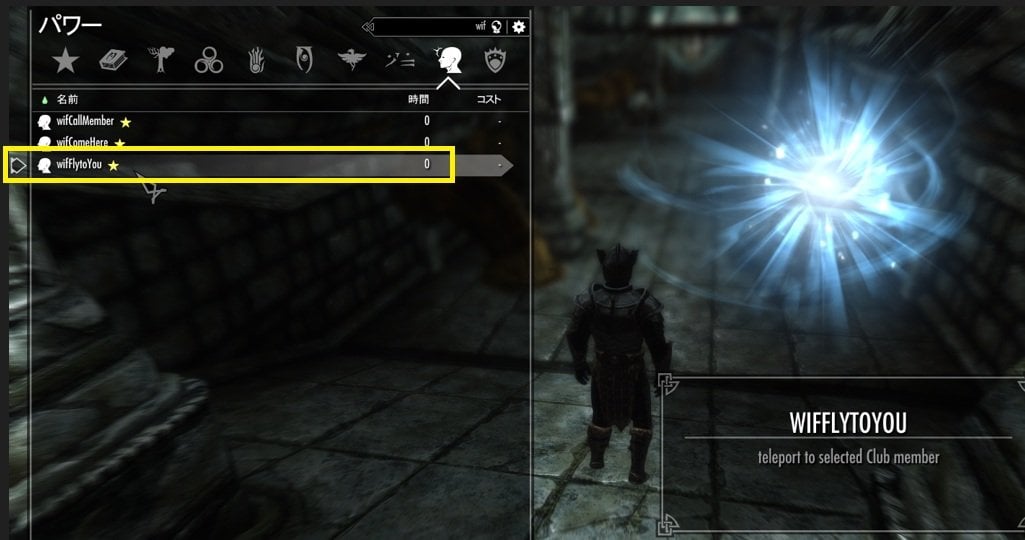
A list of your Club Members will appear. Simply select the NPC you want to visit, and you'll immediately be teleported near that NPC—usually very close to them!
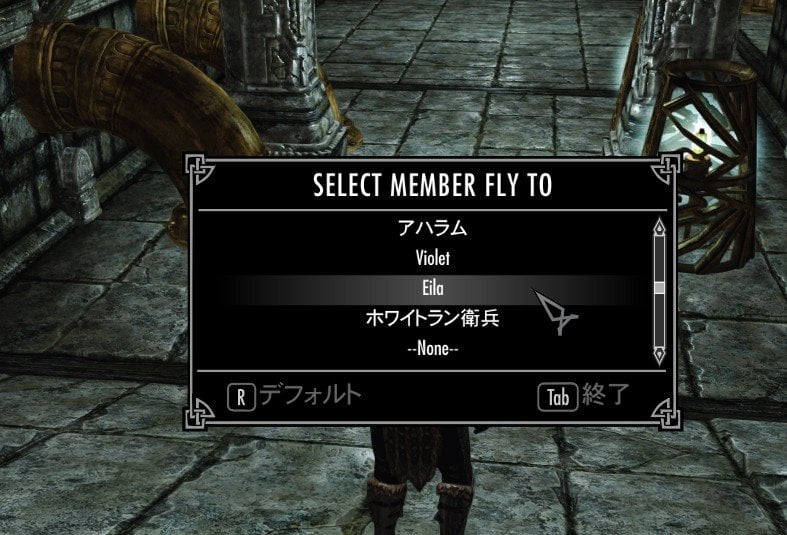
Now, let's choose one of the members we just sent back and see if they really made it home safely!
I chose to fly to Eila. (I've customized her Immersive Wenches appearance to my own taste. ^^)
And there she is! She returned safely and is already back to her usual job.
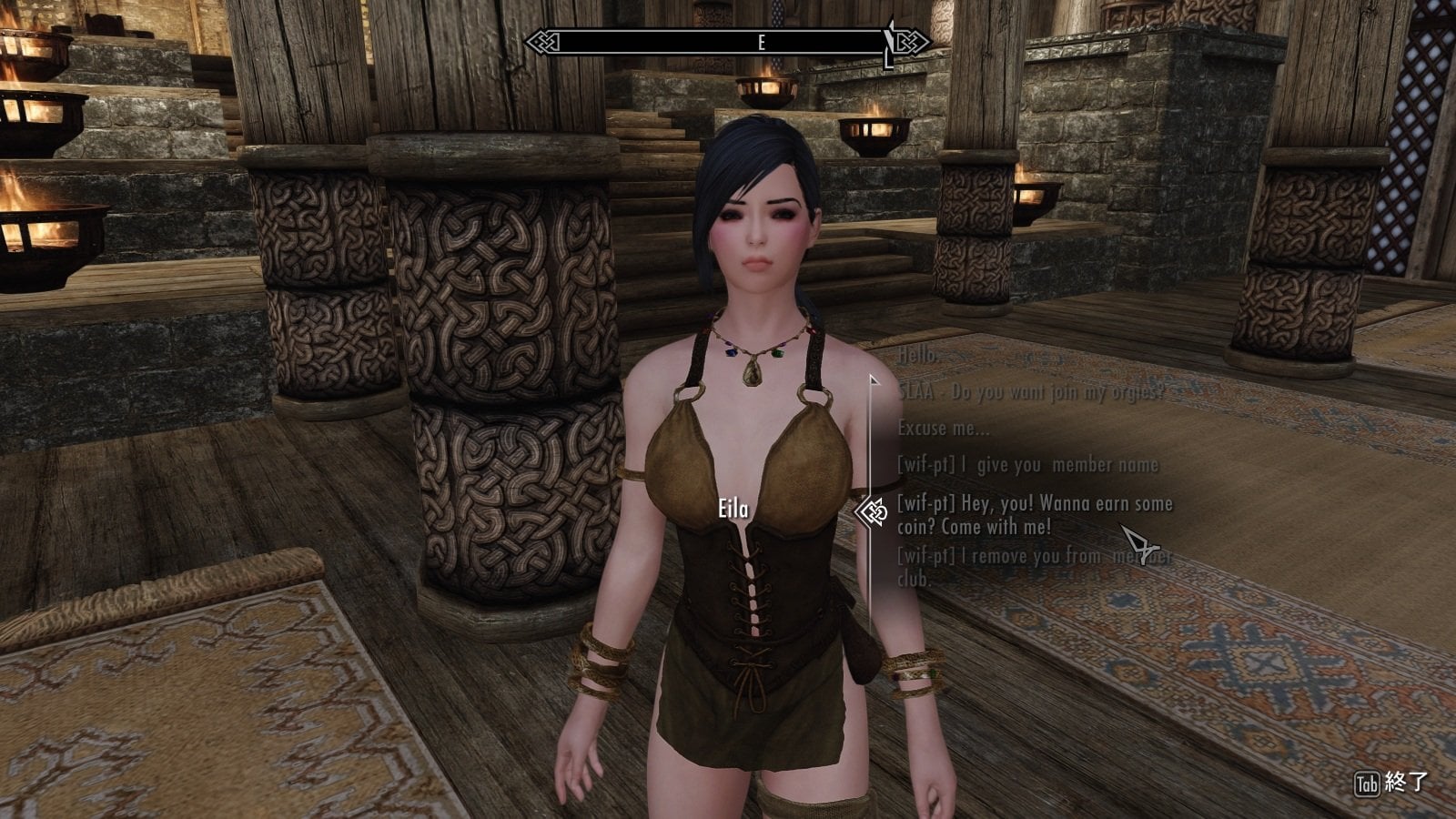
...And then I employ her again,,,
That's it for Quick Start 2! Great work!
In the next guide, I'm planning to explain 3P animations and the Continue Sex options in the MCM.
Thanks for following along, and see you next time!
-------------------------------------------------------
Quick start 3 - Manager Skill Check (Worker vs PC)
Before we start, please make sure once again that both mods are updated to the latest versions!
TS Prostitution: v2.1.5 Fixed
Tag and Sex: v2.1.1
Step 1. Recruit a Worker
To Start 2p for PC, in this mod aka (Manager Skill Check) all you need is one NPC reclutied as a Worker. No Guest is required. (Of course, You can still start a Manager Skill Check even if you already have a Guest assigned.
As long as a Worker has been assigned, it does not matter whether that NPC is a Member Club member or whether they are currently a Called Member.)
However, my recommended method is to first add any NPCs you want to use in scenes to the Member Club. Then move the Player alone to a reasonably spacious location for the scene.
Then call the NPCs there using the club's magic. I think this makes the whole process, including dismissing them afterward, much easier to understand and manage.
As a quick review of the previous guide, first add a few NPCs of your choice to the Member Club. Then, at a location you like, use wifCallMember to call the NPC you want to assign as the Worker.
Once the NPC has been called and becomes a Called Member, recruit that NPC as a Worker.
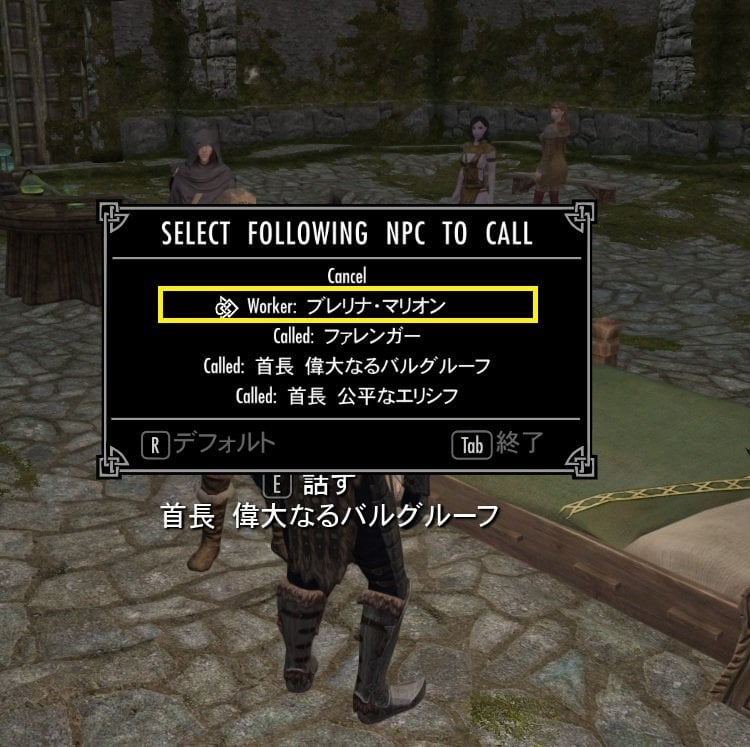
btw I recently noticed that Brelyna's eyes looked completely black with my crrent ENB setting, so I made a quick fix about textrure, and called her over now. Then this isn't necessary for the guide, but I'll also call over Farengar and a few others to play with later. lol
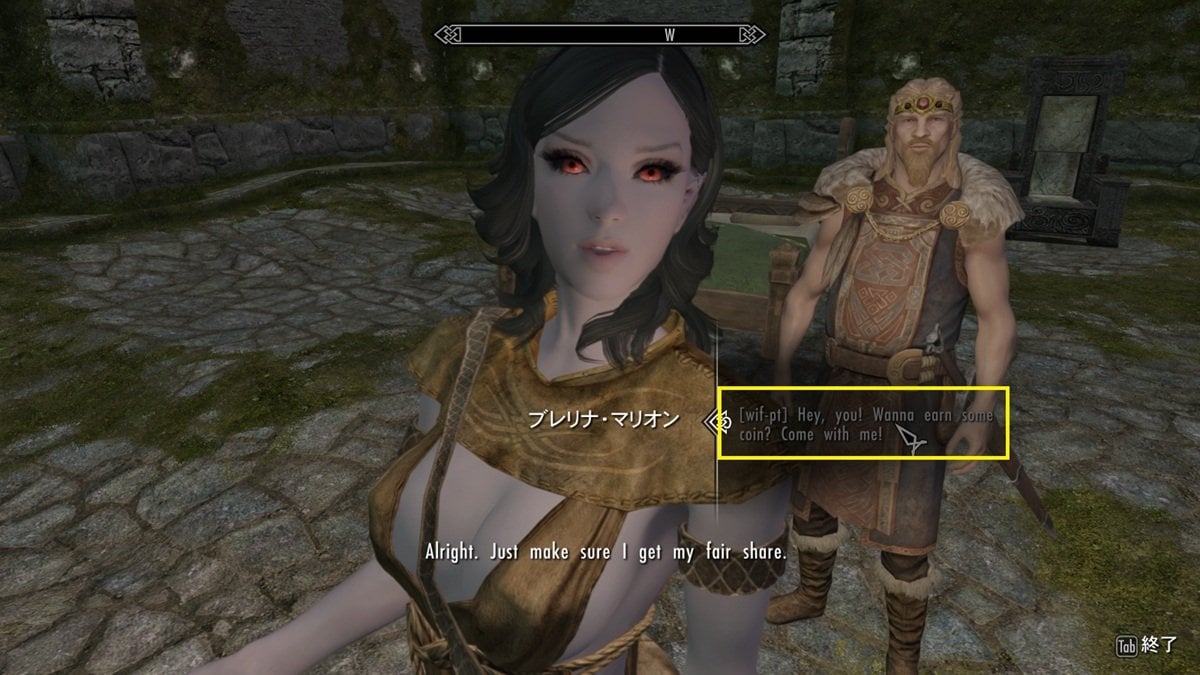
If several NPCs are currently following you through this mod and you only need to talk to one of them, you can use the new magic recently added: WifYouComeHere
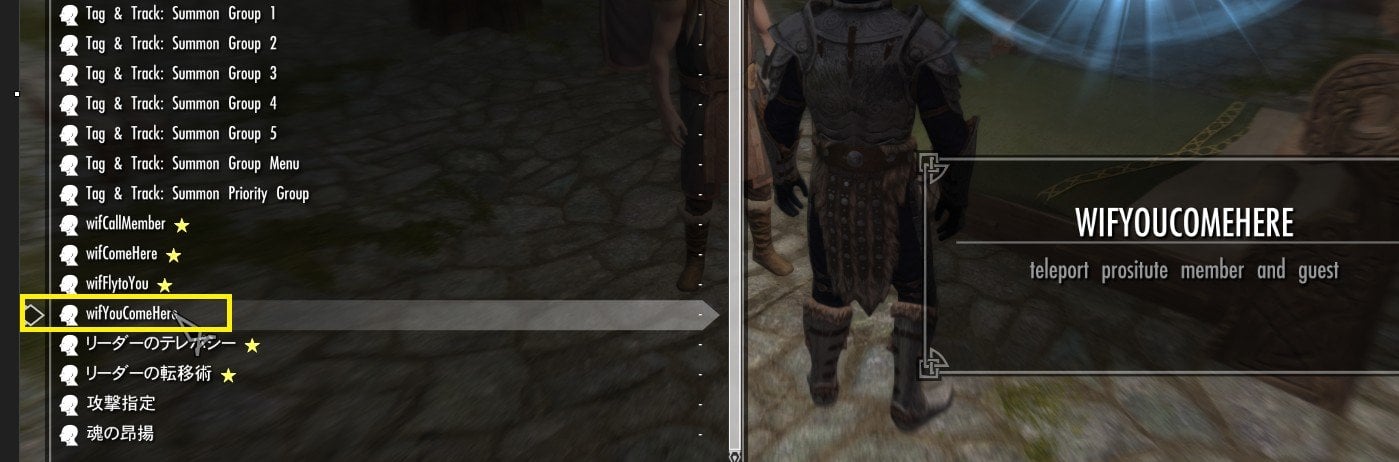
When many NPCs are gathered in the same area, they may spread out to keep some distance from each other. If the NPC you want to talk to is too far away, this magic can be very convenient.
In this example, Brelyna has already been assigned as the Worker. After calling several other NPCs to the area, I use WifYouComeHere to bring her back close to me.
---------------------------------------------------------------------------------------
Step 2. Prepare Your Animation Slots in the Tag and Sex MCM
As you know, this mod use "tag settings" and "animation list" which saved as "Temp Slot" OR one of the "16 Saved Slots (A–P)" by Tags and Dialogue Sex V2 (Tag and Sex)
So first, please check the information stored in your slots in the Tag and Sex MCM (labeled SLtagsex)
This time, instead of using the Temp Slot, we will use the regular Saved Slots together with the ”Continue Play options.”
First, open the Slot Info page (the second page).
If you use Tag and Sex frequently, you may already have all 16 slots filled. If not, please save at least four slots while referring to the Tag and Sex tutorial, and give them names that are easy for you to remember.Though The default names are also perfectly fine.
Next, check the Animation Count for each slot.
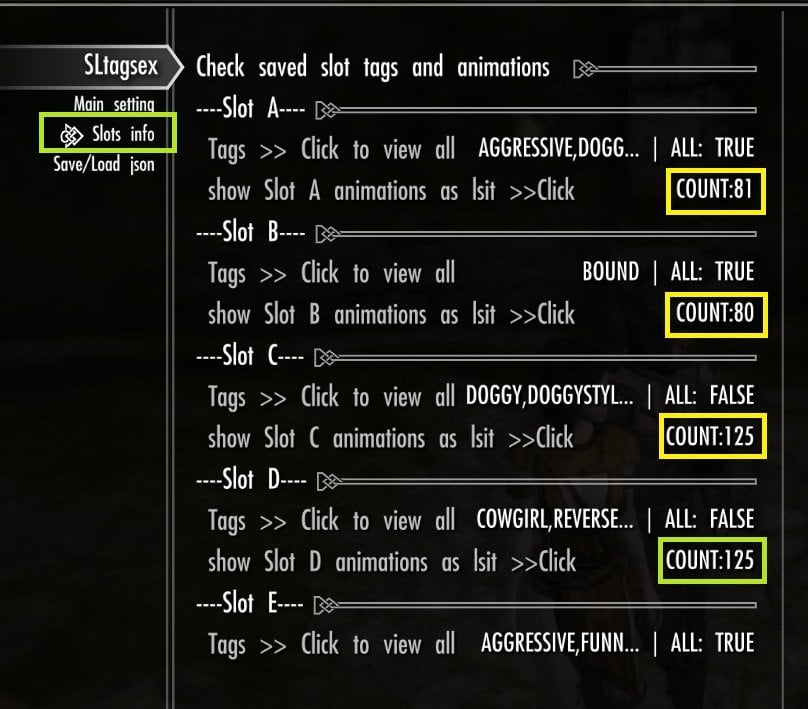
If any slot has an Animation Count of 0, return to the Top Page, set up some Tags in the Editor, and Build them into the Temp Slot, and confirm , The tag settings can serch some animations (not 0 animation)
Then use the recently added option:
Auto Fill Empty Slots with Current Settings
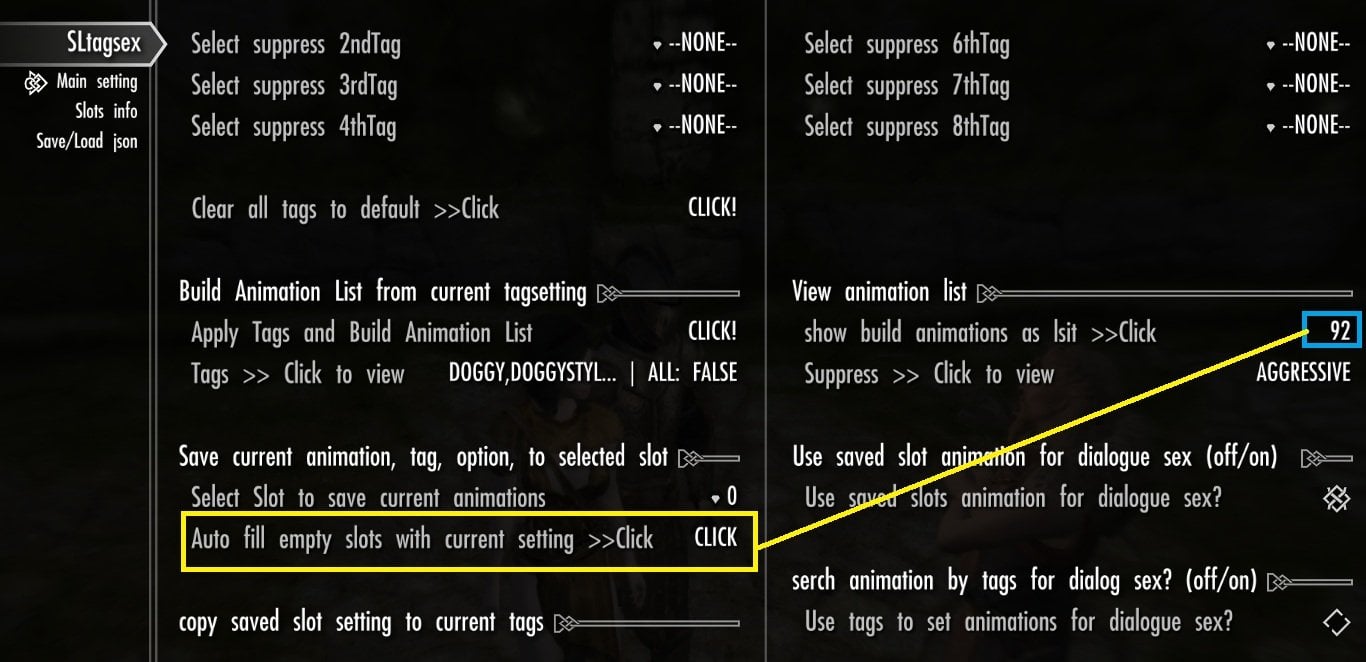
For now, just use this to fill the all empty slots. This will help prevent an empty 0 slot from being selected later when using the Loop or Random options.
At the same time, to make the TS Prostitution dialogue topics easier to find, I recommend setting “Show dialog topic” to OFF in the Tag and Sex MCM ( Main Setting, near the top of the page).This hides dialogue topics added by Tag and Sex.
Although the Saved Slot animations and tag settingss are shared between Tag and Sex and TS Prostitution, The other animation settings in Tag and Sex are not used by TS Prostitution.
These settings are kept completely separate, so you can configure the animation options for this Add-on independently.
Now, let's go to the Add-on MCM menu! 🙂
---------------------------------------------------------------------
Step 3. Set Up Player 2P Settings in the TS Prostitution MCM
go to Mod MCM page ("TS Prostitution") >> Main setting (1st Page)
Enable “Show Prostitute Dialogs” so that the dialogue topics are displayed.
For “Show All Animations as List Page” option, you can choose whichever setting you prefer.
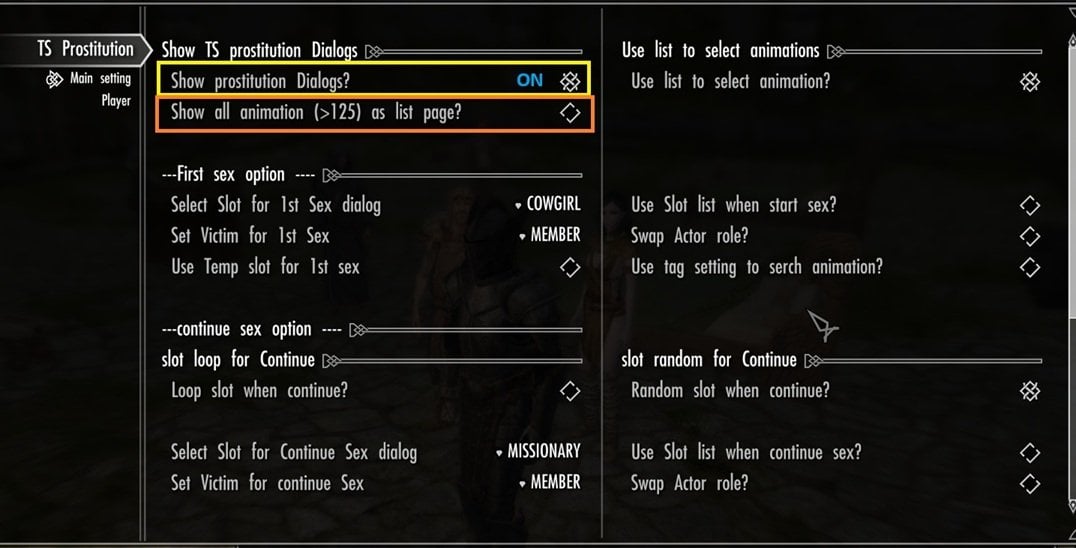
If this option is ON, the Add-on searches again for all animations that match the current Tag settings, and you must manually choose one animation from the list every time. Because this option does not use the cached Animation List, the search may feel a little slower depending on your PC.
If you are not sure which setting to use, I recommend leaving it OFF at first.
This option is global setting shared by all 2P animation scenes, so decide here whether you want to use it.
If you prefer to check all matching animations yourself and always choose exactly which one to play, turn this option ON.
At same time, you can confirm Current Worker correlctly asssgined, in bottom area Current Follow Prostitute.
I areadly set Brelyna as worker. If it is None, you may need to recluit later to Skill check.
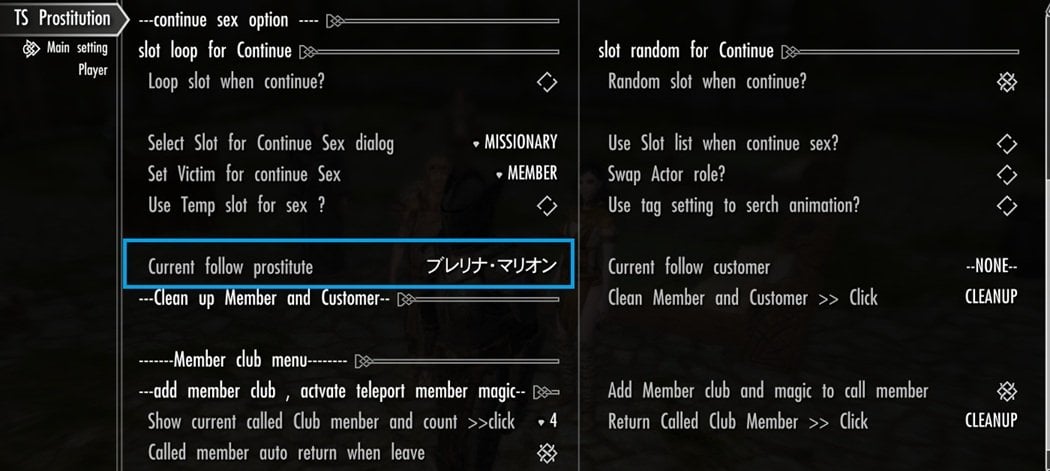
Since the Manager is the Player, Manager Skill Check uses the "Player" page settings in MCM.
There are almost all setting related with player join 2P and 3P.
These options work in the same way as explained in the Tag and Sex tutorial, and the basic system is also the same for NPC (worker) vs NPC(guest) scenes.
However, this Add-on does not use separate "Test Dialog settings" or "individual dialogue settings" for selecting slots. Instead, the options are divided into two parts for each session:
- the first scene
-
Continue scenes (extensions of the same session)
A session continues until the Worker is changed, oe PC deciide stop the skill check session.
That means, you can configure different options for the first scene and for any Continue scenes that follow.
At first, only set Start skill check setting = First sex option. and then see how it works with the dialogue..
As mentioned earlier, in this guide we will use the regular A–P Saved Slots, not the Temp Slot, so set this option to OFF.
Then we do not use "slot list", (or it show all slots as list first) set this option OFF.
Now you need to select the Saved Slot that will be used for the first scene of the current session.
In this example, I selected “Cowgirl” slot, for the first Skill Check scene.
Of course You can choose whichever slot you like.
If the slot you selected has an Animation Count of 125, you may prefer to use “Use Tag Settings to Search Animations.” ON.
When this option is enabled, the Add-on searches for animations again using the Tag settings saved in that slot, instead of simply using the saved Animation List.
This means that when more than 125 animations match the Tags, the search may return a different set of animations when the scene starts.
Tip:
I tested this option many times and confirmed that it really does search the animations again. When more than 125 animations match the Tag settings, it can sometimes return a different Animation List.
However, if you repeat the Tag search several times in a short period, the result may remain the same for a while instead of producing a different list every single time.
“Use List to Select Animation” is optional, but you may prefer to turn it ON so you can review the saved Animation List for that slot before starting the scene.
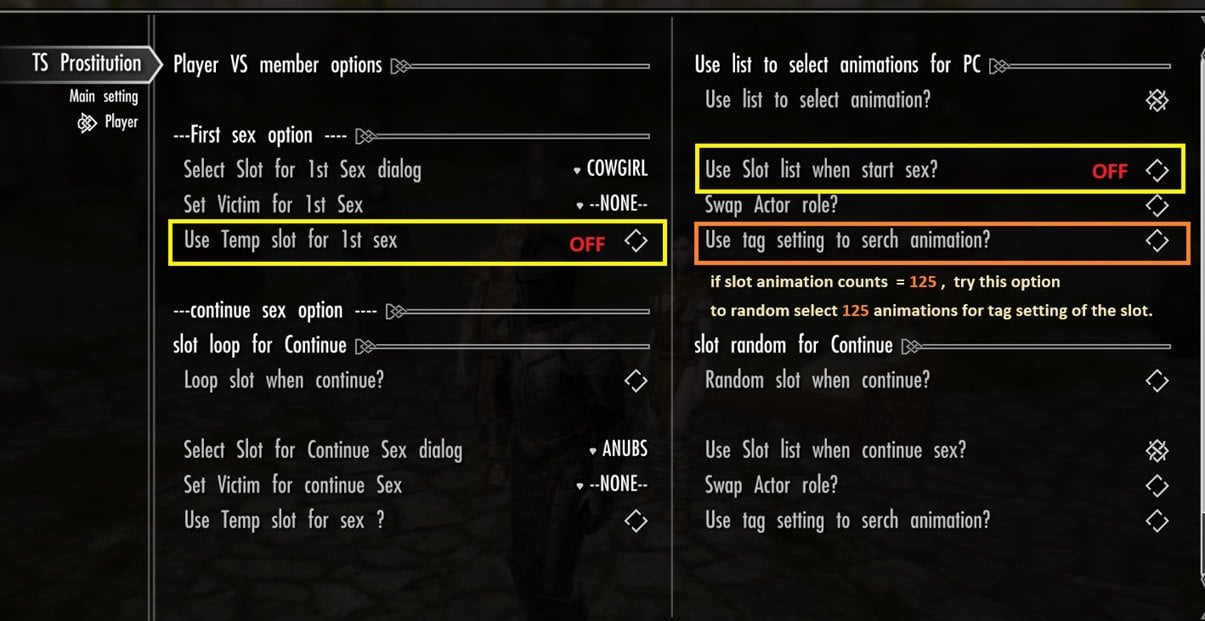
This is my current setup for the first sex scene (Worker vs Player). The same settings will be used for the first scene of each session until you change them.
Once you have finished setting up the first scene, return to the game and try starting it to make sure everything works as expected.
------------------------------------
Step 4. Start the Manager Skill Check !
Before you start, it may also be a good idea to quickly check your settings one more time.
That way, if something goes wrong, you'll notice it right away.
If you still haven't assigned a Worker, make sure to do that first.
Activate the NPC you assigned as the Worker, then select the Skill Check dialogue option.
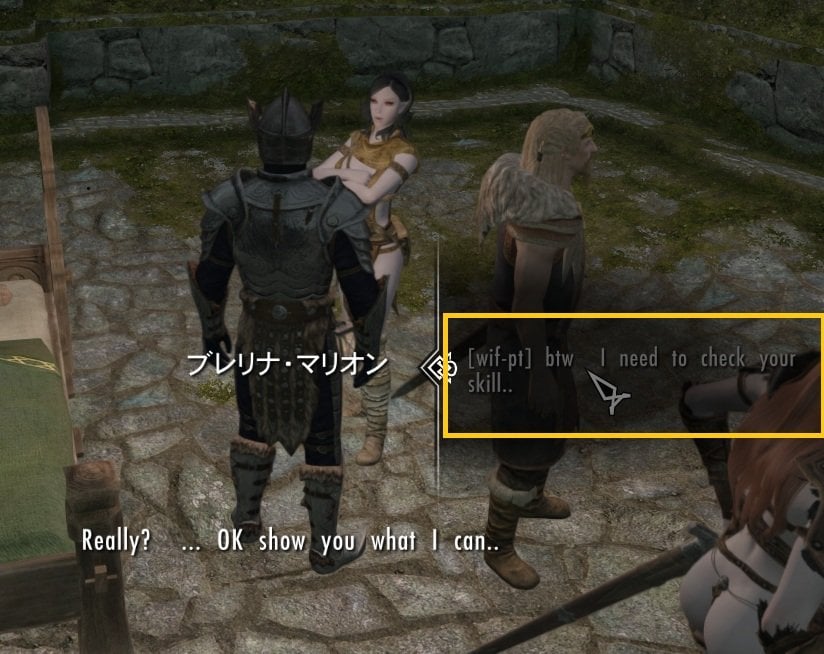
After that, depending on your MCM settings, you may see a Slot Selection List, Page Selection List, Animation Selection List, or the scene may simply start automatically.
In my case, I selected my saved “Cowgirl” slot. I did not use the Slot Selection List, but I enabled Use List to Select Animation.
So, an Animation Selection menu should appear containing only the animations saved in my “Cowgirl” slot.
By the way, this slot contains fewer than 125 animations, so I did not enable Use Tag Settings to Search Animations. Instead, I simply load the cached animation list.
It worked, and I picked one of the Cowgirl animations.
(I forgot to take a screenshot of the pop-up list... but you believe me, right? 😎)
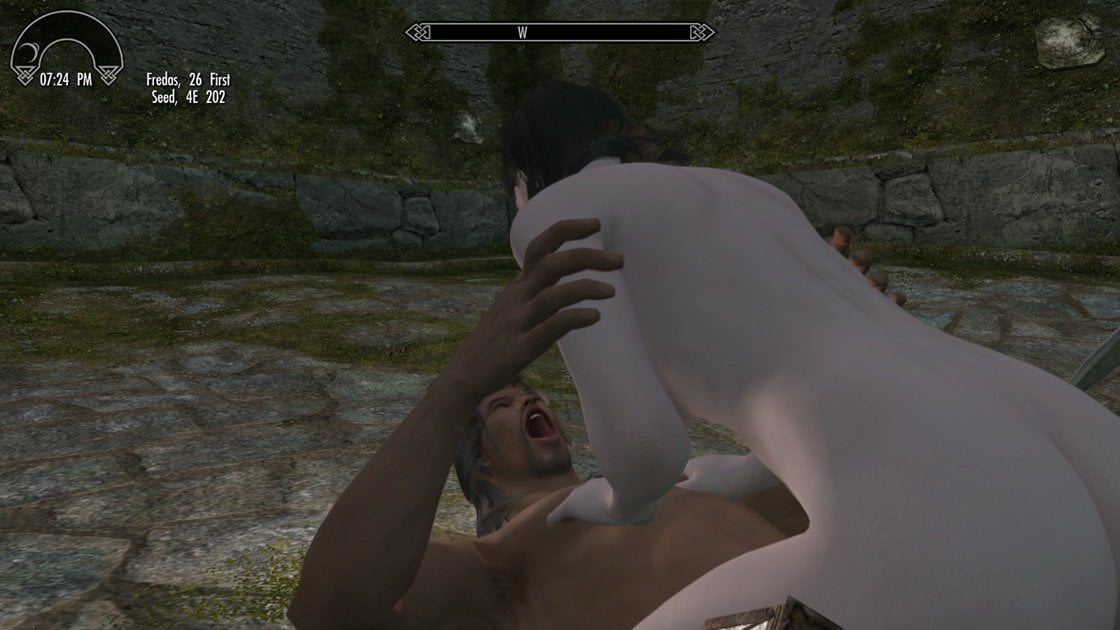
After the Manager Skill Check, you can choose Continue / Satisfied.
Before trying Continue, return to the MCM and configure the "Continue settings for Player" first .
-------------------------------------------------
Step 5. Configure the Continue Options in the MCM
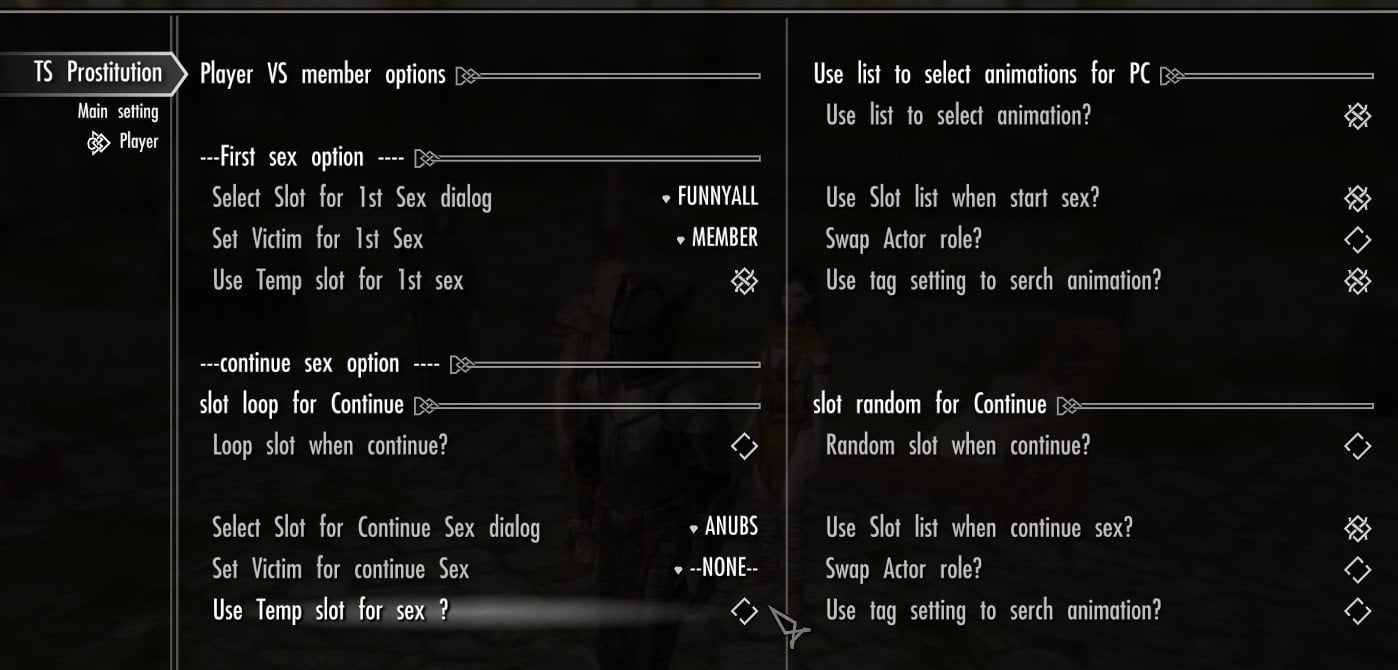
Continue sex option use their own settings, separate from the first sex option
However, many of the settings are similar to those used for First sex.
The "Use list to select animation?" option is shared by both First sex and Continue.
These 3 bool options are applied in the following priority order:
Use Temp slot for sex > Use Slot list when continue sex? > Select Slot for Continue Sex dialog
Options on the left take priority over those on the right.
The same priority order also applies to the First sex options and to NPC vs NPC scenes.
To add more variety to repeated Continue scenes, there are two special settings that can automatically change the selected slot with continue sex counts.
------------------------------------------------
1) Loop slot when continue
This option uses the slot selected in Select Slot for Continue Sex dialog as the starting point, then automatically moves through the slots in order from A to P as the sex count increases.
For example, if you set slot P in Select Slot for Continue Sex dialog, turn this option ON,
and turn the other slot-selection options OFF,
the first Continue scene — in other words, the second sex scene — will use Slot P.
The next Continue scene (third sex) will use Slot A, then Slot B, and so on, looping through all 16 slots.
The selected slot is calculated from the current Continue/sex count using modulo 16. Because of this, if you temporarily change the slot-selection settings, the loop position is not paused or saved. Any slots that would have been used during that time are effectively skipped.
2) Random slot when continue
When this option is enabled, one of the 16 Saved Slots (A–P) is selected randomly for each Continue scene.
While Random is enabled, the slot selected in Select Slot for Continue Sex dialog is ignored.
And as explained above, Use Temp slot for sex and Use Slot list when continue sex? take priority over these automatic slot-selection settings.
You may wonder whether Loop or Random has priority. The answer is: neither has priority,
because you can’t enable both at the same time.
To switch to the other option, turn the currently enabled one OFF first.
Now, customize your Continue scene animations however you like.
Once your settings are ready, return to the game and see how they work!
------------------------------------------
Step 6. Finish or Continue the Current Skill Check Session
After the first Skill Check (Worker vs Player) is finished, "activating the Worker" will add special dialogue for the current Skill Check session.
[wif-pt] "hm you are not bad ..."
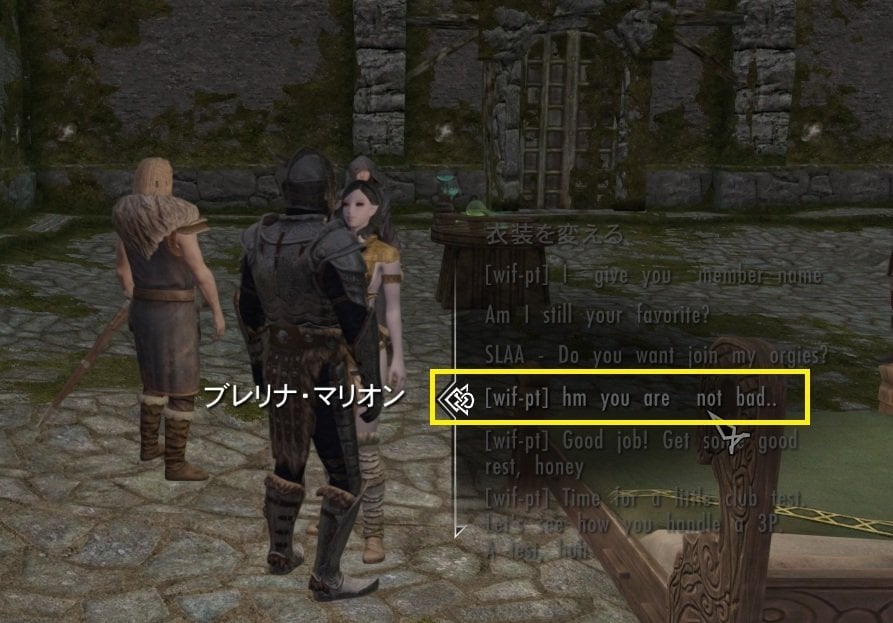
When you want to continue the current session and move on to another animation, or if you want to finish the session, use the dialogue above.
You do not have to make a choice immediately. You can simply leave the current session as it is, go look for a Guest, call or configure a Member, or even send them back. The current Skill Check session will simply remain active until the Worker is dismissed.
After selecting the dialogue shown above, you can choose how to respond — whether to Continue or end the current session.
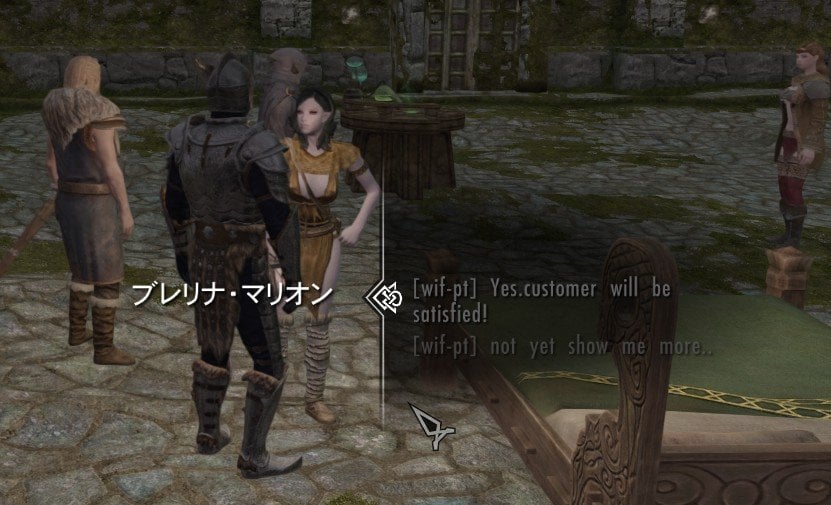
If you choose, Continue dialog, Continue animation (or list pop uo) process start according to your MCM Continue Options described above.
If you choose Satisfied, the current Skill Check session ends and the Player's sex count is reset.
The next time you start a Skill Check with the Worker, it will begin again using your First Sex settings, and any following scenes will use your Continue settings again.
Tips
For example, suppose you configure the first Skill Check to always use the Temp Slot, while Continue scenes use Loop slot when continue
After you finish the current session and start another Skill Check:
- The first scene will again use the Temp Slot.
- The first Continue scene will start from the slot selected in Select Slot for Continue Sex dialog.
- Further Continue scenes will loop forward from that slot as usual.
So You can repeat the Skill Check with the same Worker as many times as you like, and reset the current session PC sex count through the dialogue, and start new skill check session again,even if keep ignoring the Guest. (or not serch Guest at all, just continue or re-start private skill check session again and again,,,)
But don't worry — the Worker still remembers all job for You. When the work is finally over, the proper payment will still be due.
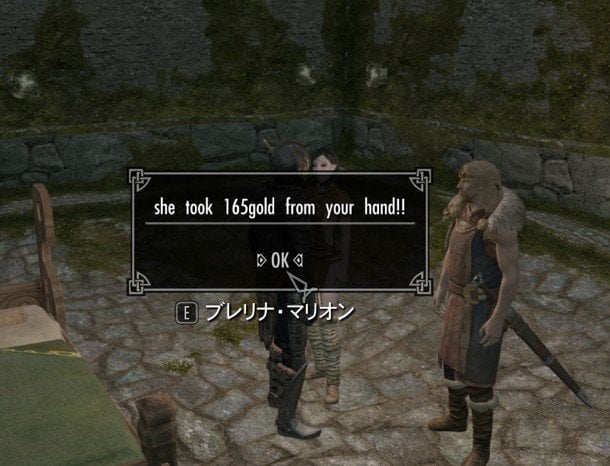
Whew! That wraps up the PC vs NPC tutorial. Nice work! 🙂
Try the various options and enjoy Skill Checks with your favorite followers! ^^b
Next time, I’m finally planning to explain the 3P options!
Peace and sex
------------------------------------
Quick start 4 - Starting a 3P Scene
- MCM options
There are three ways to start a 3P scene in this mod. First, this guide will explain how to start one as a regular Prostitution option
Before going through the dialogue steps, let's first configure the 3P animation options in the MCM. These settings are shared by both Player and NPC 3P scenes, so it is easier to set them up first.
Open This mod MCM page (TS prostitution) >> 3P setting page
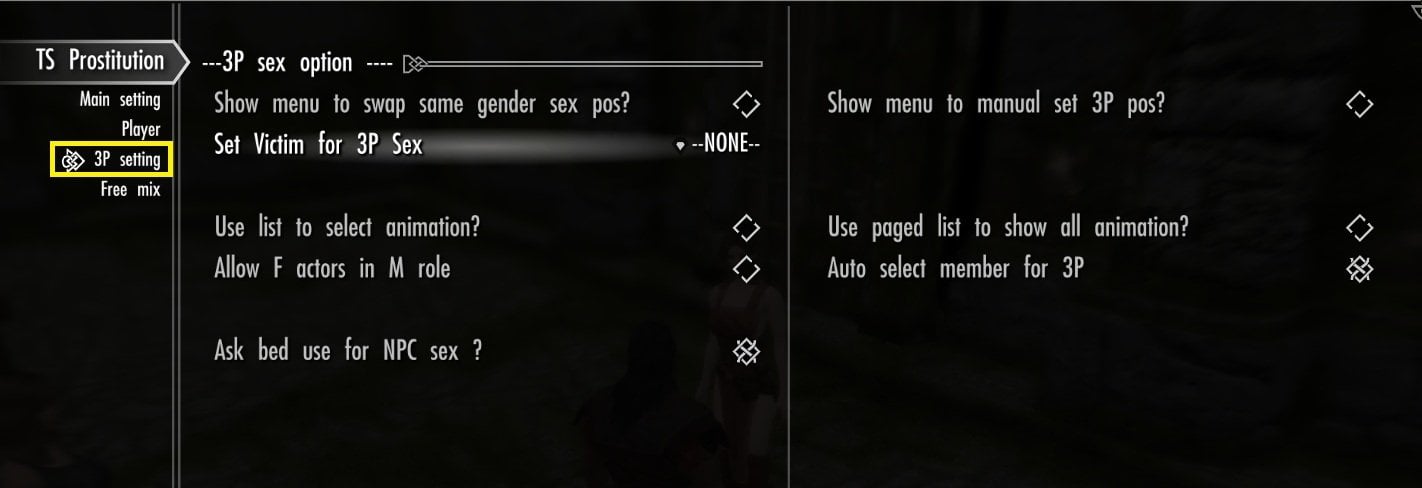
Compared with 2P scenes, there are currently fewer 3P animations available. For this reason, 3P animation selection does not use various tags to narrow down the results. Instead, the mod searches for animations mainly based on the gender tags of the participating actors.
This makes the 3P animation options much simpler than the 2P options.
However, actor position becomes much more important in 3P scenes, so two additional position-related options are available.
1. Show Menu to Swap Same-Gender Positions
This option is mainly intended for mixed-gender combinations such as FFM or MMF, where at least one actor has a different gender from the others.
For example, if the Player is male in an MMF scene and you want to exchange positions with the other male actor, this option makes it easy to swap their roles before the animation starts.
When enabled, a menu will be shown before the 3P scene starts, allowing you to swap the positions of actors with the same gender.
2. Show Menu to manual set 3P positions
When this option is enabled, you can manually assign the role position of each of the three participating actors while checking their names. Use this option if simply swapping actors of the same gender is not flexible enough for the scene you want. The two position options are mutually exclusive:
If Manual Position is enabled, Swap Same-Gender Positions will automatically be turned off.
If Swap Same-Gender Positions is enabled, Manual Position will automatically be turned off.
(Originally, I made it so that you had to turn one option off manually before enabling the other. My AIbou suggested making them switch automatically instead. Thanks, AIbou! 😄)
3. Set Victim for 3P sex
As far as I know, SexLab supports only one Victim actor in a scene, including 3P scenes.
The Victim setting is used because SexLab itself, as well as some SexLab-based mods, can treat the designated actor differently from the other participants.For example, depending on your SexLab settings, the Victim role may affect actor positioning, expressions, stripping and redressing behavior, Player controls, and SexLab statistics. Other SexLab-based mods may also detect the designated Victim and apply their own Victim-specific behavior.
Therefore, this option does not necessarily cause one specific visible effect by itself. What actually changes depends on your SexLab configuration and the other SexLab-related mods which use this setting.
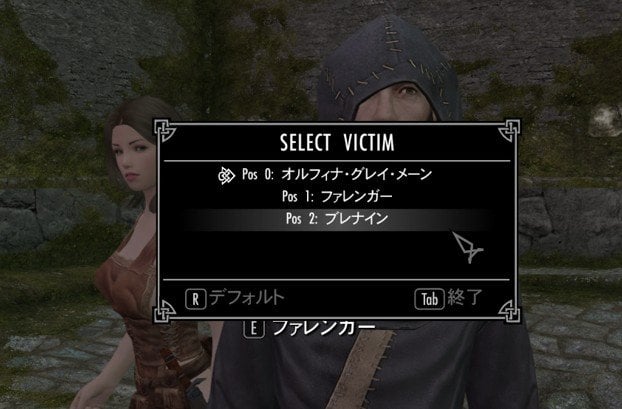
At current This mod offer 3 option to set victim.
1: None
No actor will be assigned as the Victim.
2: Auto: position[0] actor
The actor assigned to Position[0] will automatically be treated as the Victim.
3: Ask Each Time
Show A list of the three participating actors will be displayed, allowing you to choose the Victim manually by name.
4 . Use list to select animation
This option works in the same way as the corresponding 2P option. Enable this option if you want to select the animation manually from a list instead of letting the mod choose one automatically.
5 . Use Paged list to show all animation
This option works in the same way as the corresponding 2P option.
If you have a large number of 3P animations registered, some gender combinations may produce more than 125 matching animations.
In that case, enabling this option will display the results across multiple pages, allowing you to browse and select from all matching animations instead of using only the list automatically selected by SexLab.
When this option is enabled, you will always be asked to select an animation manually.(ignore use list to select animation setting)
I recommend turning this option on once and checking whether any of your gender combinations actually produce multiple pages. If none of them do, you may want to turn it back off, since building the paged list may take a little extra time.
6 . Allow F actors in M role
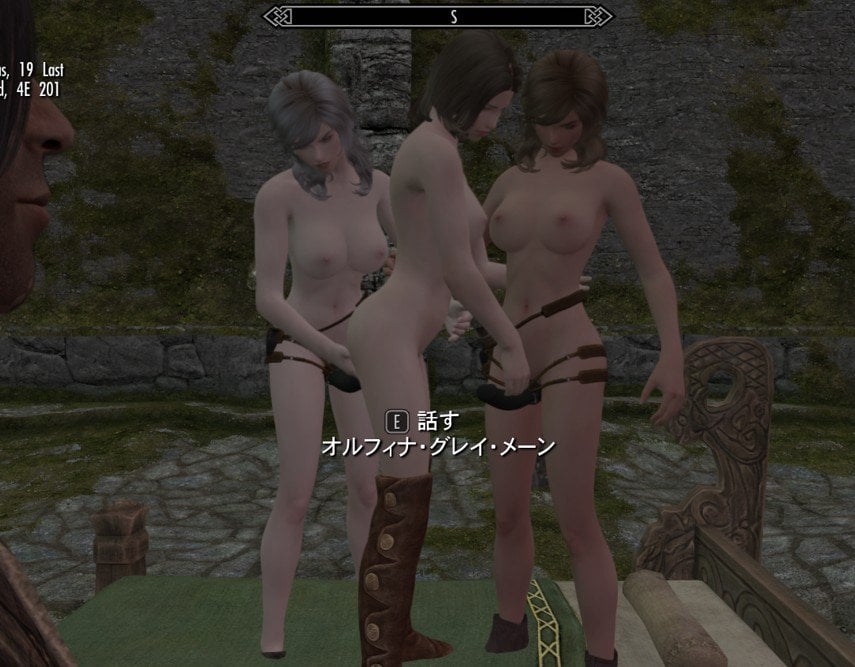
This option does not change the actor's actual role or position. Instead, it changes the gender tags used when searching for animations, allowing a female actor to be treated as M for animation selection when using SexLab's strap-on option.
For example, if the current gender combination of the three actors is **FFM**, the female actors can also be treated as M roles for animation selection when using SexLab's strap-on option. In this case, the mod expands the gender combinations used for the animation search
from: **FFM** to: **FFM, FMM, and MMM**
This pic show two Female actor role as M with strap on. (FFF play FMM ainmation with strap on )
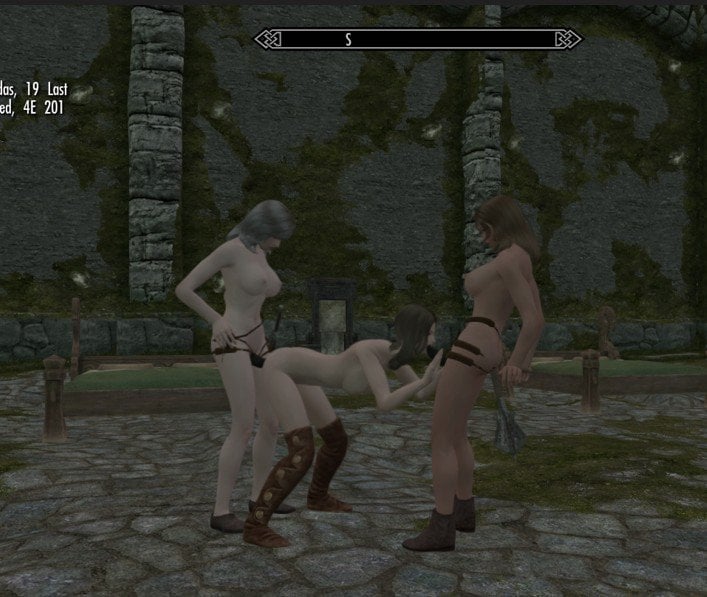
In most cases, this works by allowing a female actor assigned to an M role to use a strap-on.
However, if the selected animation does not properly support or enable a strap-on for that position, the scene may still play without one, even though the female actor was selected for an M role. This option may also not work as expected with animations that use a Futa role.
7 . Auto select member for 3P
When an additional actor is needed for a 3P scene, one of the Called Members — club members who have been summoned with the shout — can join the scene.
If this option is enabled, the mod will automatically select one of the available Called Members.
When the two actors already selected are the same gender, the mod will first try to choose a Called Member of the opposite gender.
For example:
-
FF → a male Called Member is preferred.
-
MM → a female Called Member is preferred.
-
If no suitable member of the preferred gender is available, the mod will select from all available Called Members instead.If the two actors already have different genders, such as FM or MF, there is no gender preference, and the third actor will be selected from all available candidates.
If this option is turned off, you can manually select the Called Member from a list.
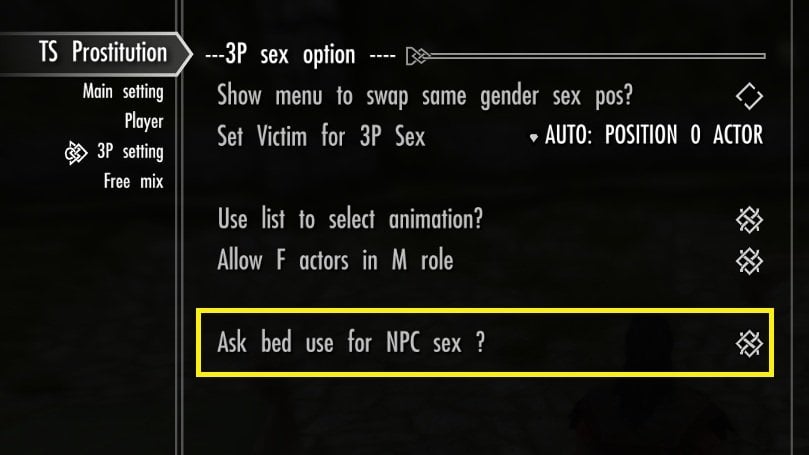
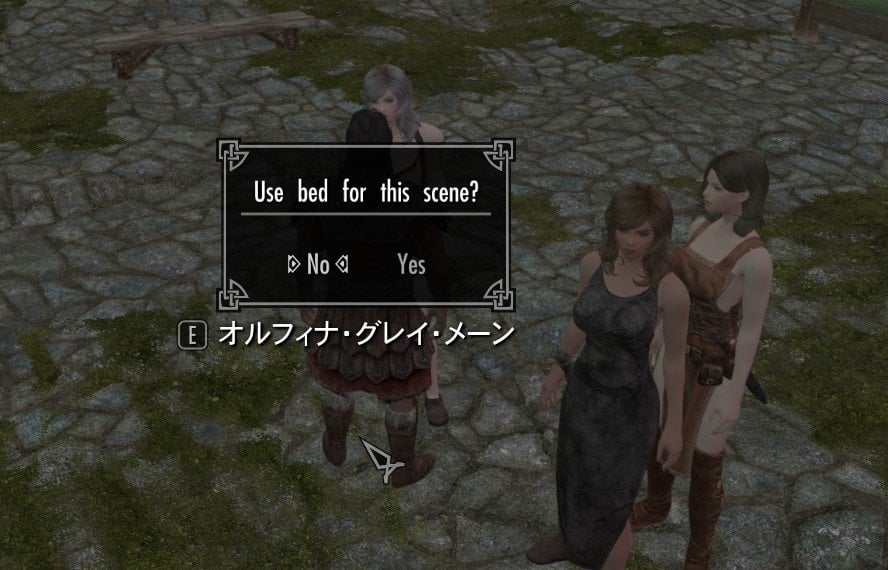
8 . Ask bed use for NPC sex ?
If Ask Bed is enabled in SexLab (or SexLab Utility Plus) MCM settings, scenes that include the Player can display a confirmation message before the animation starts. For NPC-only scenes, however, SexLab normally follows its current bed-use setting without giving you another chance to change it when start animation.
When this option is ON, TS Prostitution will also show a confirmation window for NPC-only scenes when bed use is allowed.
Your choice in that window can temporarily override the normal setting for that scene and switch whether bed use is forbidden or allowed.
If this option is turned OFF, NPC-only scenes will simply follow your SexLab bed-use settings as usual.
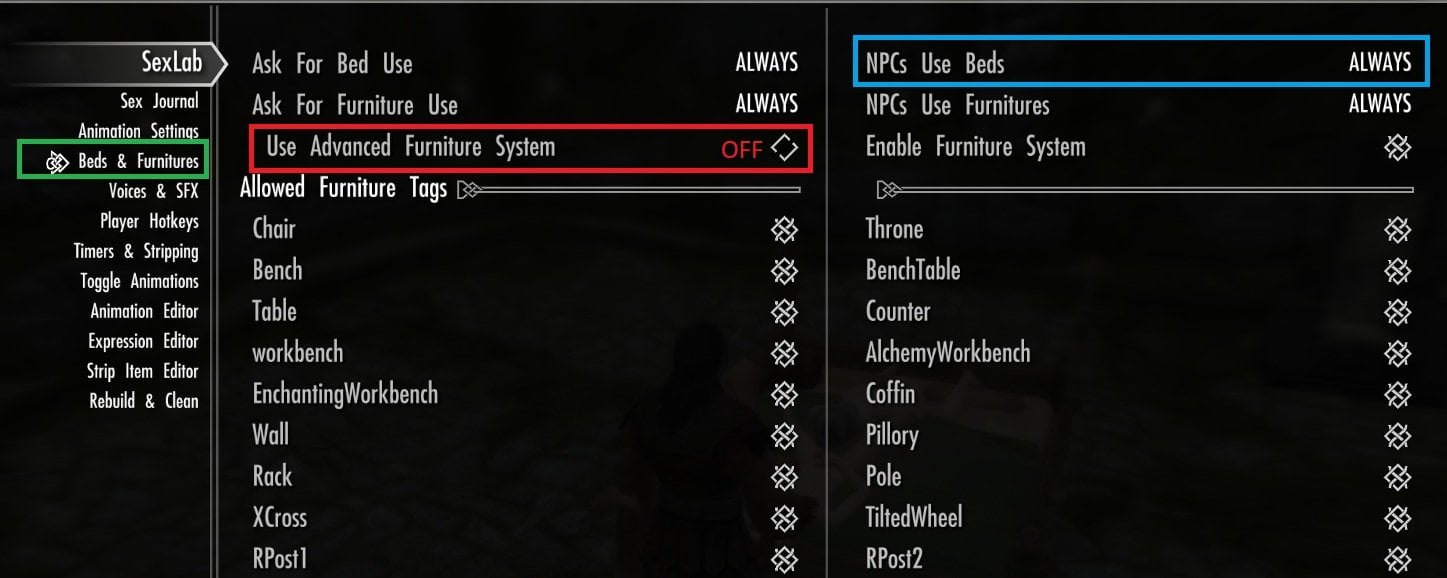
For this screenshot, I set the NPC bed-use option like this in SexLab Utility Plus, then enabled this option.
By the way, if you enable Advanced Furniture System in SexLab Utility Plus, this feature does not seem to work for me. 🧐
In my tests, NPCs never used a bed, even when I set bed use to Always and selected Yes in my confirmation window.
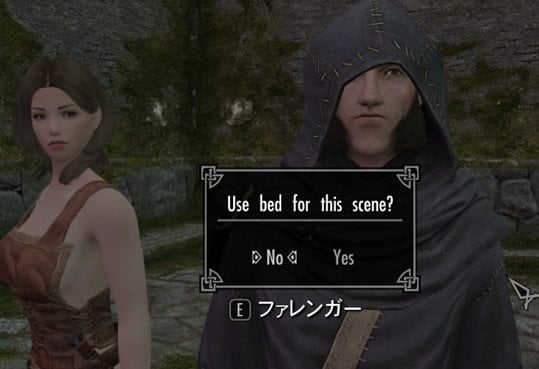
With the Advanced Furniture System disabled, I can now choose whether NPCs use a bed or not each time before the animation starts.
-------------------------------------
------------------------------------------
-------------------------------------------
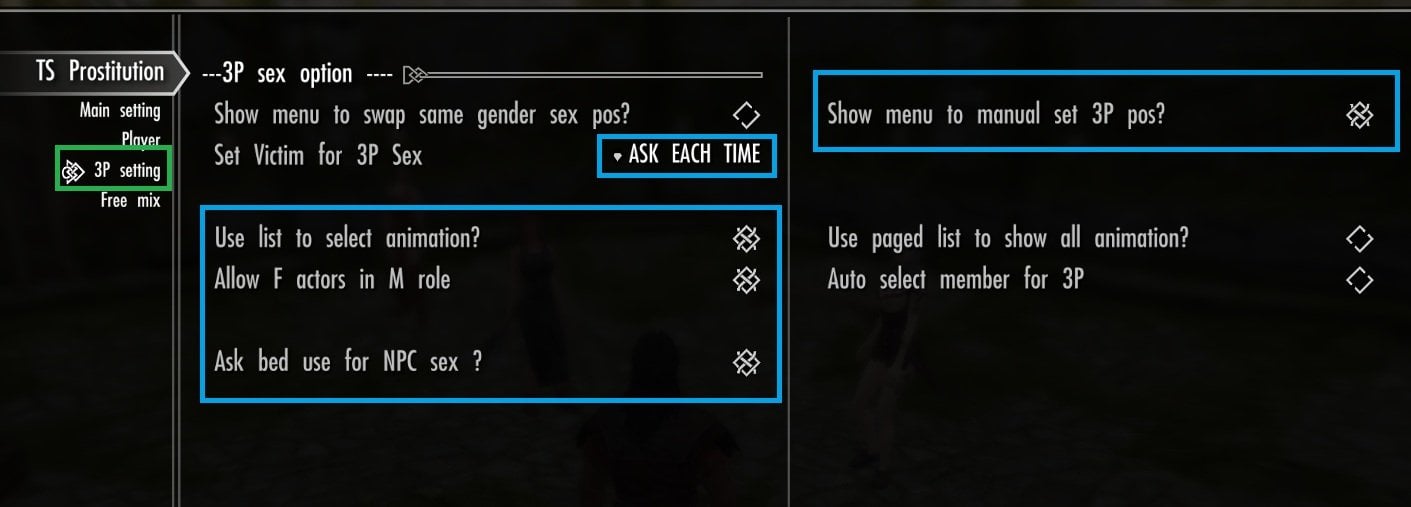
The 3P settings are shared across all 3P dialogue routes, except for the newly added Free Mix feature.
For your first try, I recommend testing as many of the available options as possible so you can see how they work.
In this tutorial, we will manually select one animation, the actor positions, the Victim, and the third NPC with use Bed option. So please configure the options as shown below.
- Let's Choose the 3P Dialogue
If you have not registered any club members yet, please refer to the other tutorials and add the members you want to use in animations to your club.
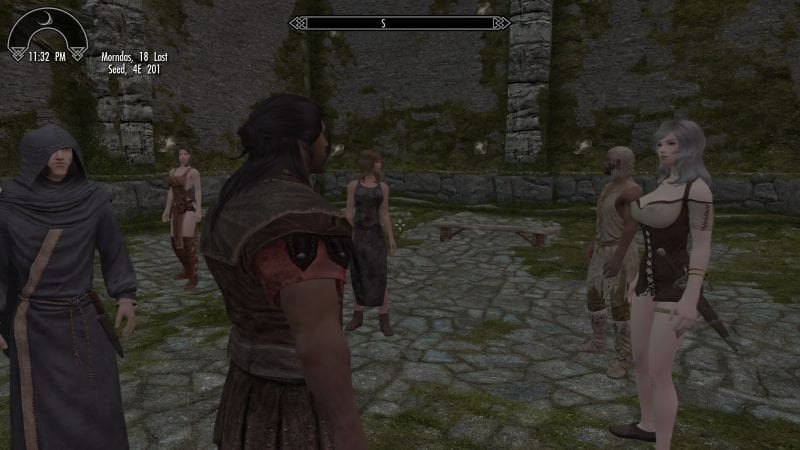
Move to any suitable playroom, then use the shout wifcallmember (to select and summon around three to five club members. You can use any combination you like, but I recommend including members of different genders.
Once they have been summoned, set a Worker and a Guest through dialogue as usual.
For my example, I have chosen Olfina, who is always challenging me with, “What’s the matter? You can’t stand the sight of a strong Nord woman?”, as the Worker. For the Customer, I chose Farengar, who is always pestering me to hurry up and retrieve the Dragonstone.
And I have also summoned poor Brenuin as one of the candidates for the third actor. 😄
When both a Worker and a Customer (Guest) are available, 3P will appear as one of the Prostitution options offered to the Guest.
With a Worker already assigned, activate the Guest. In addition to the normal 2P start option, you should find two dialogue options for starting a 3P scene. One of them allows the Player to join the scene. For this tutorial, however, we will not use the Player. Instead, we will invite one of the Called Members you summoned earlier to join as the third actor.
How about a Threesome? I' ve got a club member ready to join us.
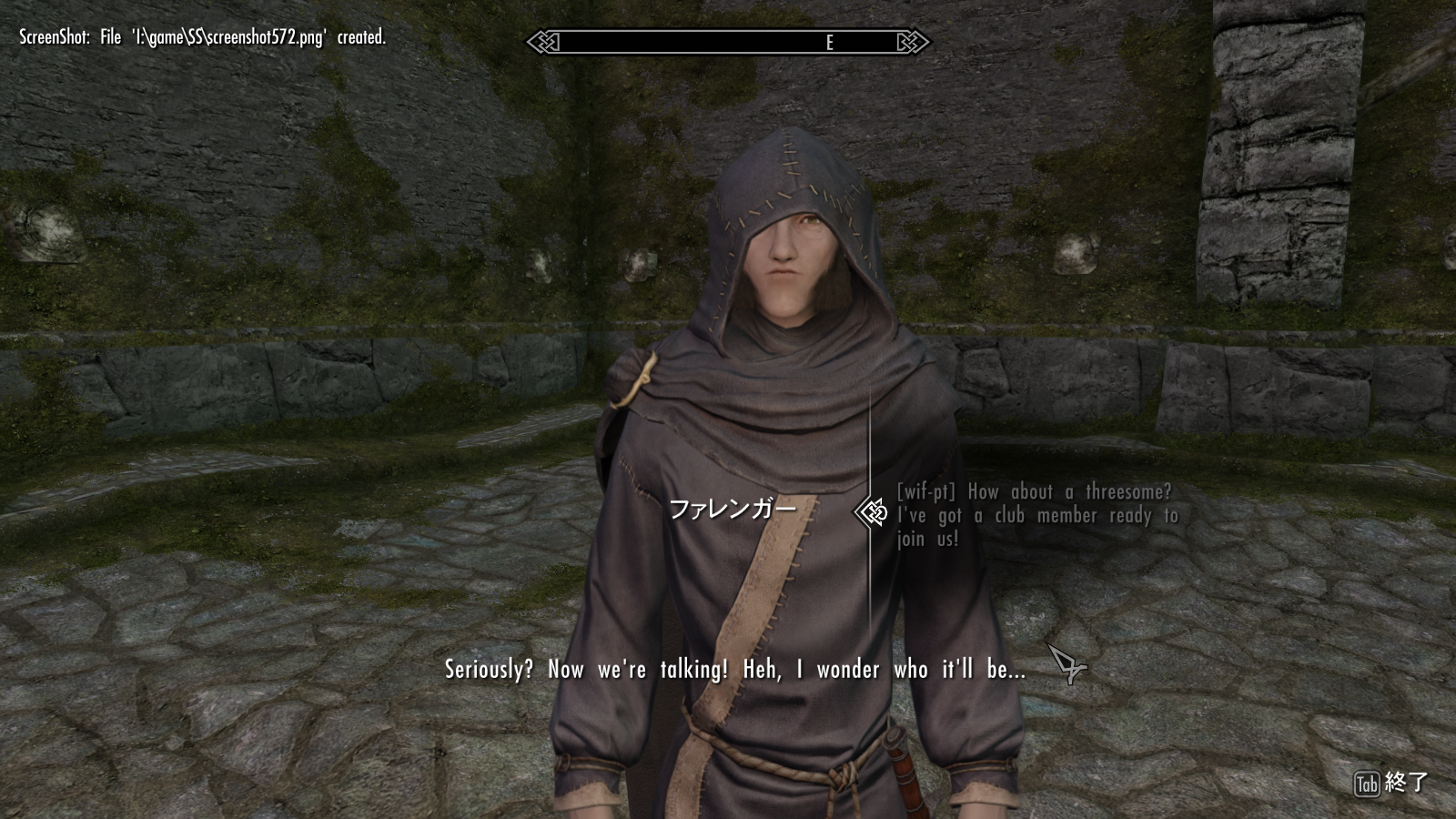
This dialogue option triggers the 3P scene.
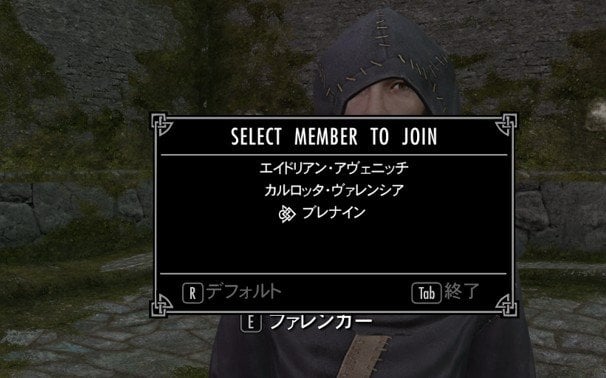
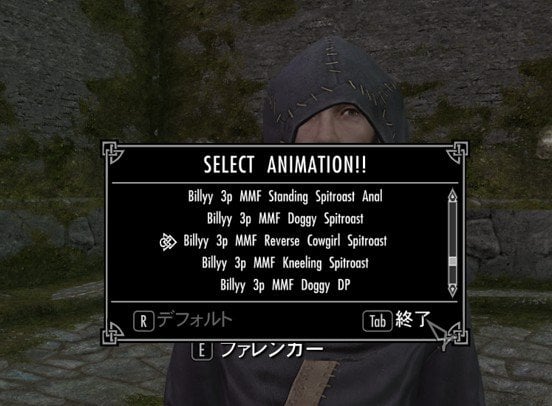
After selecting it, the option windows determined by your MCM settings will open one by one in sequence.
1.Sekect member to join
2.Select Animations
3 select first positoin actor / 2nd position actor + confirm
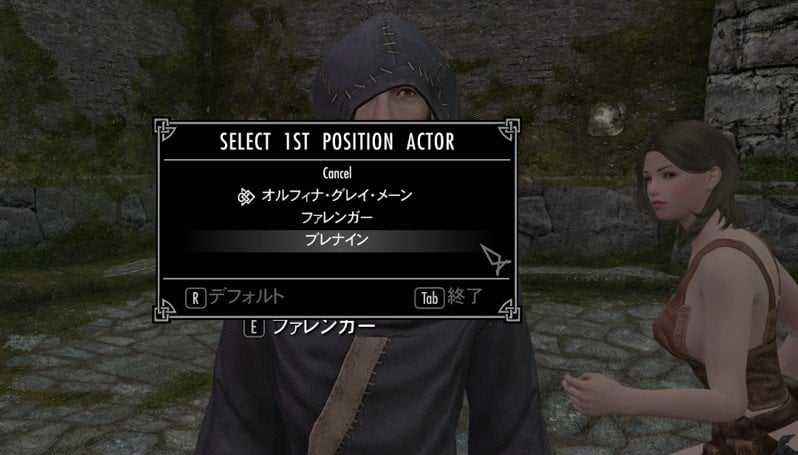
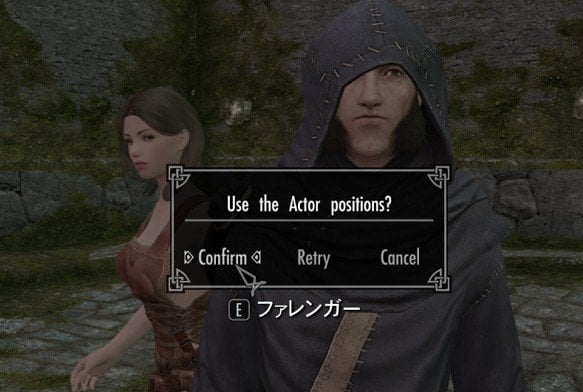
4 select victim
5 use bed for this scene
That's it for this part of the tutorial!
You have now gone through all five option windows, including the final Use Bed option.
Enjoy 3P animations!
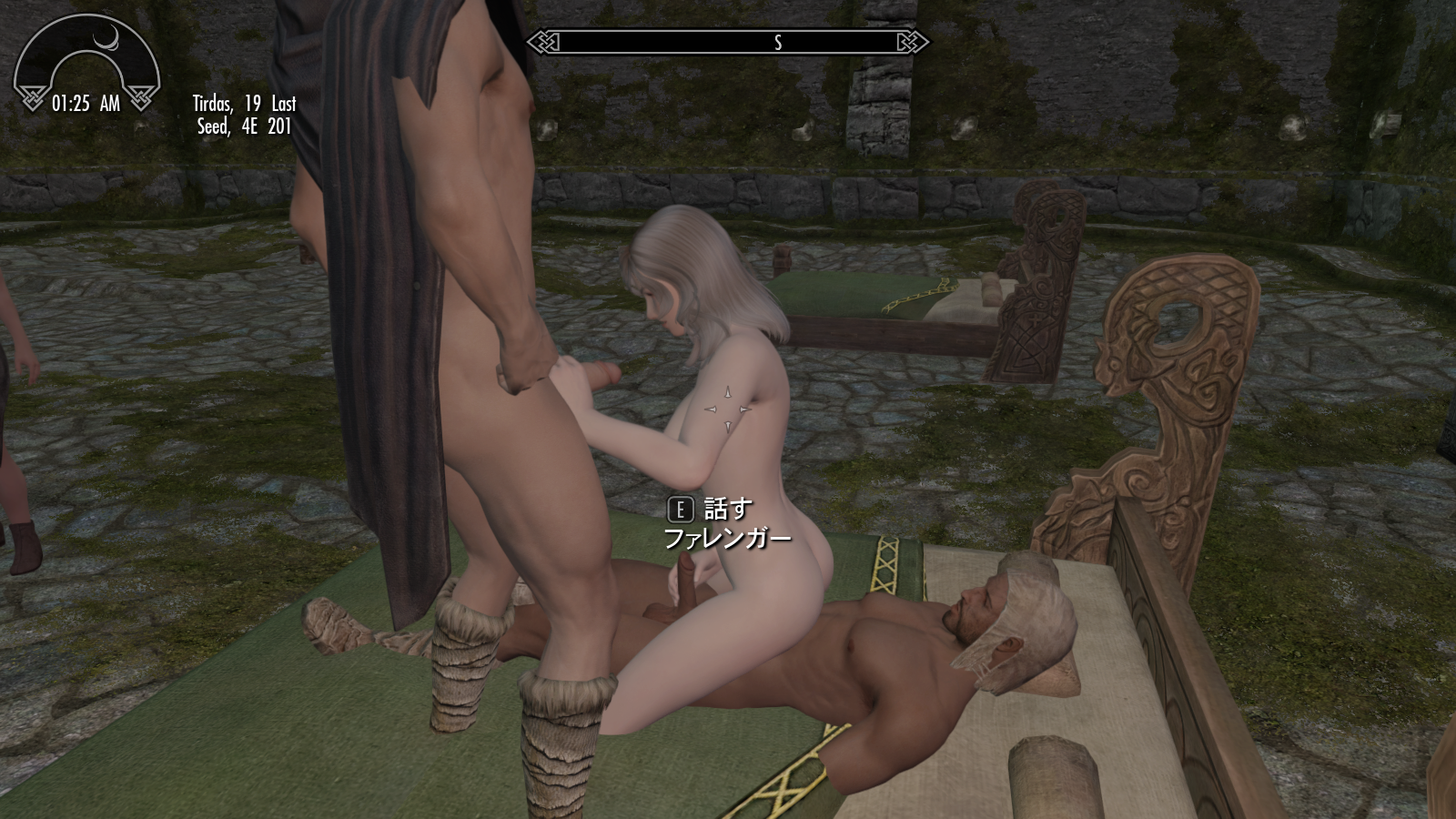
I'll explain the other 3P dialogue routes in the next part, so please look forward to it!
Thanks for following along, and good work! 😄 Peace and modding!
-----------------------------------------------------------------------------------
Quick start 5 - "Convert 2P to 3P" and "Free mix scene"
"Convert 2P to 3P" is the second way to start 3P animations.
This feature does not automatically search 2P scene. Instead, activate one of the actors currently involved in a NPC 2P scene and use the corresponding dialogue option.
A 2P scene can be converted to 3P when The 2P scene was started through a dialogue option from this mod.
In earlier versions, normal Prostitution dialogue always started a 2P scene between the current Worker and Guest, including Continue scene options.
With the addition of the new Free Mix Scene feature, you can now freely start 2P / 3P scenes with any NPC currently following the player through this mod, with a variety of scene options. Because of this, 2P scenes involving Called Members are now also supported by Convert 2P to 3P.
- Set 3P MCM options
The same 3P MCM options explained in the previous tutorial are used for converted 3P scenes as well.
Feel free to adjust them however you like. The settings below are only an example.
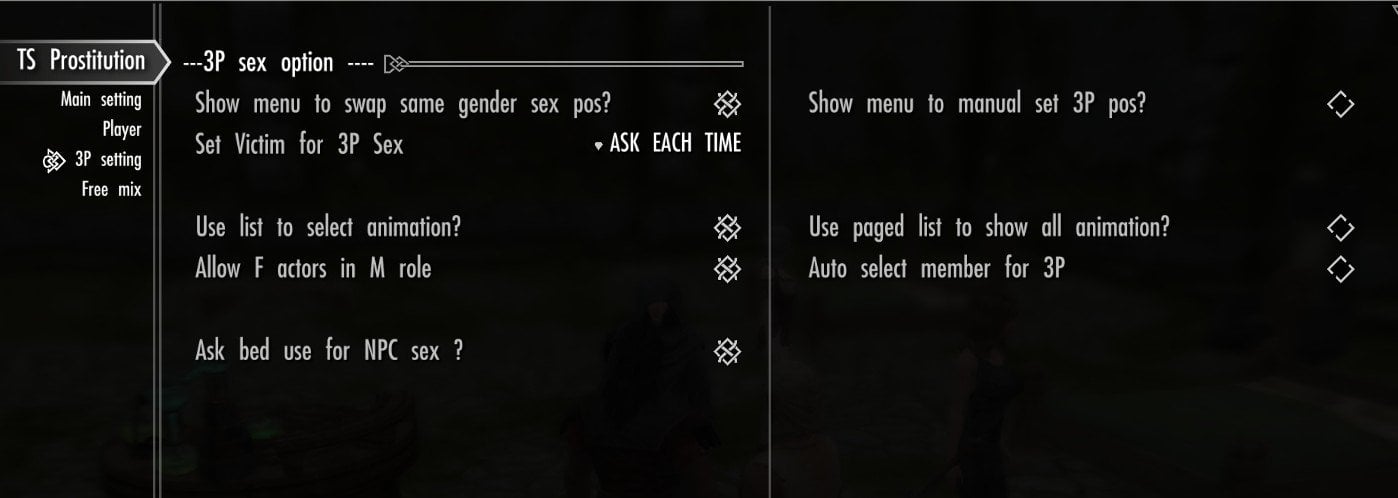
This time, I prefer to use “Swap same gender sex pos” (ON) when starting the animation, so It auto toggle “Manual set 3P Pos” OFF.
I also set “Victim for 3P sex” to “Ask”, so I can decide the victim after confirming the actor positions.
I want to choose the animation manually, but I do not have more than 125 3P animations, so I enable “Use list to select animation (ON) ” and leave “Use paged list” OFF.
I also enable “Allow F actors in M role” to increase the number of available animations. If you do not mind female actors using strap-ons, I recommend leaving this option ON.
Finally, I want to choose the third actor from a list, so I turn “Auto select member for 3P” OFF.
If you will choose the “PC join 3P” dialogue, this setting is simply ignored.
Bed Use Confirmation:
By default, NPC-only scenes allow bed use. (along with your sexlab MCM setting)
If “Ask Bed Use” is enabled, the mod asks just before the scene starts whether a bed should be used.
Choosing Yes keeps bed use enabled, while choosing No temporarily disables bed use for that scene only.
If New global option, “Expand Bed Search Range” is also enabled, the expanded search is applied only when bed use remains enabled — either because the show confirmation option is OFF, or because you selected Yes.
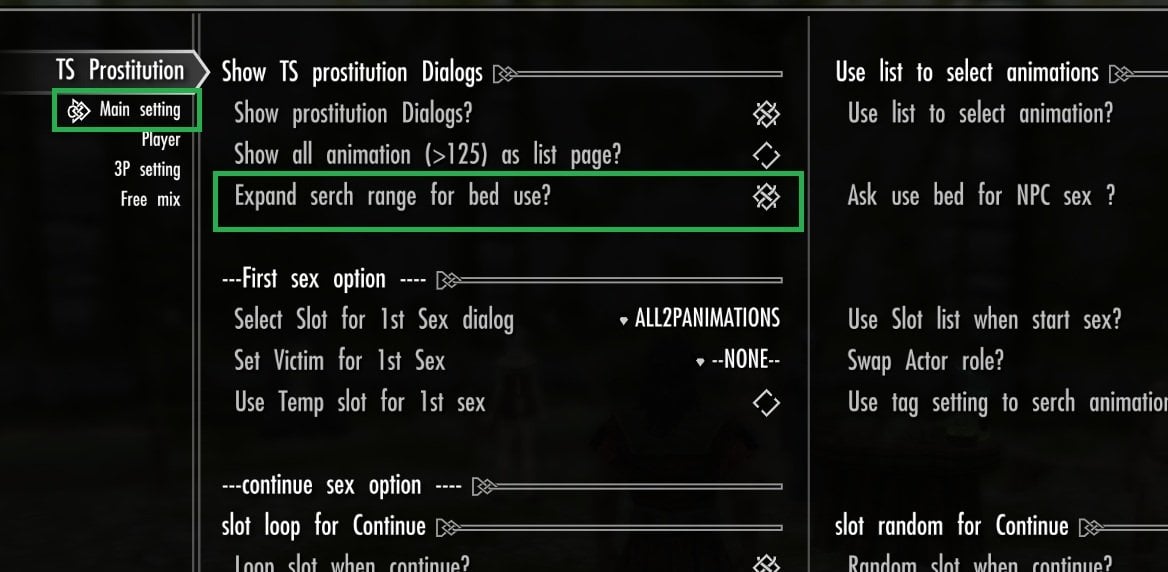
So If you always want NPC scenes to use “Expand Bed Search Range”, enable the global option (ON) and leave “Ask Bed Use for NPC” OFF. Since bed use is allowed by default, the expanded search will be used automatically whenever the scene starts. or show confirm window, "Ask bed Use For NPC ">> ON, then select "YES" for current scene.
------------------------------------------------------
- Free Mix 2P MCM Settings for Conversion
You can use the usual Prostitution dialogue explained in the previous tutorials, then start Worker VS Guest 2P scene,
or use the new Free Mix Scene feature. Both work the same for this tutorial, but this time I’ll use Free Mix Scene as a quick example.
In the TS Prostitution MCM menu, open “Free Mix”, which is the fourth Config page.
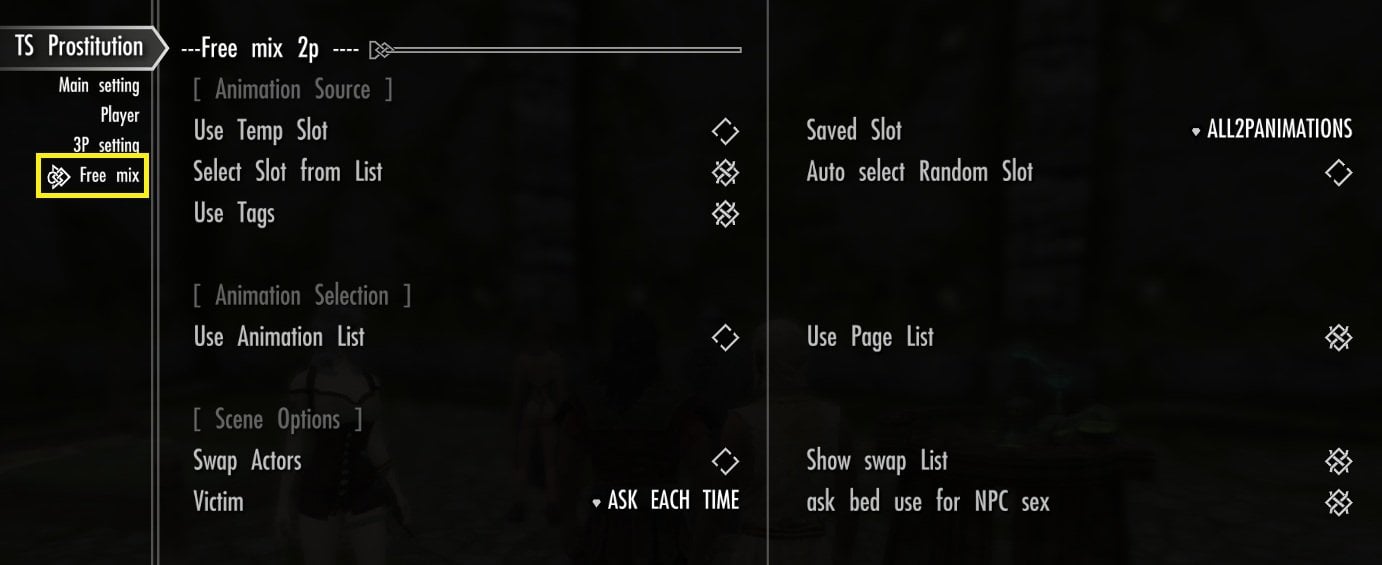
Free Mix 2P is divided into three categories, but most of the options should already look familiar.
[Animation Source]
It determines which animation list will be passed to SexLab.
The priority is:
Temp Slot → Select Slot from List → Random Slot → Saved Slot (select one slot from MCM list)
Use Tags determines whether the animation list is searched again using the current tags.
If more than 125 animations match, the set of candidates may change when the list is rebuilt.
[Animation Selection]
Use animation list = select one animaiton from Animation Source, when scene start, or Sexlab auto select.
Use Page list = show multi page animation list (separated each page max as 125) to show all source animtions over 125.
if this option ON, must select one animation from each paged list.
[Scene Options]
By default, the actor you talk to is placed in Position 0, and the second selected actor is placed in Position 1.
Swap Actors in the MCM reverses this default order.The actor you talk to will then be placed in Position 1, while the second selected actor will be placed in Position 0.
I usually leave “Swap Actors” OFF and enable “Show Swap List” instead.
This shows the current actor positions, just before the scene starts, and lets you swap the positions if needed.
"Victim" will be set after Actor positon decided, ( described above),
None = No victim for Free mix 2p scene.
Auto positoin[0] Actor = Postion[0] actor (along with your MCM setting and swap list decision) set as Victim for Free mix 2P scene.
Ask Each time = show Victim list with actor name and current position, then select Victim for Free mix 2P scene.
"Ask Bed Use for NPC Se"x shows a confirmation window just before an NPC-only scene starts, allowing you to choose Yes or No for bed use.
If you select Yes, bed use remains enabled and follows the normal SexLab bed-use behavior and settings.
If you select No, bed use is disabled for that scene. For the global Expand Bed Search Range option, see the explanation above.
As you know, these settings are not used for the converted 3P scene. They are only for the Free Mix 2P scene that you start before converting it to 3P. 😉 So now lets srat Free mix 2p.
-------------------------------------------------------------------
- Start a Free Mix 2P Scene from Dialogue
As explained at the beginning, Free Mix 2P lets you freely choose actors from any NPCs currently following the player through this mod.
You can start the dialogue with any of them, but by default, the actor you talk to will be placed in Position 0. Keeping this in mind can make the scene setup easier.
Of course, if Swap Actors is enabled in the MCM, the actor you talk to will instead be placed in Position 1 Makes sense? .🧐
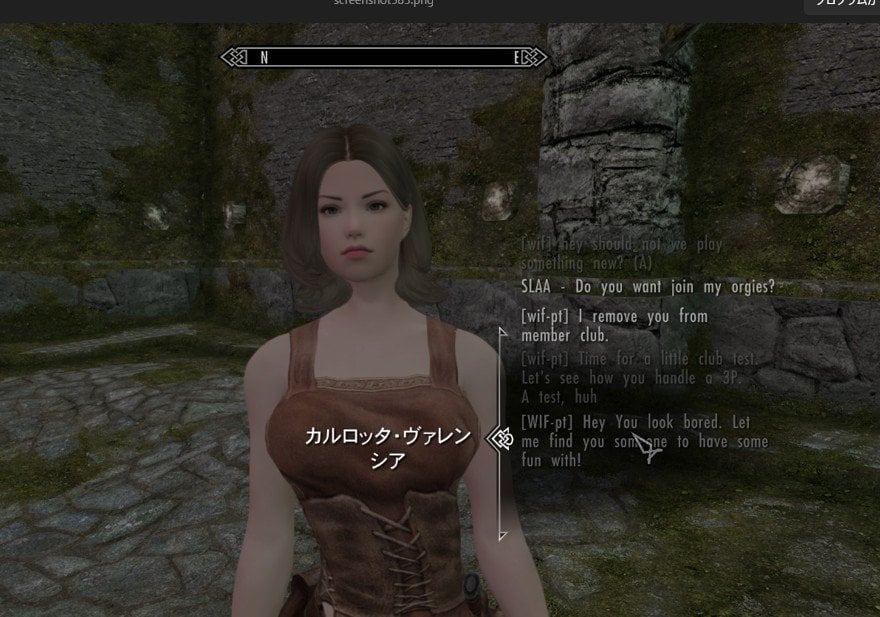
Actually, you don’t need to set a Worker or Guest. I already have them set, but this time I’ll talk to a Called Member who might be getting bored just watching the others. 😏
"[WIF-pt] Hey you look bored, Lets me find you someone to have some fun with!"
----
-----
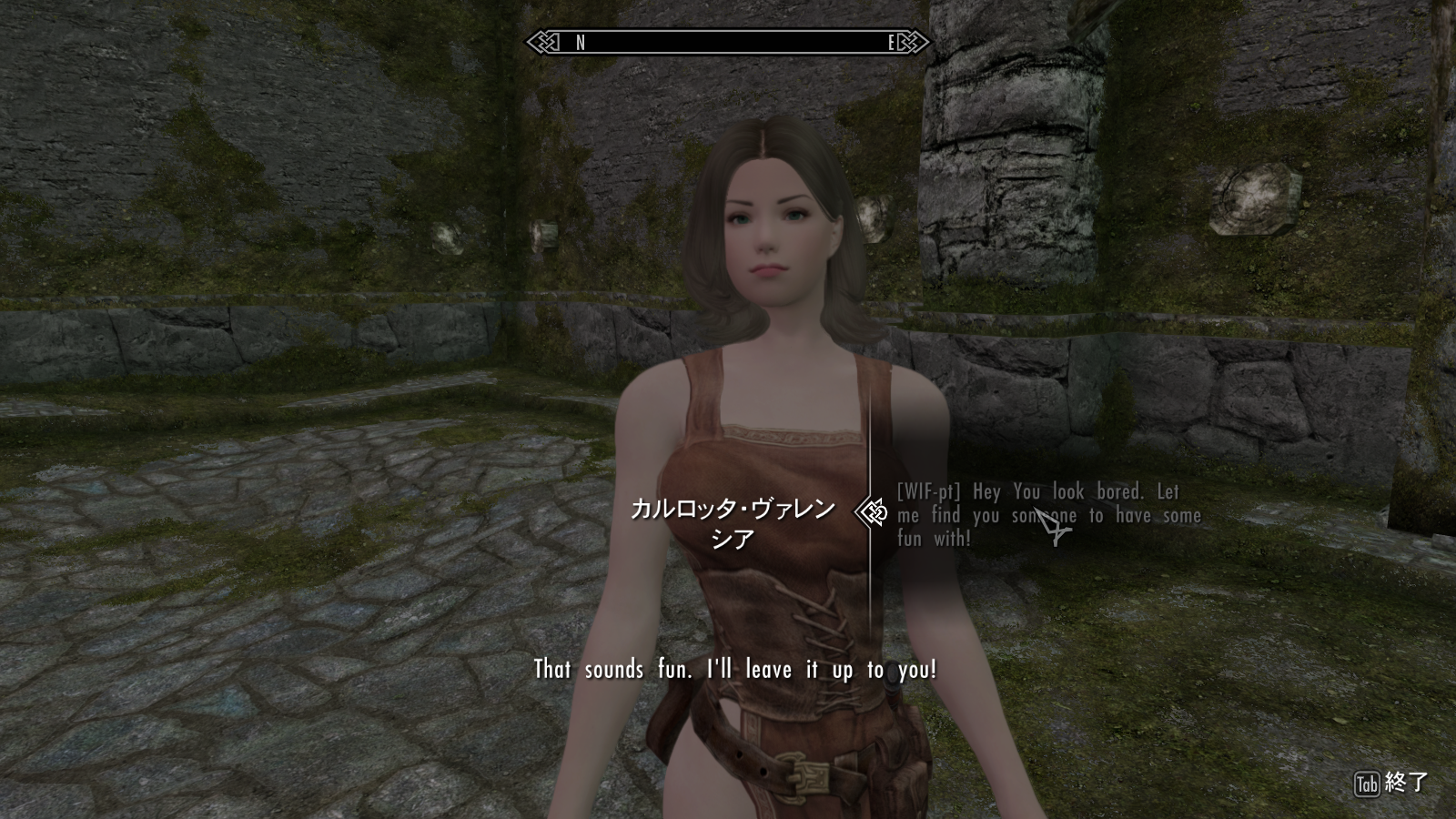
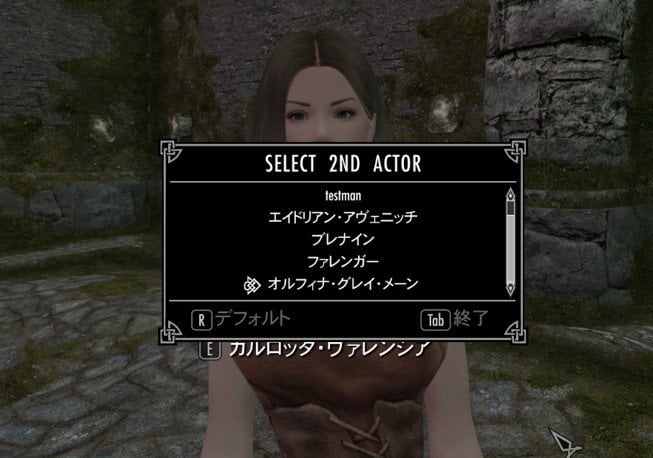
A list of currently following members who are free will appear right away. Now, let’s choose someone for her to play with! 😏
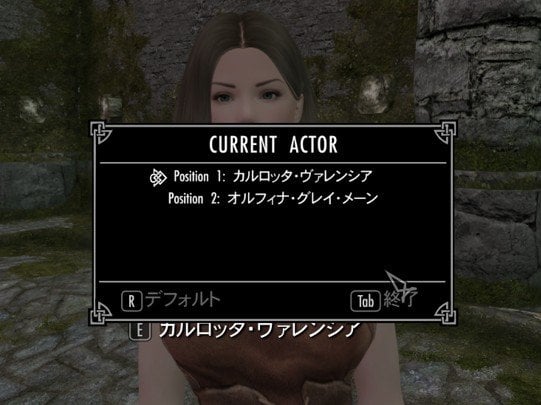
After the two selected actors and their current positions are shown, you will be asked whether to start the 2P scene or select one more actor.
----
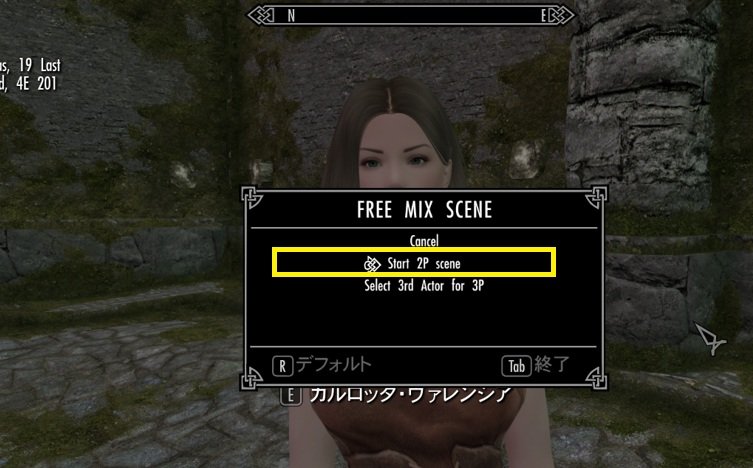
Since we want to try the 2P → 3P conversion this time, be sure to choose Start 2P.
After that, the option windows you enabled in the MCM will appear one after another before the scene starts.
One more note about Bed Use: even with Expand Bed Search Range enabled, a bed that is far away may still not be found.
When testing this option, try it with a nearby bed. The expanded setting should clearly increase the bed-search distance.
Then start the 2P animation and enjoy! 😀
If you want to test with other actors options , feel free to try different combinations.
Once you are familiar with the new Free Mix 2P options, let’s move on to the conversion step!
------------------------------------------------
- Conversion Dialogues (NPC or PC Join)
In the normal Prostitution 3P options, the dialogue is separated depending on whether the Player joins or a Club Member joins.
For 2P → 3P conversion, however, both routes start from the same dialogue option.
Just activate one NPC of two actors, who currently play 2P. Then select the dialo
[wif-pt] Wait! How about making this a three-som ?
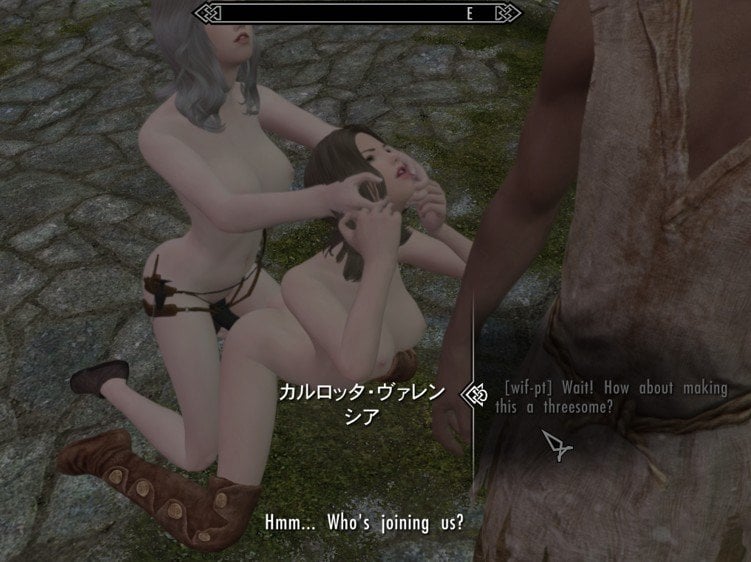
Linked DIalog auto open, Then you can select PC / other one NPC will join as 3rd Actor for 3P animation.
[wif-pt] Someone in club member will join!
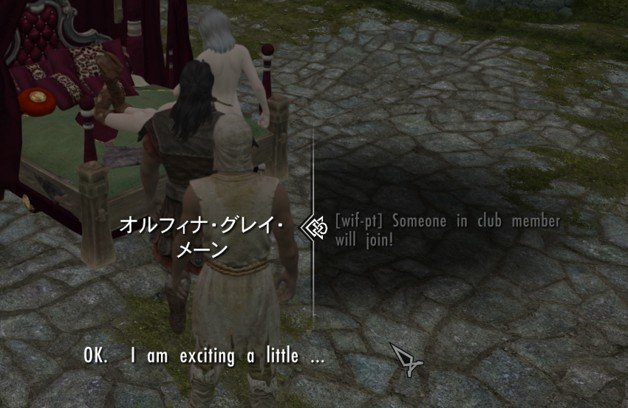
In this screenshot, I want an NPC to join as the 3rd Actor. Then use the dialog.
And In the 3P MCM settings, I set “Auto Select Member” to OFF, so I can choose which member will join as the third actor from a list.
I picked Brenain so she wouldn’t be left out!😛
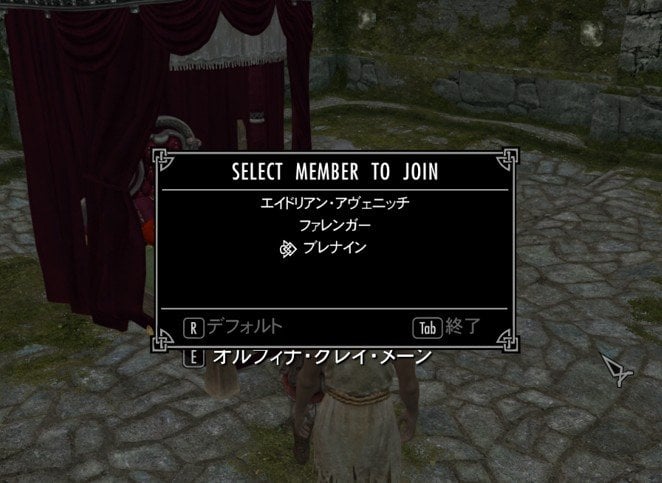
After that, the process is exactly the same as starting a normal 3P scene.
Depending on your MCM settings, the animation list, swap list, confirmation windows, and other menus will open one after another.
In this example, I enabled “Show Swap Same Gender” then select Yes to swap.
As a result, the positions of Carlotta, who was originally in Position 0, and Olfina were swapped.
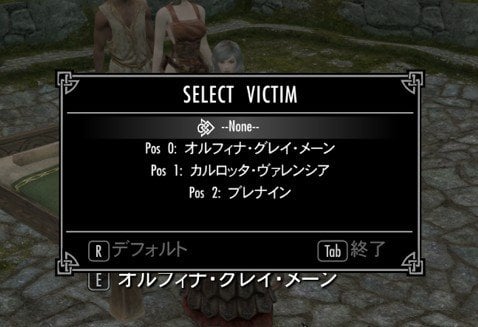
The actors are FFM, but I intentionally selected an MMF animation.
This time, Carlotta takes the M role, so She enabled the strap-on,(Though I still haven’t made properly body-fitted strap-on NIFs for them yet. 😶) while Olfina moved to Position 0 then play Female role as I intended.
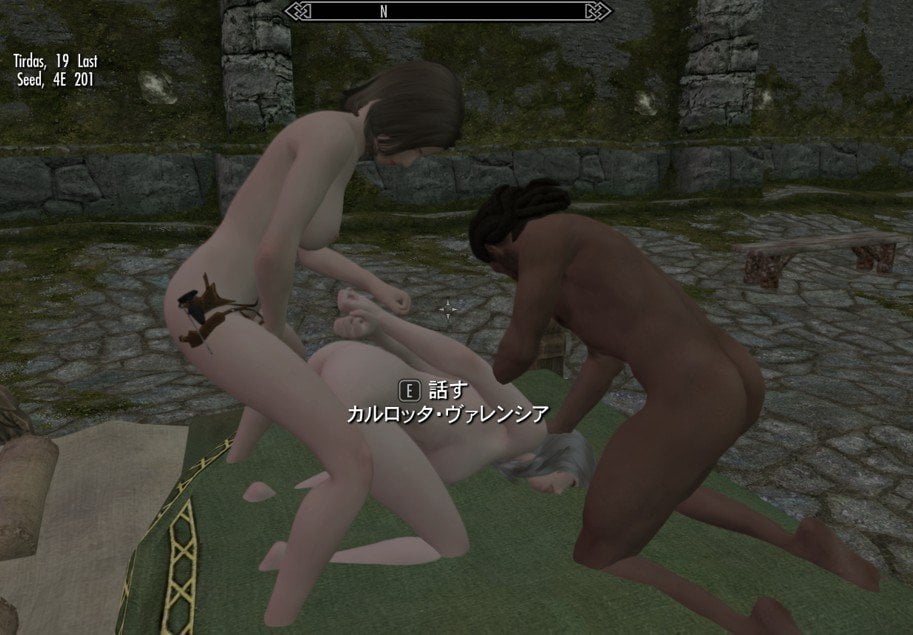
And they could use bed this time 😉
This should cover most of the 2P → 3P conversion process for scenes started by this mod.
It works a little differently from starting a normal 3P scene, but I hope you will try using it, with the Stop Sex dialogue.
In previous versions, these dialogue could occasionally become unavailable for a while because the mod detected the wrong old SexLab thread of current actor.
In this 2.2.2 version, thread detection has been improved by checking the current thread state and ignoring inactive threads, so it should now be much more stable!! 🙂
Peace and Have Fun! ✌️
-------------------------------------------------------------
"Free Mix" and new added options. (Start marker etc)
Mod offer "Prostitution-related dialogs", including "PC skill tests" , restrict actor selection based on their assigned roles.
"Free Mix" adds a dialog and features that let you freely choose actors from all NPCs following the player through this mod, (and PC) select your preferred options, and start an "2p or 3p animation". In this tutorial, I’ll explain how to use Free Mix along with the newly added options.
Before starting tutorial, as usual, move to a cell with enough open space to test animations, and use the shout "wifCallMember" to select and summon four or five Club Members.
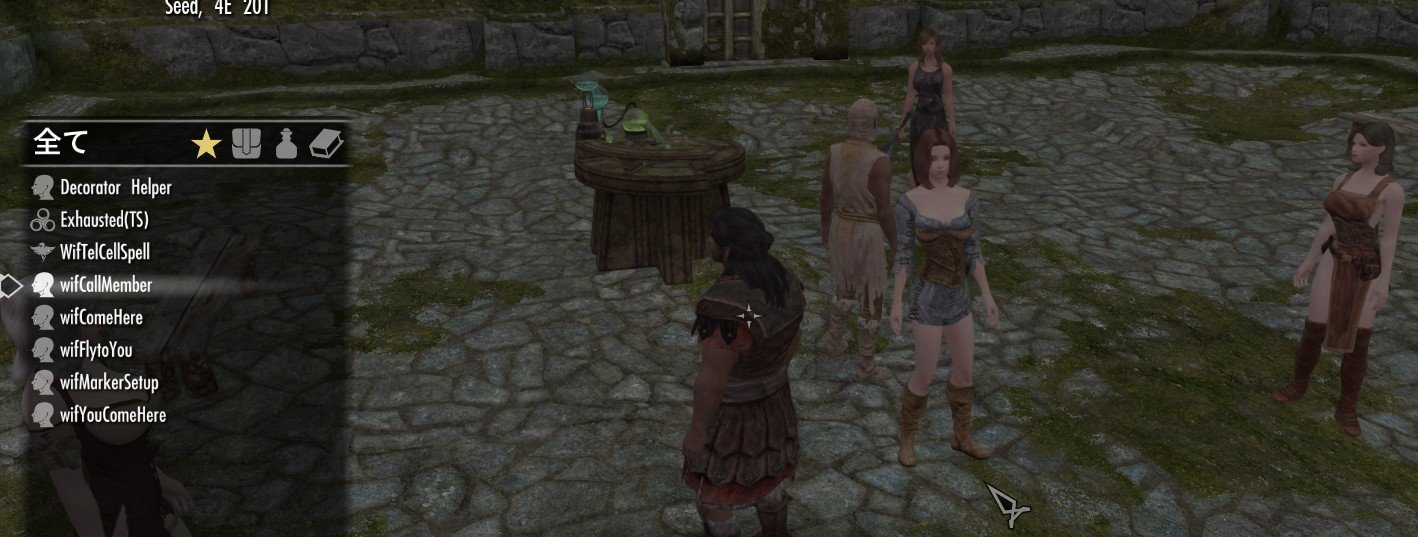
For this tutorial, I’ll use only "Called Members" but If you already have Workers or Guests with you, you can leave them as they are—they can also be selected as actors. Any NPC following the player through this mod can be selected as an actor for "Free mix" either 2P or 3P scenes .
- MCM options for Free mix scene
Some of this will be a review of the previous tutorial, but let’s start by configuring 2P.
This time, we’ll keep most of the process automatic after selecting the dialog, and I’ll explain how to set up the newly added Start Marker during that process.
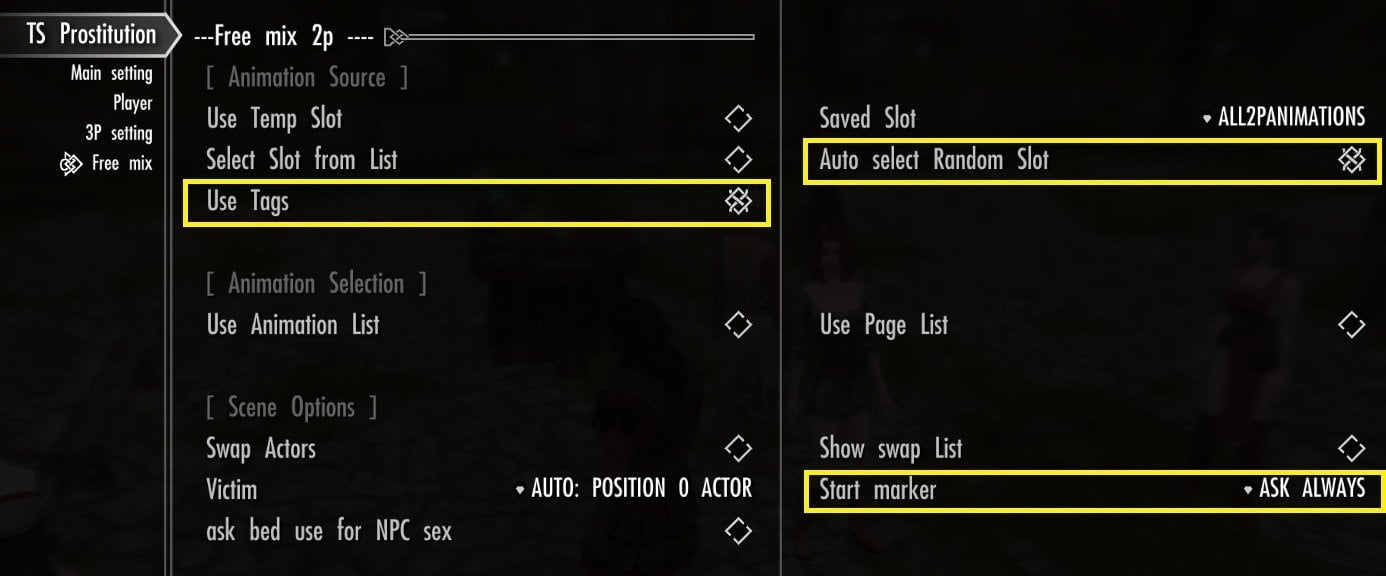
Set Animation Source to Random Slot, and turn Use Tag ON so that each time you start a scene, animations are searched again using the selected slot’s tag settings.
Set Animation Select however you prefer. If you want to choose a specific animation, Use Page List lets you browse all animations matching the selected slot’s tag settings.
For this tutorial, I’ll leave both options unchecked and let SexLab choose randomly.
(Naturally, the selected animation may not suit the start location)
Under Scene Options, I leave both Swap Actors and Show Swap List unchecked.
Then The NPC you initially speak to will be assigned to Position 0.
Set Victim to Auto. This assigns the actor in Position 0—the NPC you spoke to—as the victim.
Next, make sure to select Ask Always for ”Start Marker”. This new option lets you set where the animation starts.
If you’re following my setup, your settings should look like this:🧐
- Using the "Marker Setup Shout"
This mod uses two different markers for "Free Mix" scene.
the Default Marker, which keeps its set location, then you can use it as start location (option)
the Start Marker, which is used only when you choose to set a marker during a dialog. Animation startup is put on hold while you freely move and adjust the Start Marker. Once you’re ready, you can start the animation at the Start Marker’s location. (with other options)
After updating to the latest version (2.2.4), you’ll receive a new shout called wifMarkerSetup the first time you load your game.
The menu shown by this shout changes depending on the situation.
For now, equip it and use it.You’ll see the following options:
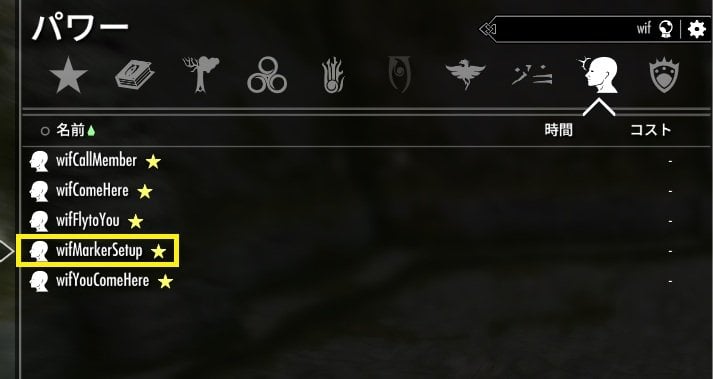
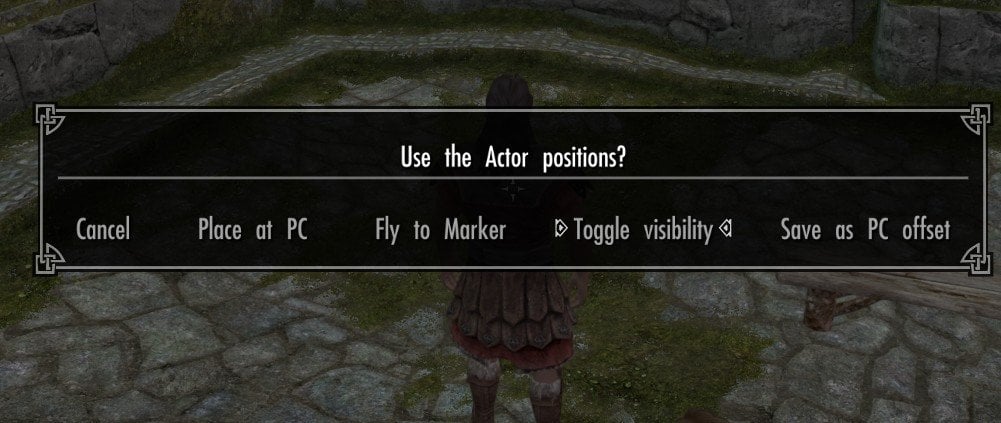
Cancel : close this menu
Place at PC : generate "Default-marker" / place "Default marker" in front of PC
Fly to Marker : If default marker generated, PC fly to "Default marker" position.
Toggle Visibility : hide / show "Default marker"
Save as PC offset : Save the ”Default Marker" s position and facing direction relative to the player.This saved offset can then be used to set the animation’s start location relative to wherever the player is standing (option)
Since you haven’t created a Default Marker yet, select Place at PC.
A golden statue —the Default Marker— will appear in front of the player.🤩
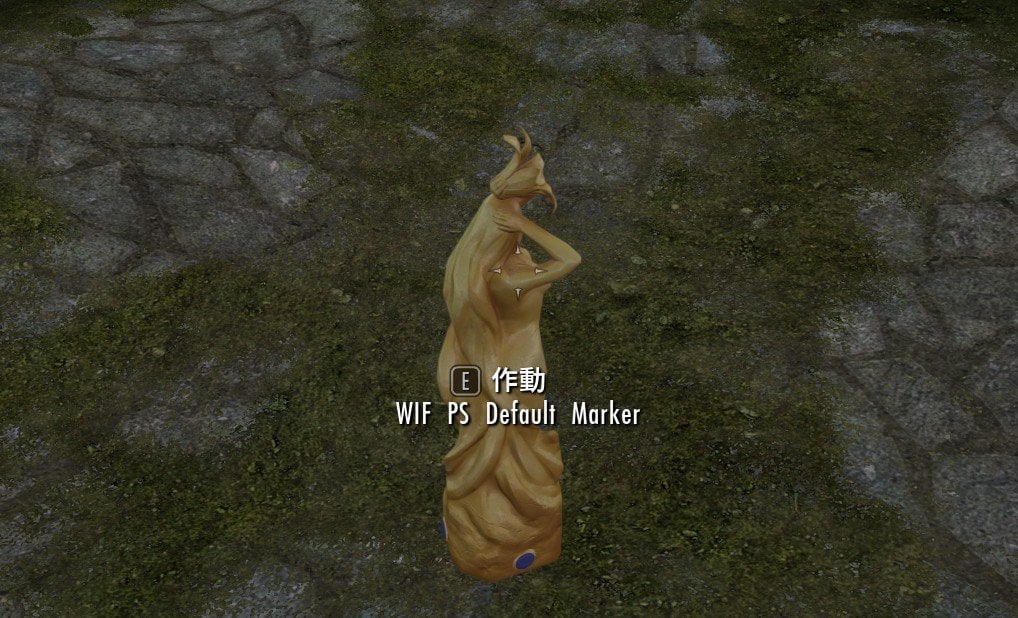
The Default Marker is an activator, but direct activation is intentionally disabled.
Then always use the wifMarkerSetup shout to open the Default Marker menu.
However, if you choose "Set Marker" during a Free Mix dialog, the wifMarkerSetup opens the Start Marker menu instead.
While this setup is pending, the Default Marker menu is unavailable until you finish setting the Start Marker and start the scene, or cancel the setup.
SImply because you need to set "Start marker" not "Default marker" for your prefered option from dialog(Set Marker) .Does that make sense? 🙂
Don’t worry if it’s not clear yet—I’ll walk you through the actual steps later!
For now, just remember to control the Default Marker using the "wifMarkerSetup" shout always, rather than activating it directly.
Next, move the Default Marker to wherever you want the animation as default location. For more precise placement than Place at PC, please use Decorator Helper or your preferred object-moving mod.
I’ve been using Decorator Helper for a long time. There seem to be various alternatives, so if you know a good one, please let me know! 🙂
Ideally, it should work with Skyrim SE 1.5.97, reliably move activators, and leave the mesh scale unchanged unless you explicitly adjust it.
I used Decorator Helper to place the golden statue—the Default Marker— on the bed.
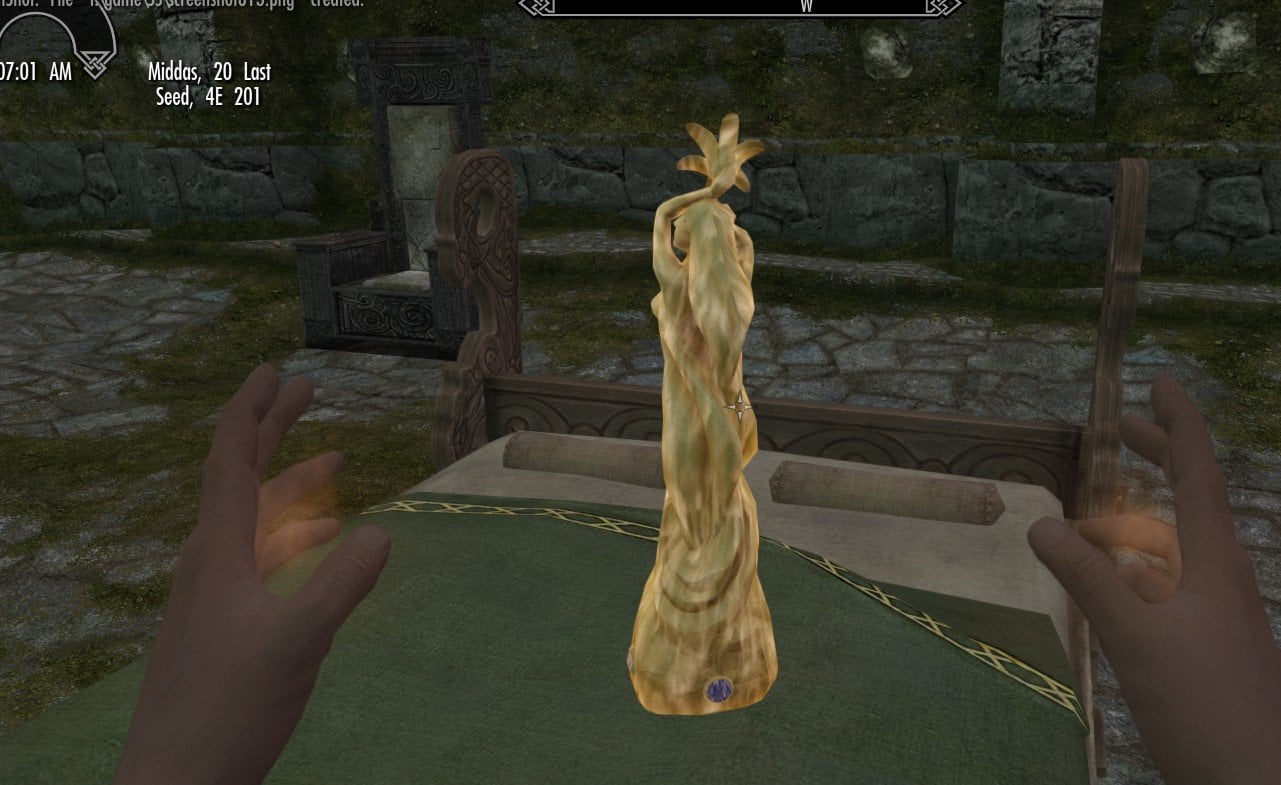
or try this way !😁 (jump on the bed edge, then shout, and place at pc)
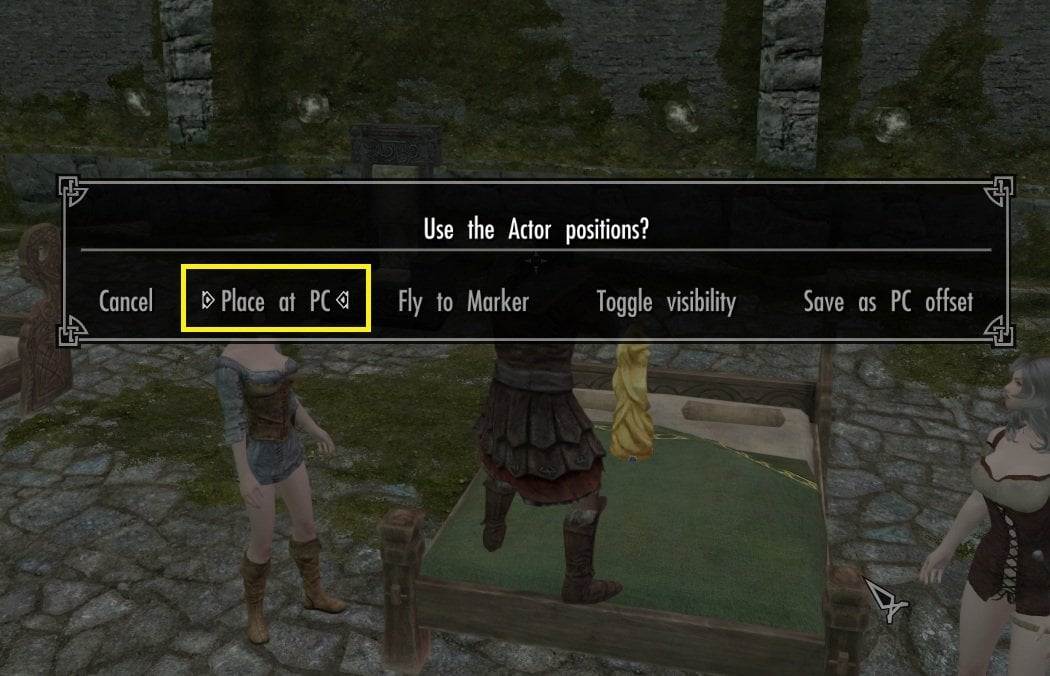
If you only want to set the default start location, that’s all you need to do.
However, I also want to show you how the PC offset works. Then Stand somewhere nearby bed, where you can see the statue, use the wifMarkerSetup shout, and select Save as PC Offset!
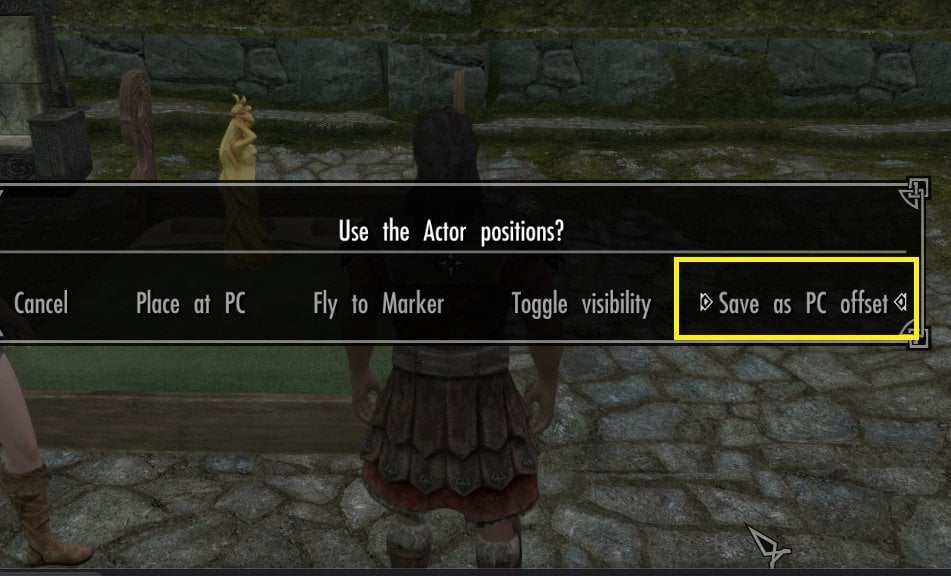
This saves the golden statue’s (X Y Z) position and facing direction relative to the player.
In the screenshot above, the statue is diagonally ahead and to the player’s left, and higher than the player’s position by the height of the bed. These differences are saved as the PC offset.
We’ll try this off-set option later as same as "default marker option", so feel free to chose your own position and facing direction before saving the offset. Taking a screenshot will make it easier to compare the result later!😎
----------------------------------------------------
Before starting the Free Mix dialog, let’s take a look at some recently added MCM options.
We won’t use all of them in this tutorial, but I’ll explain what each one does.✍️
- Recently Added MCM Options
1. Expand Search Range for Bed Use
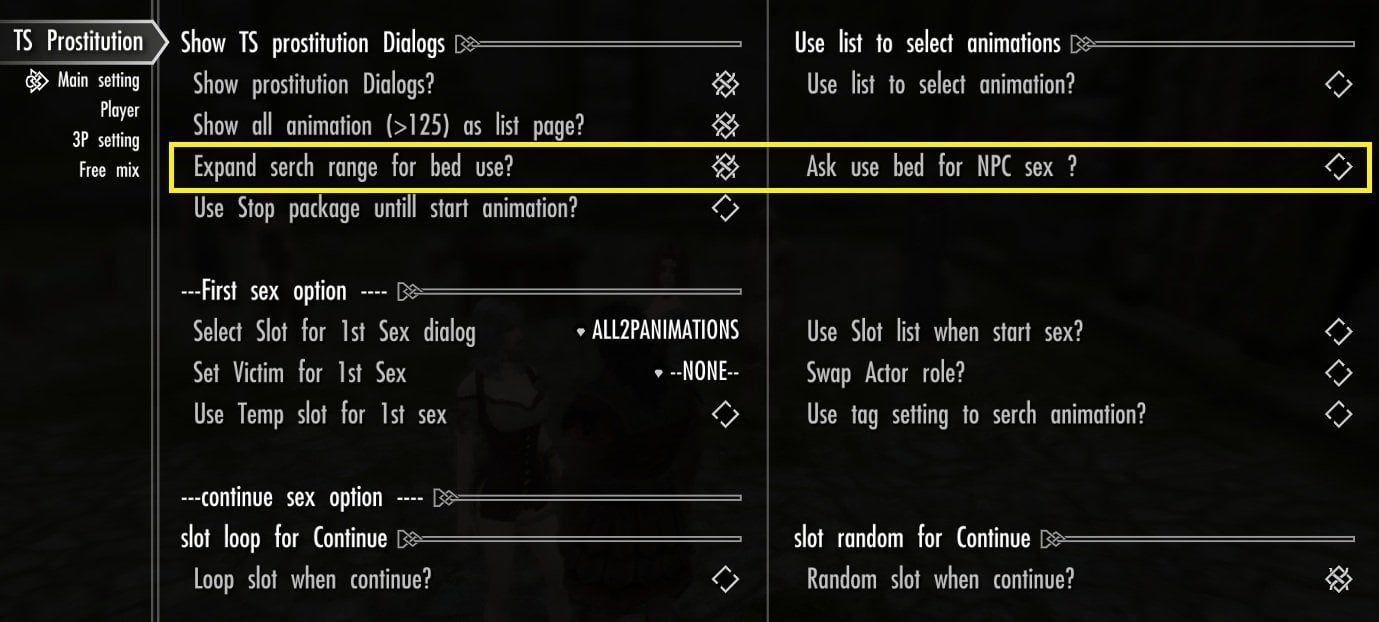
Default OFF. This global option lets you toggle SexLab’s ”Force Bed Use” flag for scenes started through this mod, directly from this mod’s MCM.
Enable bed use for the relevant scene type—player or NPC scenes—in SexLab. For NPC scenes, also choose to use a bed when this mod asks.When this option is enabled, SexLab searches a wider area for a suitable bed.
The amount by which the search radius increases differs between standard SexLab and SexLab Utility Plus.
In the standard SexLab version checked here, this option doubles the normal bed search radius from 750 to 1,500 game units.
In the SexLab Utility Plus version checked here, the radius also depends on its hidden-location settings and state, so the increase is not always the same.
The search is centered on the player for player scenes, or on the actor in Position 0 for NPC-only scenes.
If a suitable bed is found, it is used without SexLab’s usual bed-use confirmation—even when the player participates.
This option does not override ”disabled bed use” in SexLab or choosing not to use a bed in this mod’s NPC bed-use prompt,which will be shown by next "Ask bed use for NPC sex" ON.
------------------------------------------------------
2. Ask Bed Use for NPC Sex
Default OFF. When enabled, this mod asks whether you want NPCs to use a bed before starting an NPC-only 2P scene.
-
Yes: Allow bed use, subject to SexLab’s bed settings and the availability of a suitable bed.
-
No: Start the scene without using a bed.
Choosing Yes allows the Expand Search Range for Bed Use option described above to take effect, if enabled. Choosing No prevents bed use even when that option is enabled.
This prompt is for NPC-only scenes. It does not appear when the player participates or when a marker is used to specify the start location.
The same Ask Bed Use (NPC-only scenes) option can be configured independently under NPC 3P Settings, Free Mix 2P Settings, and Free Mix 3P Settings, as shown in the three screenshots below.
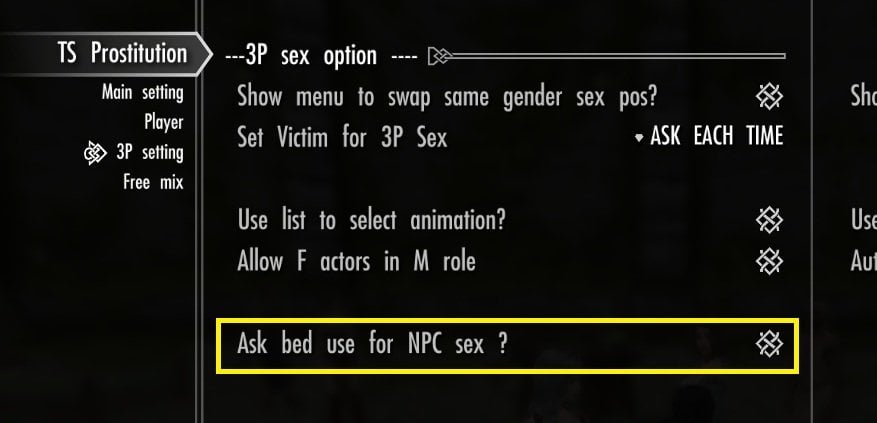
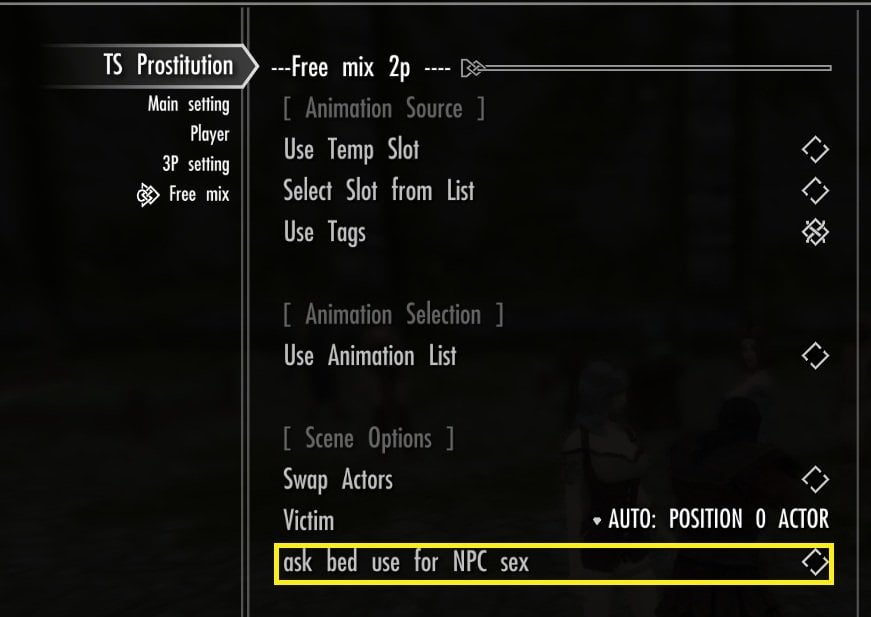
-----------------------------------------
3.Use stop package unitll start animation
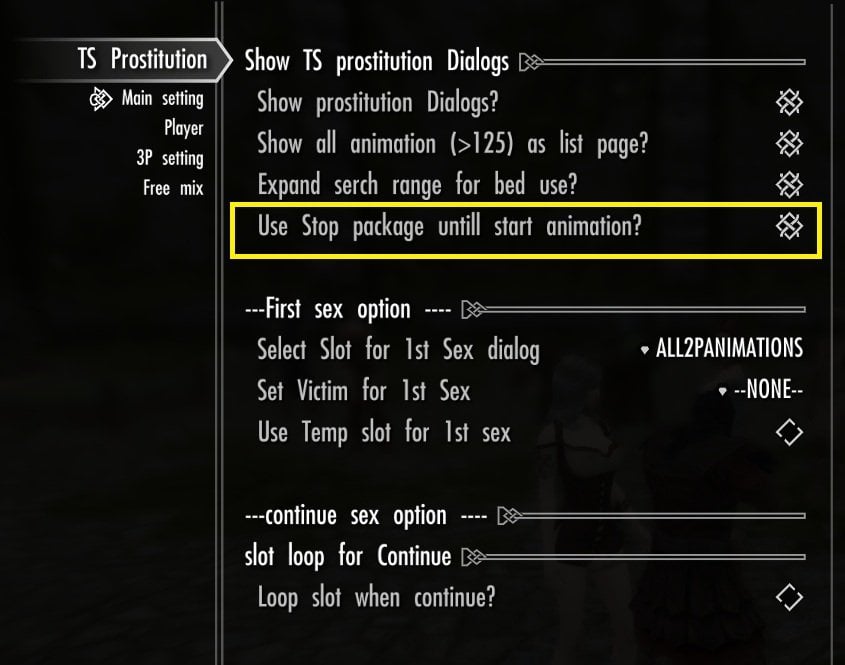
While preparing a SexLab animation through a dialog, this mod temporarily applies a stop package to prevent NPCs from trying to follow the player through this mod’s follow packages.
The stop package is applied shortly after you select the dialog and removed after the animation starts or when preparation is cancelled.
I added this ON/OFF option to investigate how the new Start Marker interacts with SexLab’s option to have actors walk to the start location instead of teleporting. (default ON)
My testing did not show a connection between the waiting package and the walking issues, but I’ve kept the option available.
I plan to investigate actor behavior further and consider updates to both this waiting package and the follow packages assigned to each role.
At current, To reduce the wait between animation selection, stripping, and scene startup, I recommend using teleportation in SexLab / Sexlab Utility Plus rather than having actors walk to the start location.
--------------------------------------
4. "you come here shout" auto activate NPC
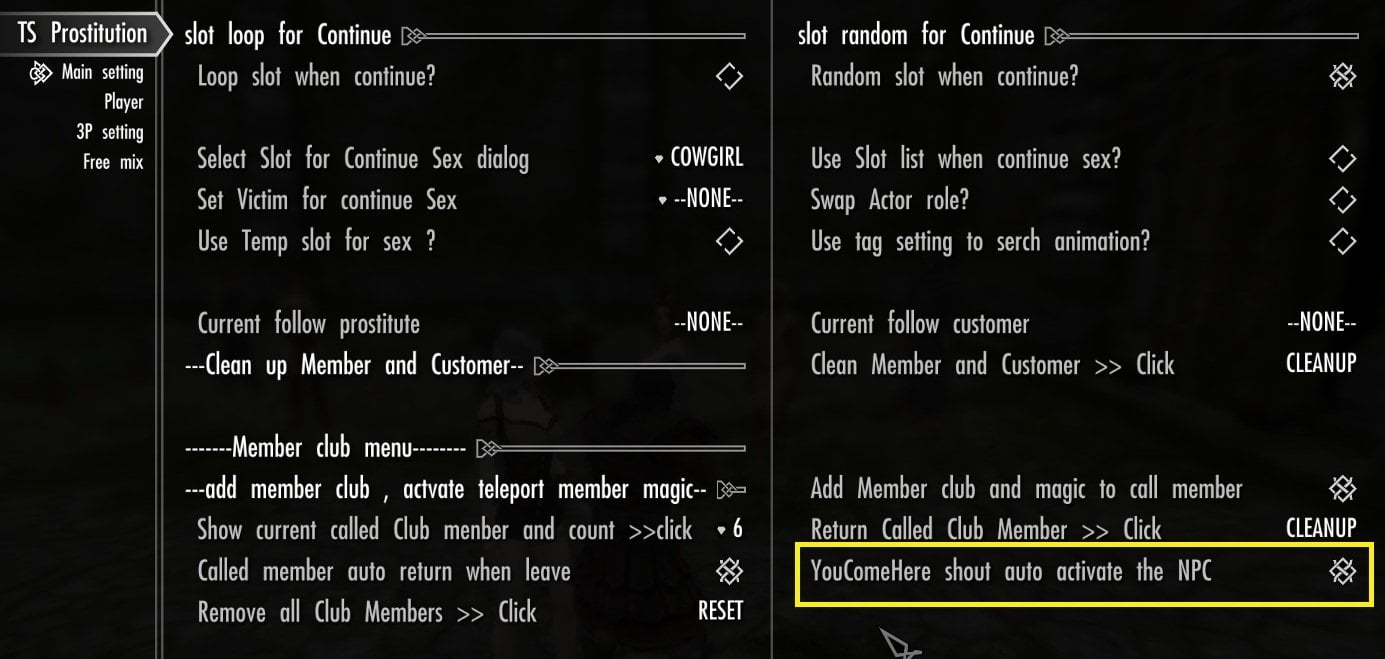
Dfault OFF.
The WifYouComeHere shout lets you select one NPC from a list of all NPCs following the player through this mod—including Called Members, Worker, and Guest—and move them in front of the player.
When this option is enabled, the shout also activates the selected NPC after moving them, opening a dialog automatically.
You can then choose a start dialog without moving the player at all.
For this tutorial, I recommend turning this option ON. Making it easier to use the PC offset you saved earlier precisely, with your chosen player position and facing direction as the reference.
--------------------------------------------------------------
- Starting a Free Mix 2P Scene with a Start Marker
Now, let’s start a Free Mix 2P scene using the marker options!
With our current MCM setting for marker, the dialog will always ask which marker option to use, so we’ll try each option in turn.
First, move well away from the *Default Marker* you placed on the bed earlier.
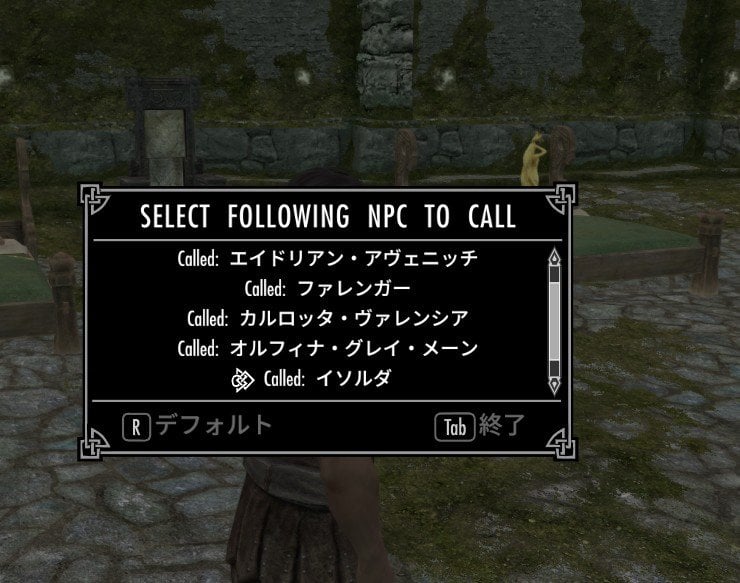
Use the WifYouComeHere shout to bring the NPC you want to assign to *Actor Position [0]* in front of you.
The NPC should teleport to you and be activated automatically, allowing you to choose a dialog right away!
--
"[WIF-pt] Hey you look bored ,,,,"
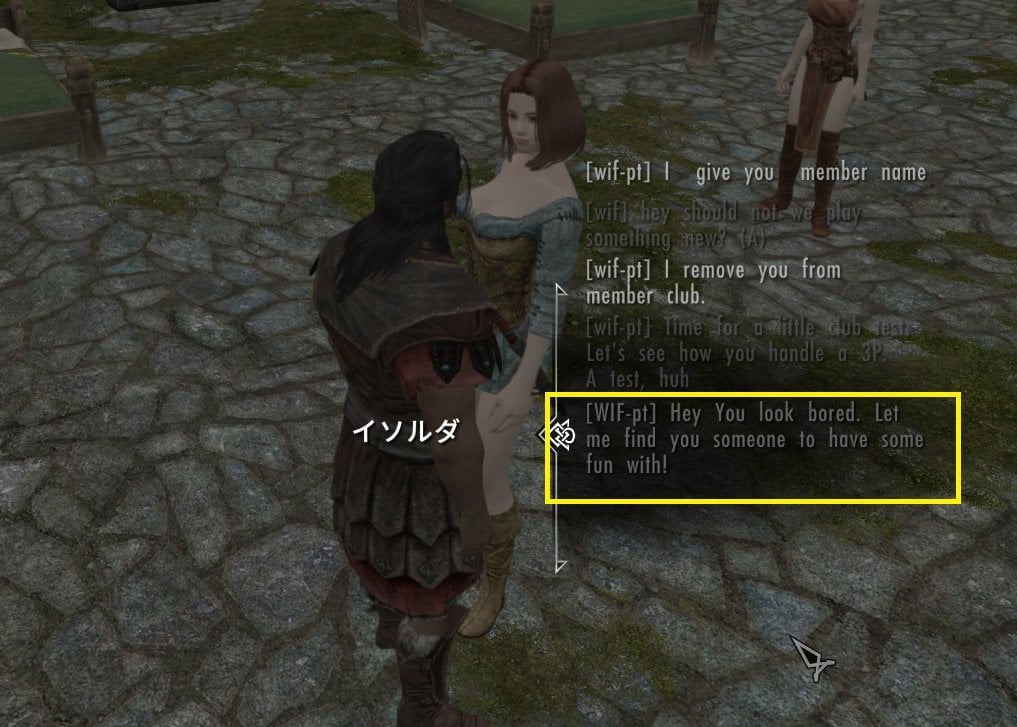
Then select Free mix start dialog "[WIF-pt] Hey you look bored, ,,,,,,,"
as shown in the screenshot above. You’ll then always be asked to choose the second actor.
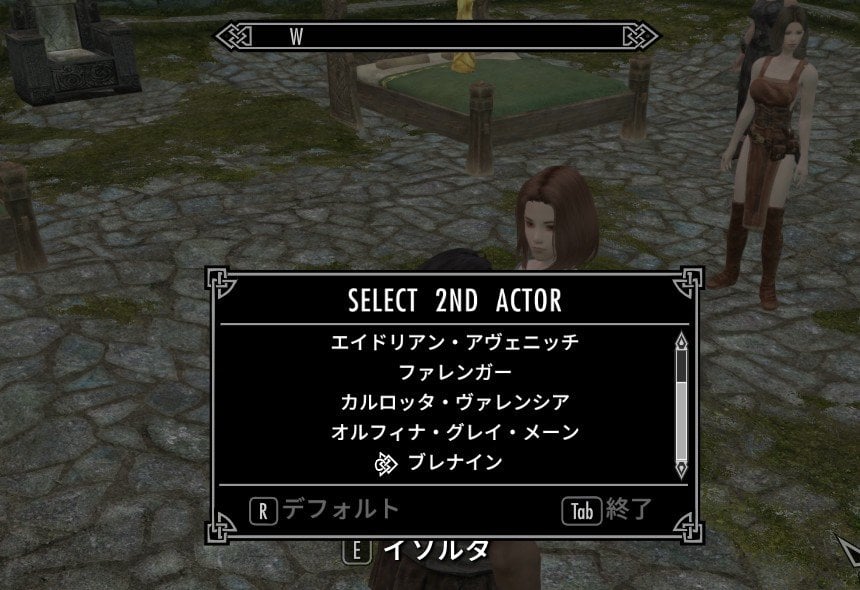
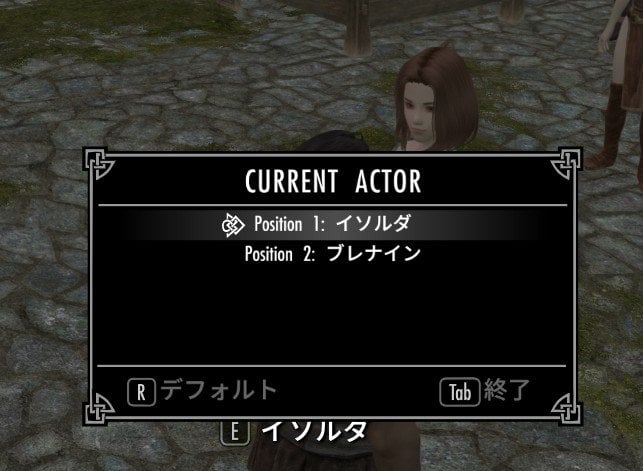
You can select the player, of course, but for now, choose an NPC for Actor Position [1].
I spoke to Ysolda as 1st actor, Actor Position[0] = Position1, and selected Brenuin as 2nd actor, Actor Position [1] = Position 2 in the confirm window.
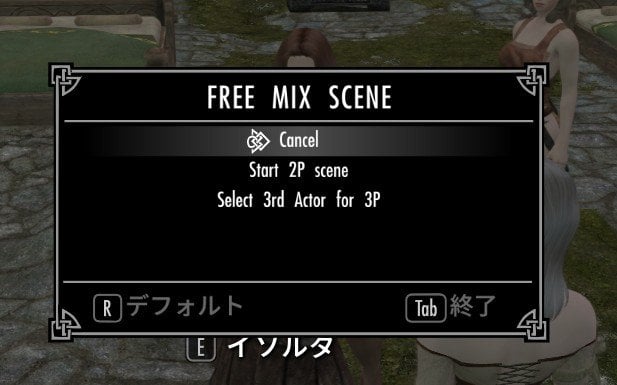
Next, you’ll be asked whether to start a 2P scene or select a third actor for 3P. For this tutorial, choose Start 2P Scene.
Depending on your MCM settings, additional option windows may appear next. Make your selections as needed.
For this tutorial, I’ve configured animations to be selected automatically from a random slot and disabled the other selection prompts,
so the marker option menu opens right away.
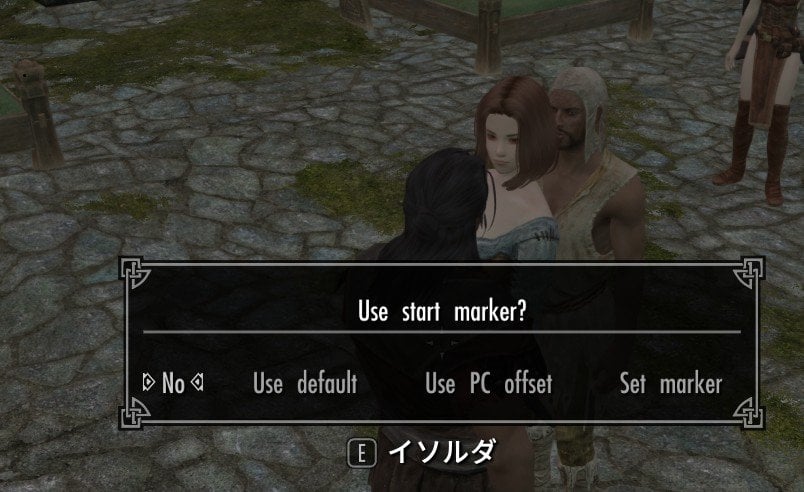
- Choosing a Marker Option
This menu is very similar to the *marker options in the MCM*, but it opens during the dialog and includes an additional option specifically for setting a marker at that stage.
No: Start without using a marker, just as before, without specifying a start location.
For this setup, the actor in **Position [0]** should serve as the reference point.
Since we’ve already placed the Golden "Default Marker" on the bed, let’s have both actors use that location. Select Use Default !
Even if the Default Marker is visible, selecting Use Default automatically hides it then start animiation.
So it won’t obstruct your view of the actors. Then You can use the wifMarkerSetup shout again. and select Toggle Visibility to show the Default Marker again. Check that the actors start the animation at the Default Marker’s location.
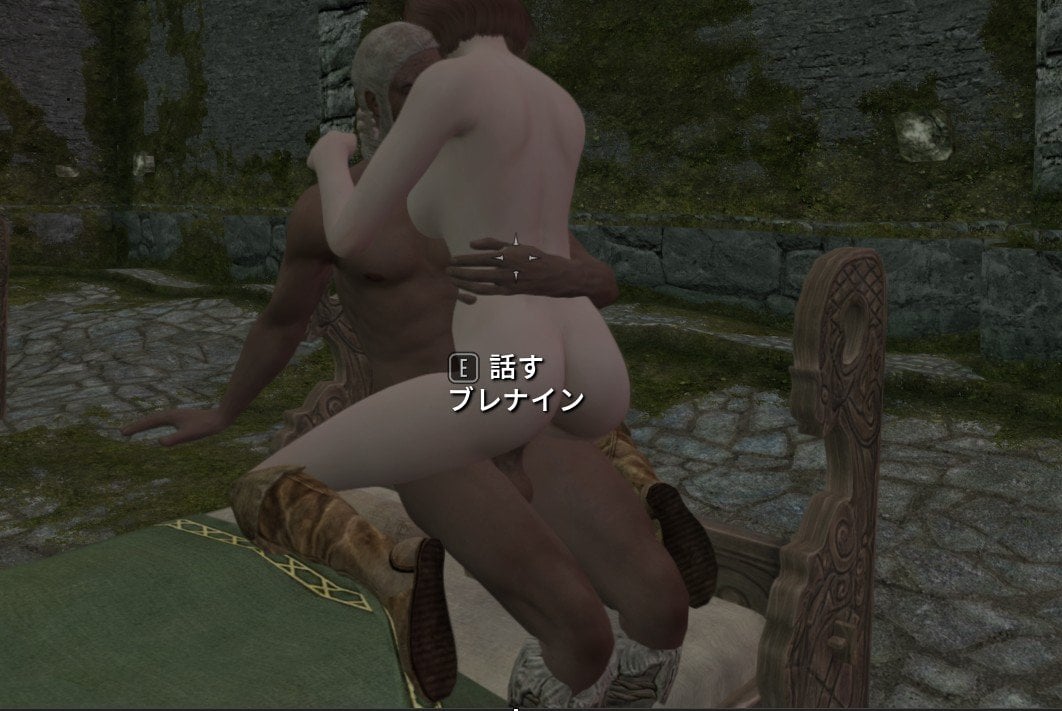
Once you’ve confirmed the start location, use the Stop Sex dialog to end the animation and move on to the next test!
This time, we’ll try the PC offset. Remember the offset you saved earlier, and position and orient the player so that applying it will place the animation where you want it to start.
Then follow the same steps as before: choose your preferred actors , set options, then open the marker selection window again. then select "Use Pc Offset"
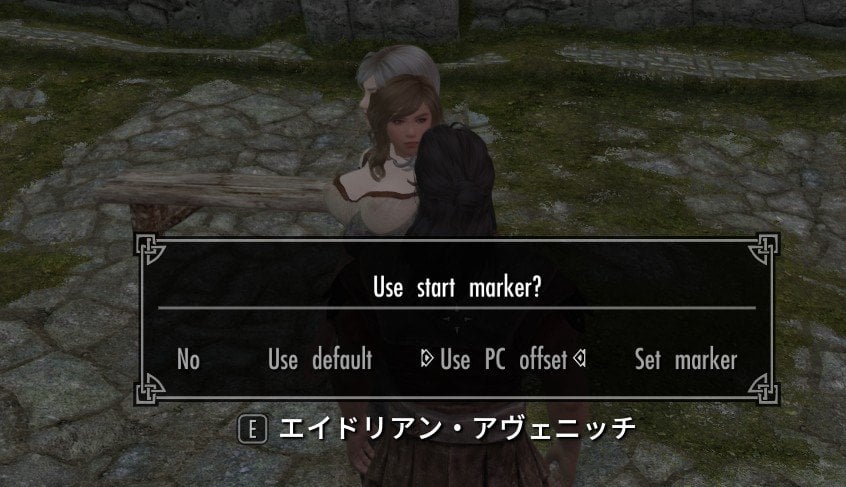
Remember how I saved the PC offset using the Default Marker: the marker was diagonally ahead and to the left of the player’s facing direction, above ground level by the height of the bed.
So I expect the animation to start near the wooden bench in the screenshot. And yes—Mom, I did it! 😆
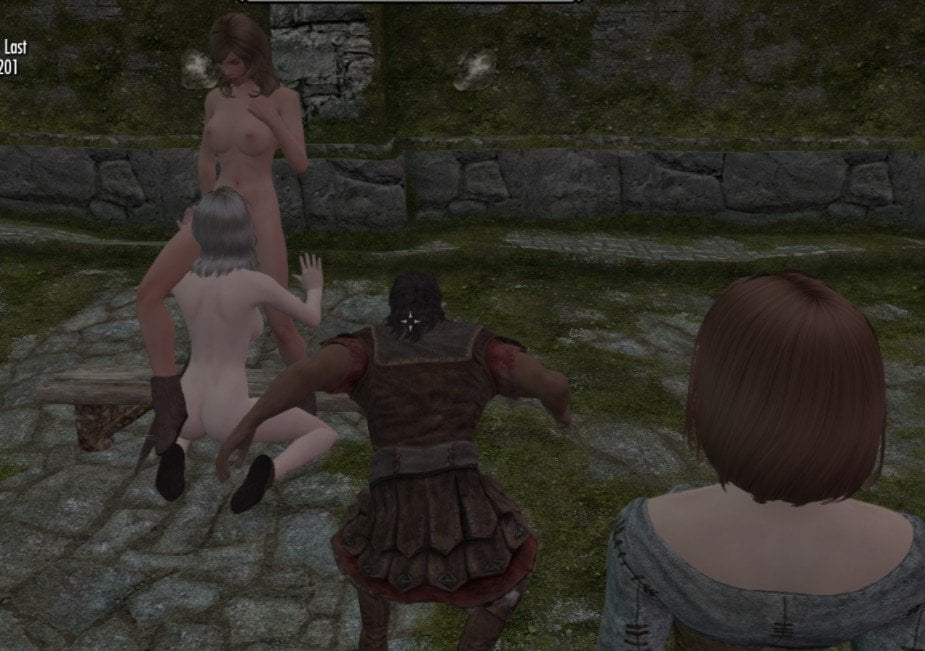
You should now have a good idea of how the PC offset determines the animation’s start location. Sadly, it’s time to stop the animation and move on!
Before trying the final option, experiment with moving the Default Marker and changing the player’s position and facing direction. Save a different PC offset, then try both Use Default and Use PC Offset to see how they work.
Once you’ve tried Use Default and Use PC Offset, let’s move on to the final option: Set Marker
Unlike the previous two options, Set Marker lets you choose the start location during each dialog. Scene startup is put on hold, and a separate Start Marker appears in front of the player. You can freely move and rotate it before starting the animation.
If an animation is currently playing, end it first. If the Default Marker is hidden, use the wifMarkerSetup shout and select Toggle Visibility to show it.
Stand a short distance away from the Default Marker, speak to your first actor, and select the Free Mix dialog. Follow the same steps as before until the marker selection window appears. This time, select Set Marker.
Unlike Use Default and Use PC Offset, which can be selected directly in the MCM, Set Marker is only available after starting a Free Mix Scene dialog. To use it, you must select Ask Always under Start Marker in the MCM.
Selecting Set Marker automatically creates new Activator "Start Marker" if it does not already exist, places it in front of the player, and auto activates it ,then open the Start Marker menu
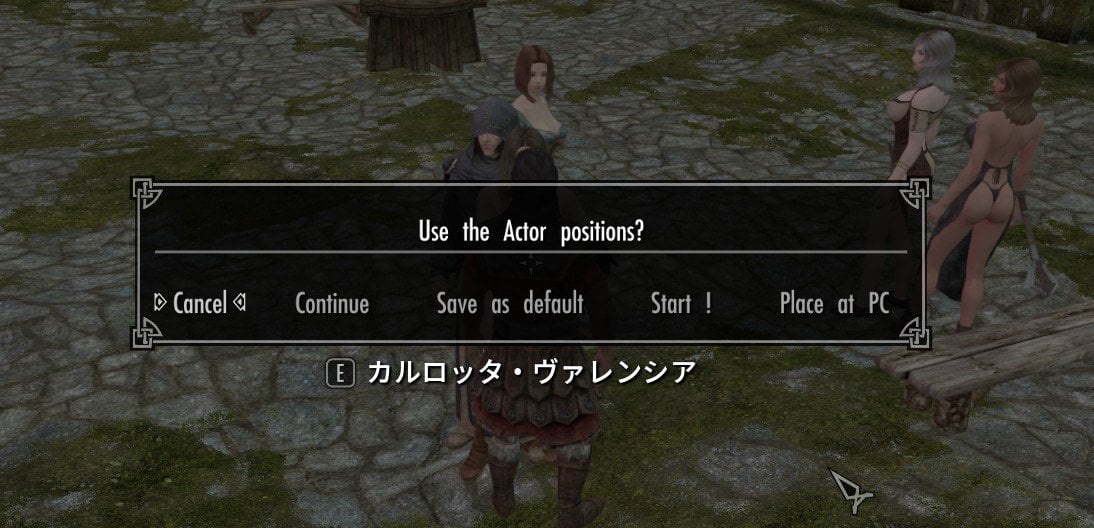
Cancel:
Cancel scene setup. The animation will not start.
Continue:
Close this menu and keep scene startup on hold while you adjust the Start Marker.
Save as Default:
Move the Default Marker to the Start Marker’s current location and facing direction, then start the animation there.
Start!:
Start the animation at the Start Marker’s location.
Place at PC:
Move the Start Marker in front of the player.
When using the Start Marker for the first time, make sure to select Continue to close the menu for now. Scene startup will remain on hold while you adjust the marker.
You’ll now see a new semi-transparent statue with a mix of gold and silver colors—this is the Start Marker.
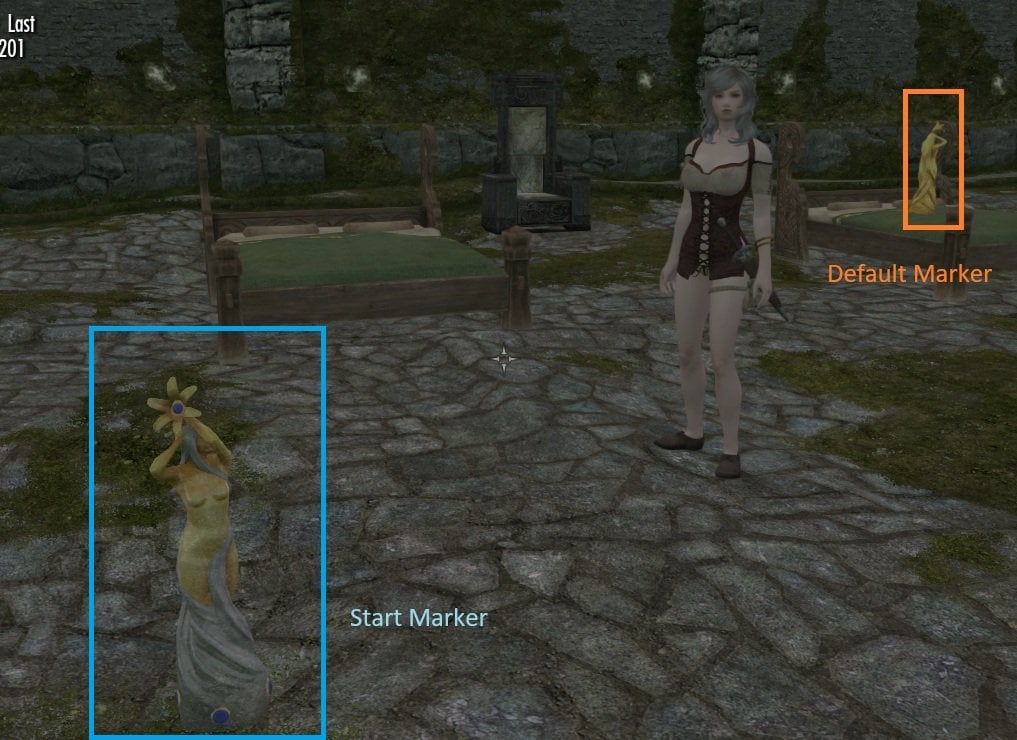
Before adjusting the Start Marker position choose roughly where you want the animation to start and move the player to that spot.
As explained earlier, while scene startup is on hold, the wifMarkerSetup shout opens the Start Marker’s activator menu. This lets you open the Start marker menu from a distance and select any of the options listed above without approaching the marker. Then open the menu, this time select Place at PC .
After that, use Decorator help or any mod you preferred, which can move statue activator in game.
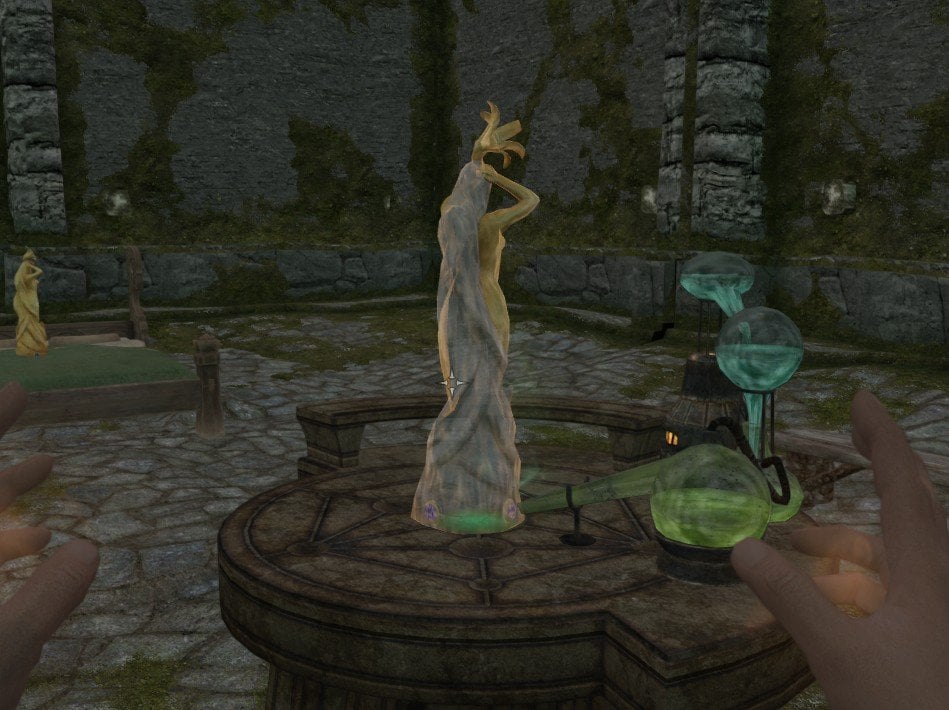
Once you’ve finished positioning the Start Marker, use the shout again to open the menu and start the pending animation.
Selecting Save as Default moves the Default Marker to the Start Marker’s current location and facing direction, then starts the animation there.
For this tutorial, we’ll leave the Default Marker where it is and use the Start Marker as the animation’s start location.
Yes, that’s the one—select Start! 😆
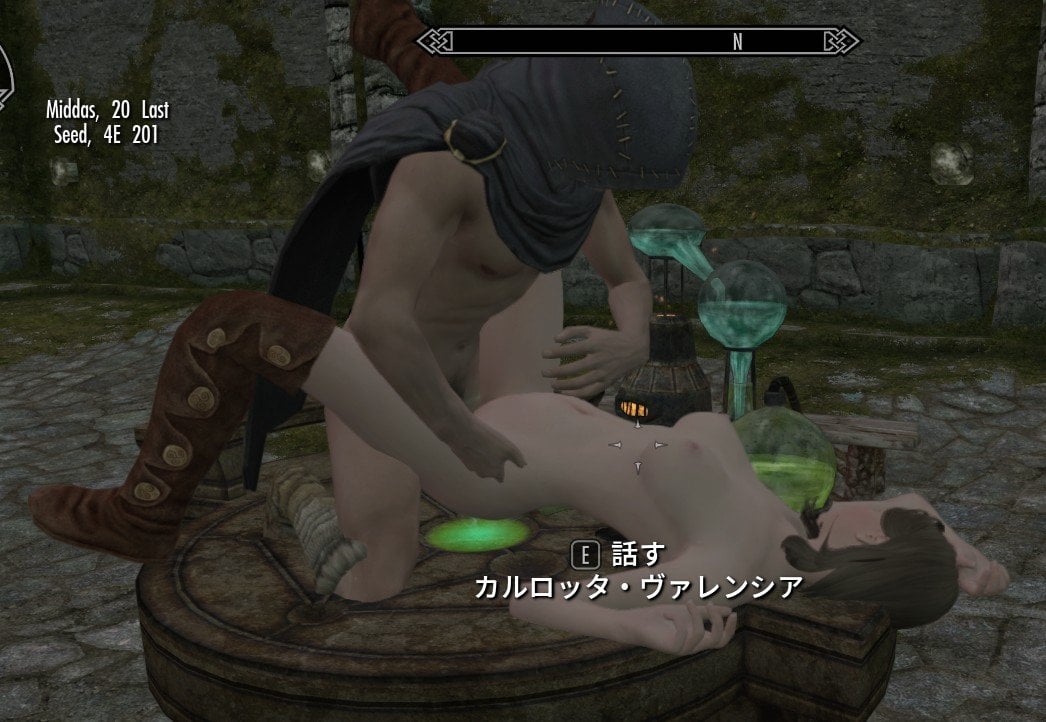
As you can see, selecting Start! automatically hides the Start Marker.
This marker is used temporarily for scene setup. It stays hidden until you start another Free Mix dialog with Ask Always selected in the MCM and choose Set Marker again.
When you do, scene startup is put on hold, and the Start Marker is automatically moved in front of the player and shown again while scene startup is on hold.
--------------------------------
That covers almost everything you need to know about Free Mix and its marker options
If you want to precisely adjust the start location each time, select Ask Always in the MCM, then choose Set Marker from the dialog’s marker menu.
If you prefer to start scenes relative to wherever the player is standing, Use PC Offset is a convenient choice. To test animations at a fixed spot in a room, set up a Default Marker there.
For example, you could place the Default Marker on a bed and use a slot saved in *Tag and Sex* containing animations with bed-related tags. There are plenty of ways to use these features!
Whenever you use a marker system, regardless of which marker option you choose, automatic bed and furniture selection by SexLab is bypassed. Choose whichever method suits your situation.
I plan to extend these features to the regular **Prostitution dialogs** and the **dialog settings in Tag and Sex**.
If you have any ideas, or know a good mod for moving activators,
please share your suggestions and test results on this mod support page
Peace and Smile! 🫶
----------------------------------
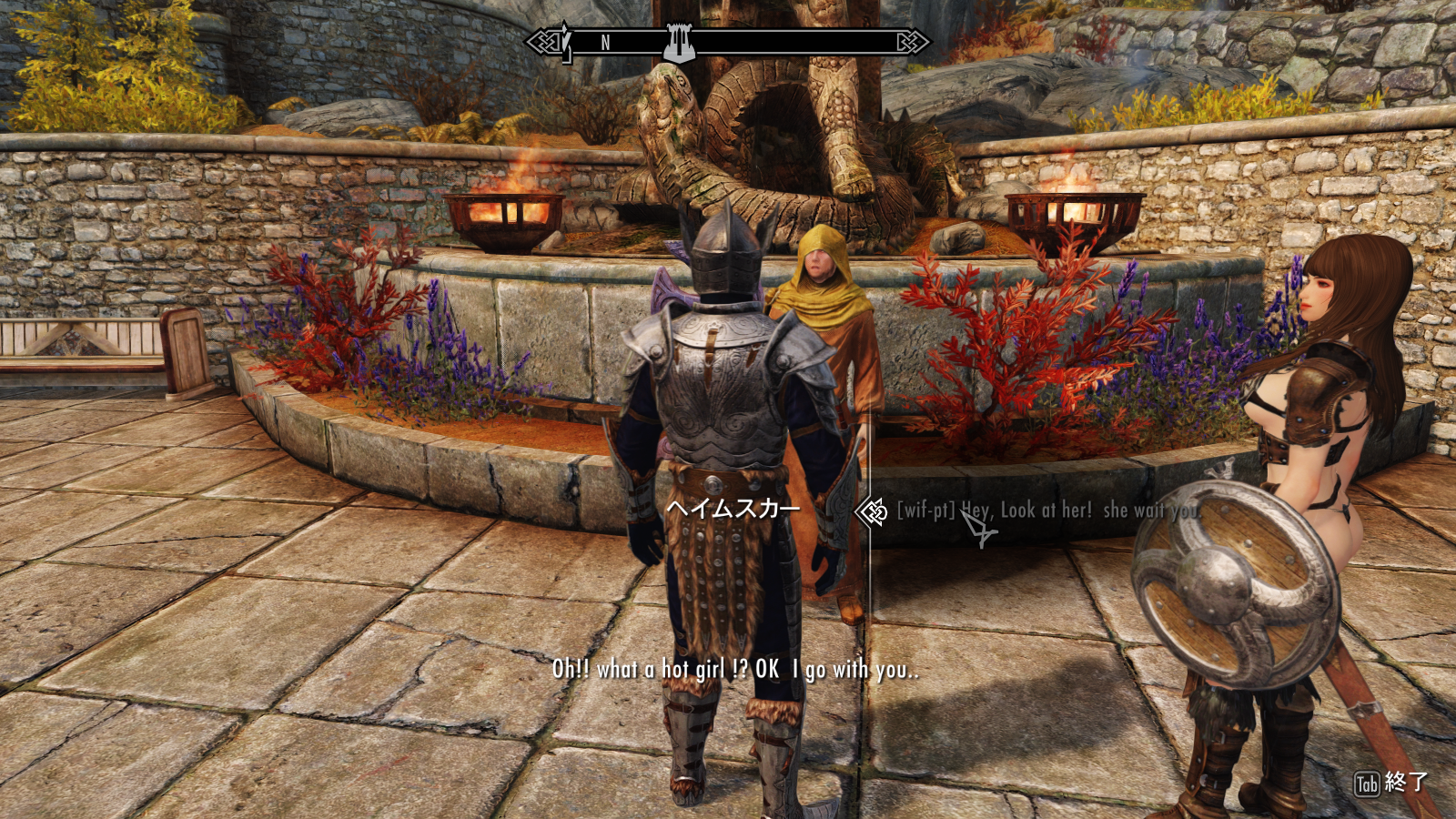
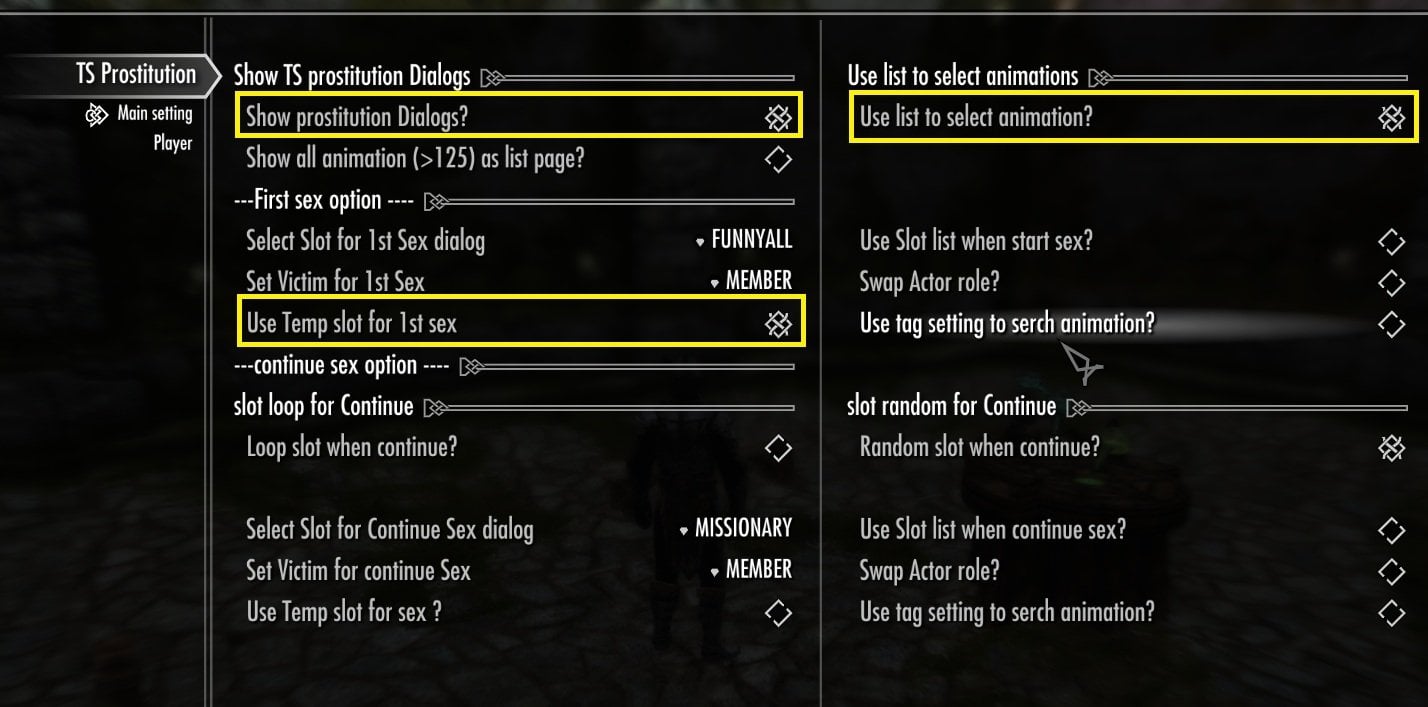
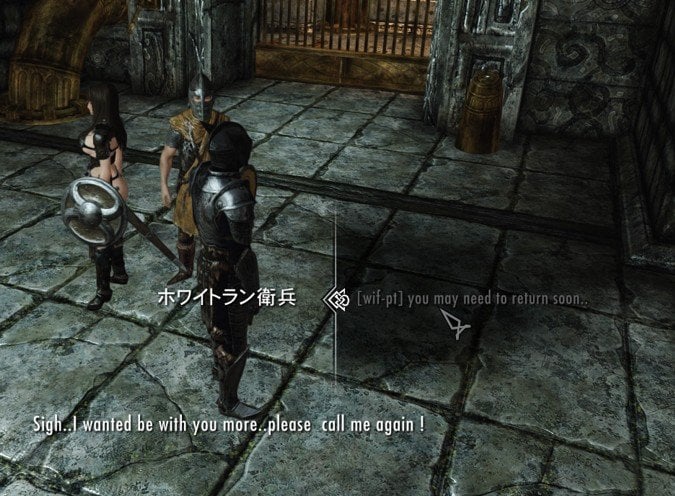
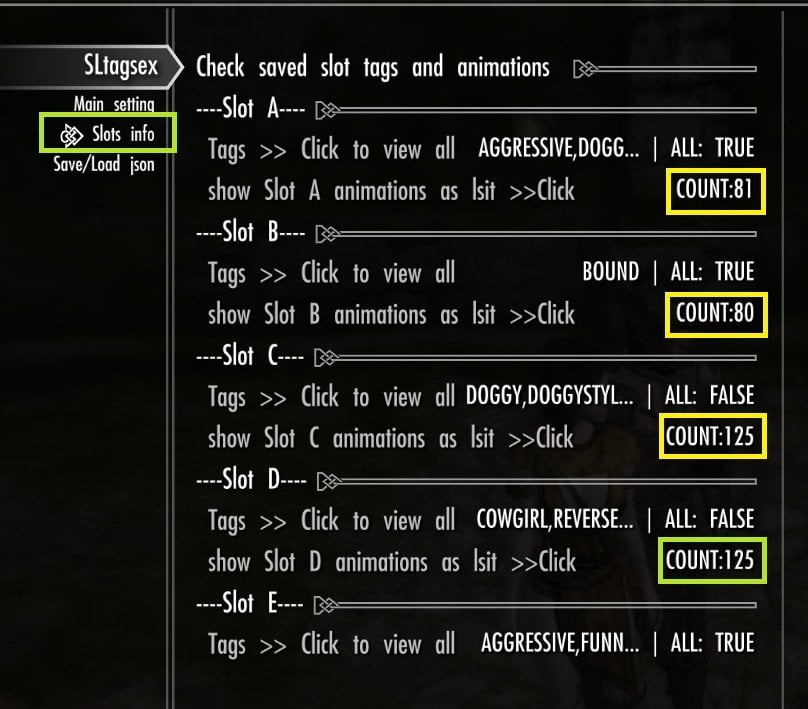
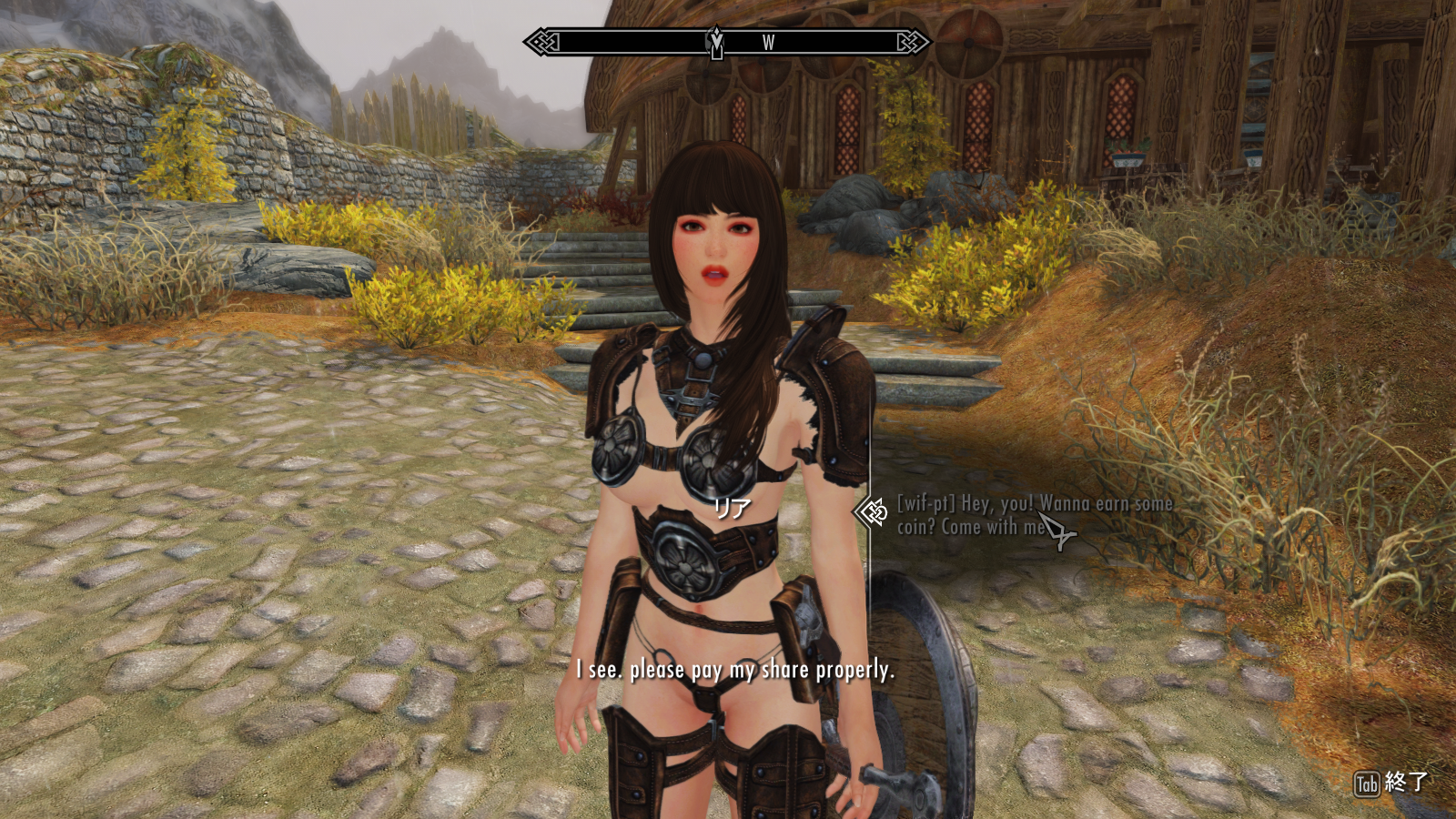
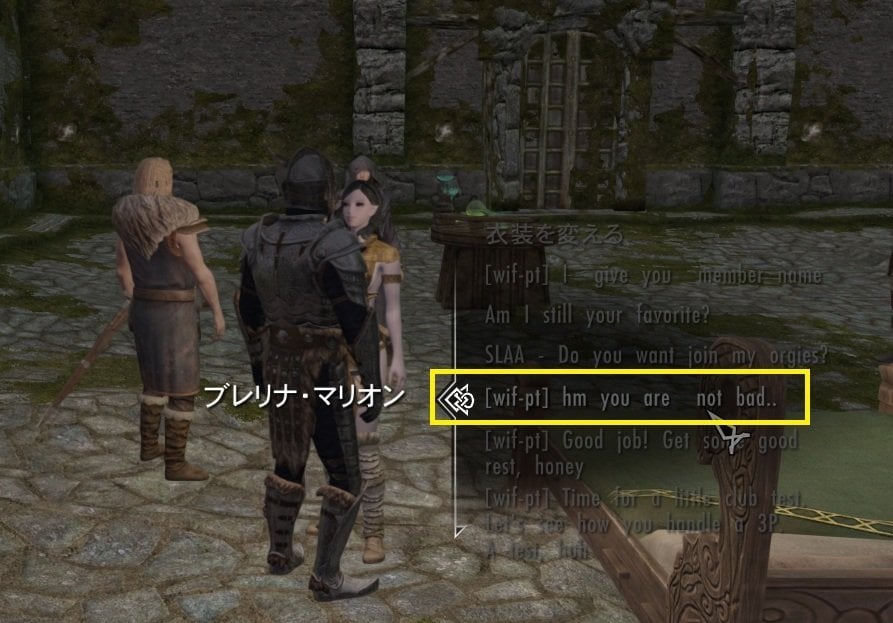
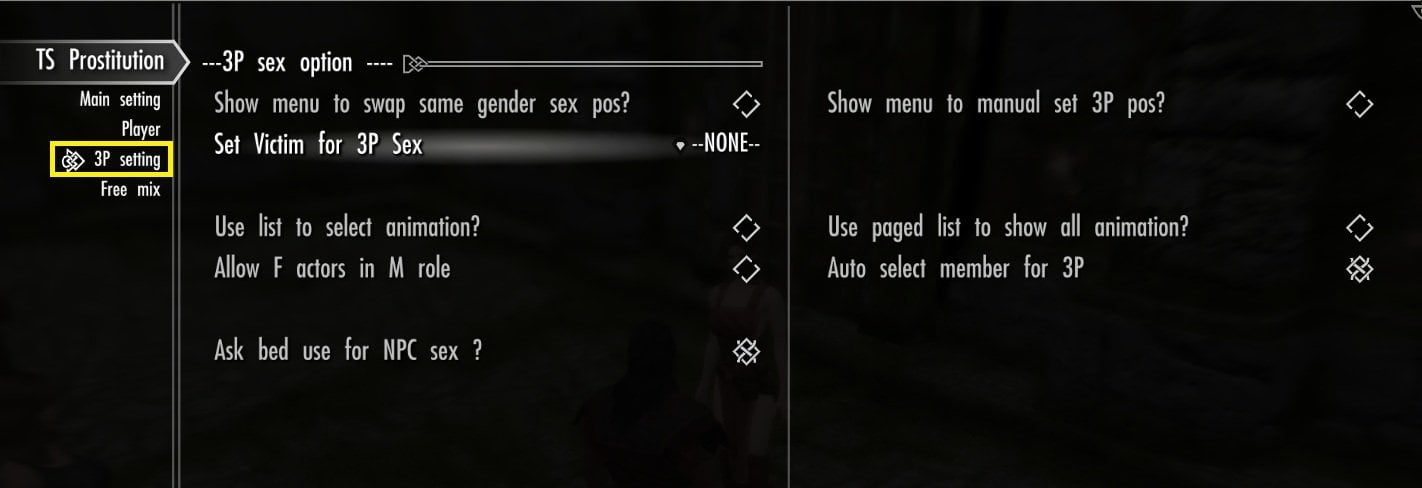
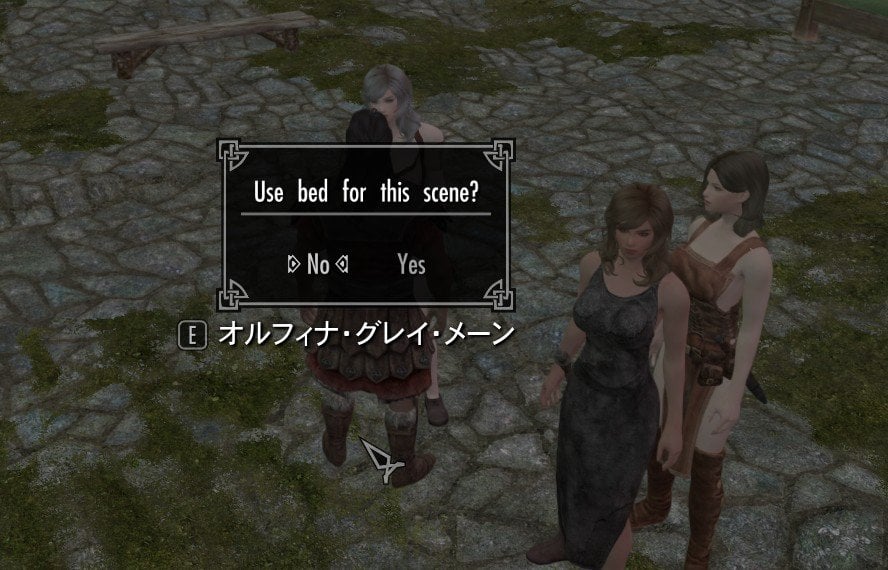
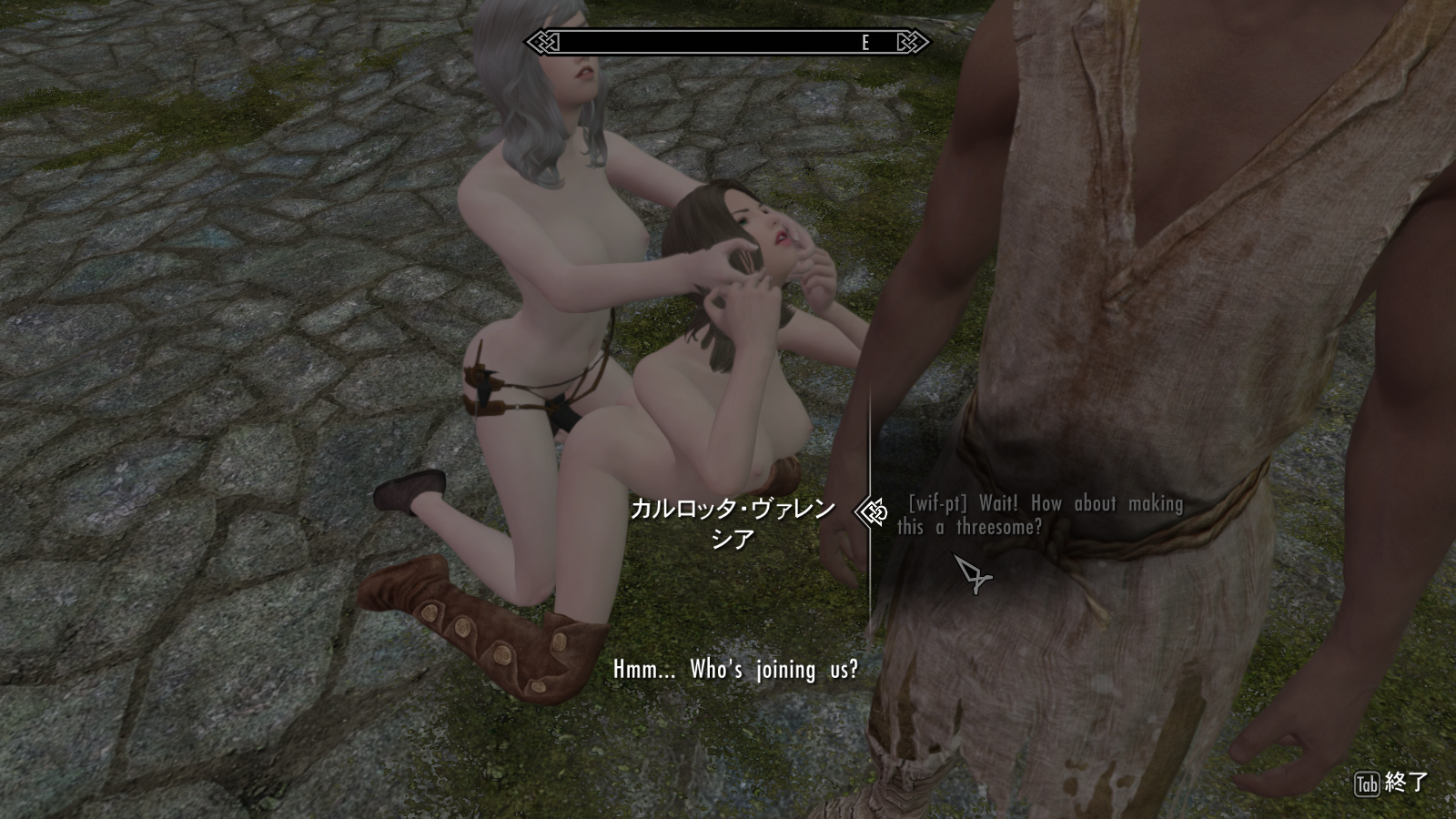
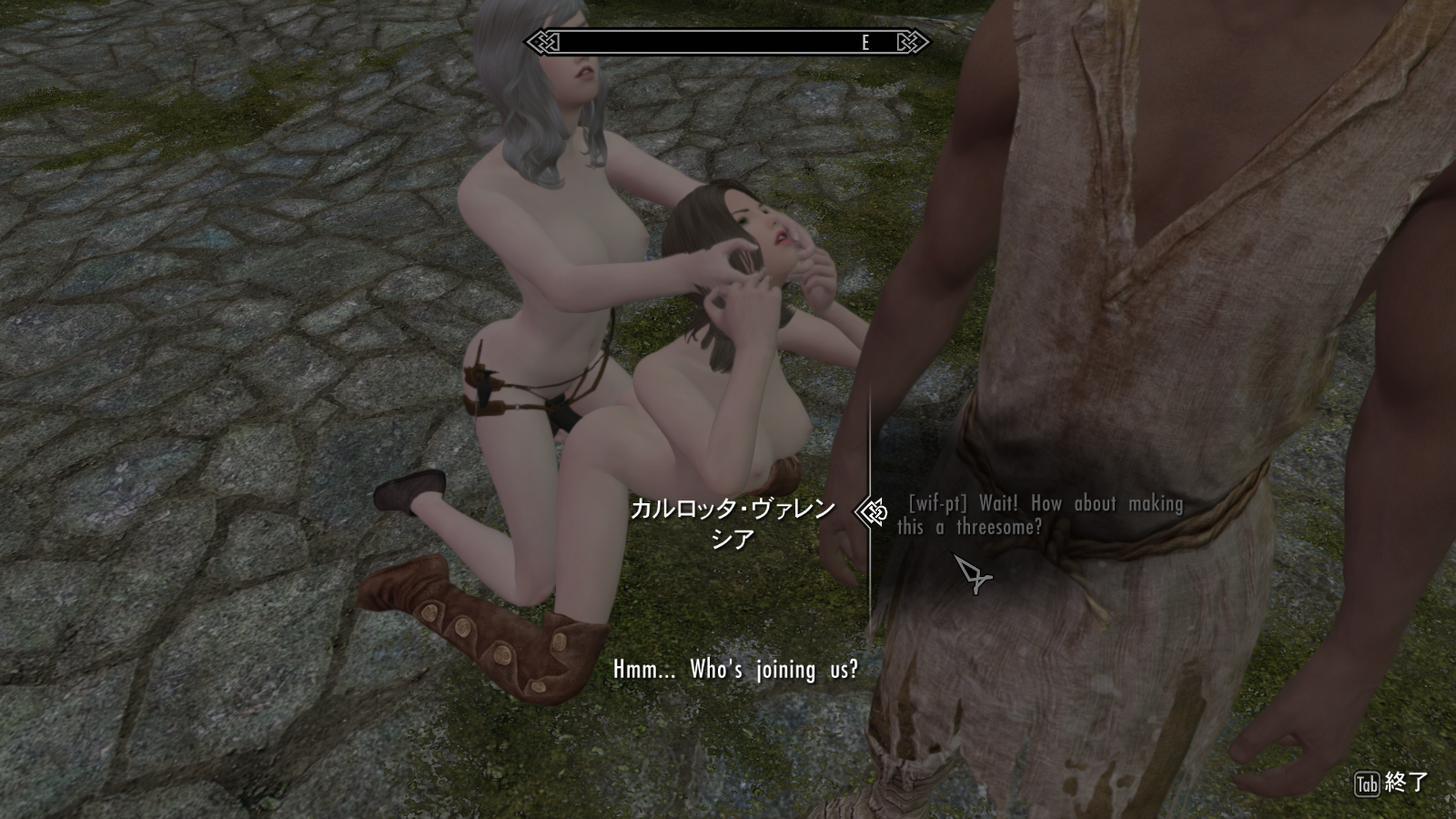
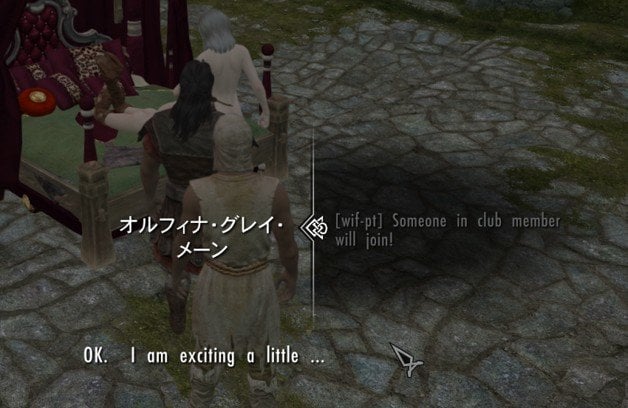
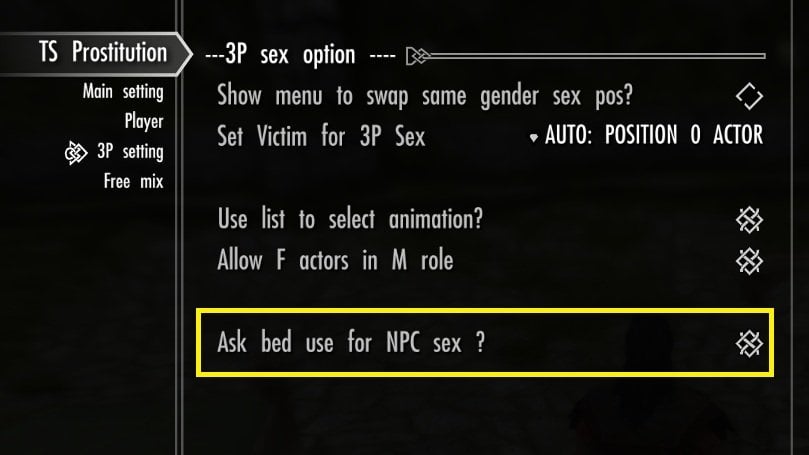
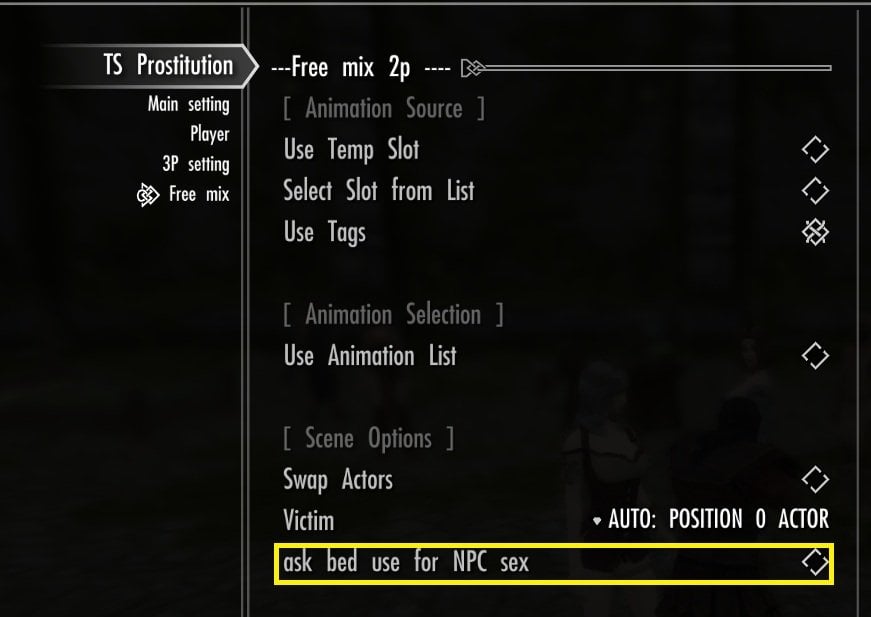
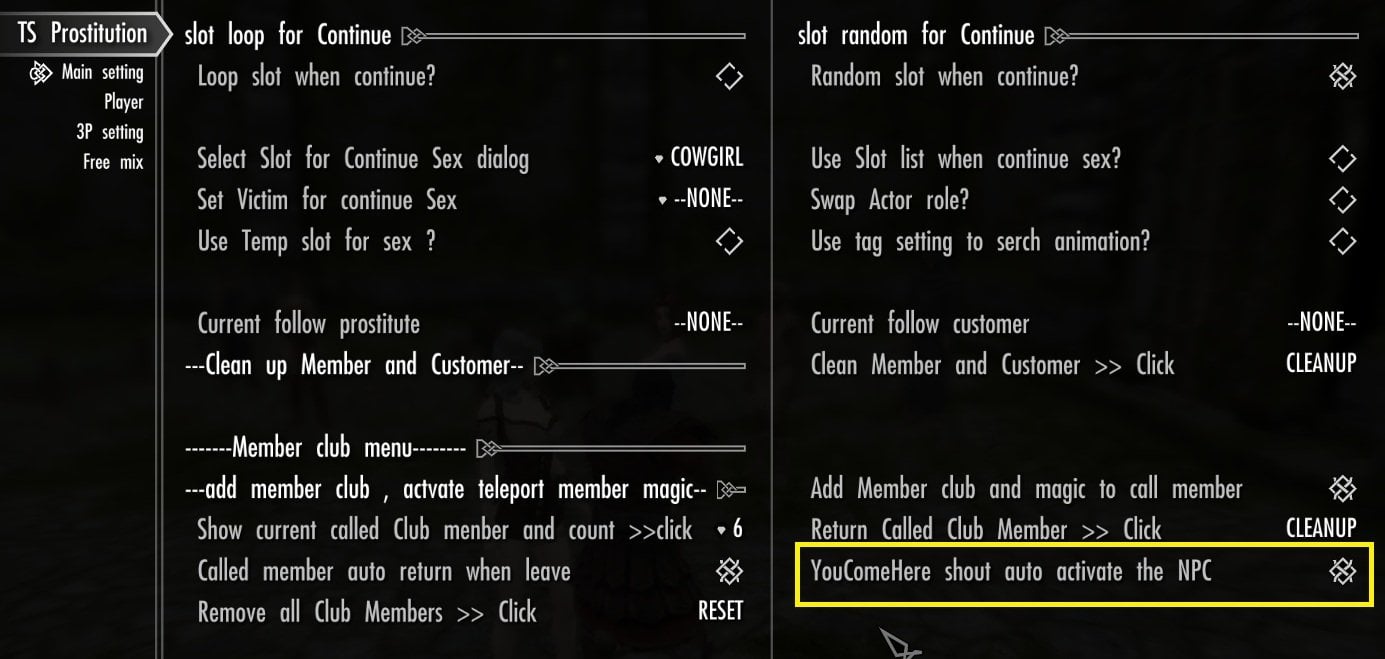
Edited by greenmango12
What's New in Version 2.2.6-fix beta
Released
Replaced and rebuild two outdated scripts left over from testing.
(They only caused errors in the Papyrus log,because of removed funciton to debug only, but I didn't want to leave those annoying errors hanging around!😅)
2.2.6
Major Improvements to NPC Package and Behavior!
Called Members, Worker, and Guest are now much more lively and responsive!
I've completely reworked their AI packages to combine Follow and Sandbox behaviors.
-
Called Members and Worker can now relax, wander around, and sit down instead of constantly standing around waiting for you!
-
Guest will follow you closely until their first scene. After that, she can relax and enjoy some free time, while still following you when you move too far away.
-
AI package switching has been improved, making NPCs respond much faster and more reliably when being called, assigned roles, dismissed, or returning from animations.
The result? called NPCs finally behave much more naturally!
1. Install **SL Tags and Dialogue Sex V2** and make sure it is working correctly.
2. Download and install this add-on using your preferred mod manager (MO2 or Vortex is recommended).
3. Enable the plugin.
4. Launch the game and wait for the MCM menus to initialize. 5. Configure the add-on through the MCM menu.