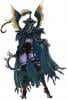
LibidoKnievel Posted January 24, 2012 Posted January 24, 2012 Just thought I'd post up a few tips for anyone who wants to take really excellent screenshots. There are a couple console commands that can really, really help. I've been doing a lot of captures lately, and have gotten quite a few I think are very good. The console is your best friend when taking shots, and the number one command you want to remember is: "tfc 1" This will toggle free camera AND pause your game, allowing you to move the camera to whatever angle you want, in the midst of combat, or right at the moment of that awesome killing blow. Another fun command to play with is "setstage". This changes the size of an npc or creature, as you can see in the screenshot below. Simply open the console, click the creature with the mouse, and type "setstage #" For this shot, I used "2" but you're welcome to try other values. jpeg image hosting Anyone else have any fun commands or strategies they use to get great screenshots?
neobunny Posted January 24, 2012 Posted January 24, 2012 Setstage? I thought it was "setscale #" for changing size of things. Or is that just an alternative command for it? I didnt know that putting a 1 after tfc would pause the game, thats handy to know. Also "tm" is handy for hiding the hud, but just be aware that it will also make the console invisible so you wont see what you are typing untill you type tm again to display the hud again.
Thorazine Posted January 24, 2012 Posted January 24, 2012 The command "setstage" is used to set the quest stage. "setscale" is the proper command to modify the scale of an object or npc. Once tried setscale on a dragon, ended up disappearing on me. Had to load a previous save as it was a quest dragon.
neobunny Posted January 24, 2012 Posted January 24, 2012 Another command you can use is "toggleanimatorcam" which will let you rotate the camera around your character while moving forwards or backwards and fight without your body turning back to you. This can be handy if you want to set up an action shot and want to find that sweet spot, which is hard to do when you are staring at your characters back when moving or in combat. Its also useful for seeing bouncing breast mod in action too. ;D You wont be able to turn your character while in this view, your character will be locked facing in the one direction. Though if you go into first person view you can turn, then return to 3rd person view without having to enter the command each time.
Eiries Posted January 25, 2012 Posted January 25, 2012 getpos x/y/z and setpos x/y/z allows you to move various objects and actors along the chosen axis. If tfc 1 is active, you can usually remove or add a weapon at your leisure. This means you can have different attack animations used with unarmed, or have it look like your beating someone over the head with a bow, etc. A fun one is set timescale to XX, where XX is a variable above or below the default (30.) Set it between 5000 and 9000 to experience a timelapse, letting you get perfect lighting. Set it to 1 or 0 so you don't lose the current state of time (just don't forget to turn it back to 30!) Clicking on an actor and using the "tai" command will freeze them in place, giving you time to coordinate your character into the shot. I'm sure there's more I could think of, but that's what I can think of off the top of my head that isn't too obvious. Most of these techniques can be used in Oblivion and Fallout as well.
shedidwhat Posted January 25, 2012 Posted January 25, 2012 love the setting but hate the light ? add your own light ! WARNING---LIGHT CAN NOT BE REMOVED AFTER PLACED SO SAVE BEFORE YOU ADD THE LIGHT TAKE SS THEN RELOAD Blue light player.placeatme 000FFF48 green light player.placeatme 00045D7B white light player.placeatme 000E2174 want to add a colored lantern to the scene ? or to your house ? adds a lantern and the color blue lantern light player.placeatme 000FFF48 player.placeatme 0002d847 green lantern light player.placeatme 00045D7B player.placeatme 0002d847 white lantern light player.placeatme 000E2174 player.placeatme 0002d847 credits to Noobo Light up skyrim / light up skyrim COLOUR http://www.skyrimnexus.com/downloads/file.php?id=4833
LibidoKnievel Posted January 25, 2012 Author Posted January 25, 2012 Sorry about that, yes the command I meant is "setscale". Not sure why I said stage. toggleanimatorcam is also great for something like a shot of your character crouched with a bow or readying a spell. Not the best for an action shot, as you can't change directions while moving. I also forgot to mention, to get your HUD out of the picture, just go to display settings and turn HUD Opacity all the way down. Thanks for the info everyone. I'm going to have to play with that "tai" command now.
Eiries Posted January 25, 2012 Posted January 25, 2012 I also forgot to mention, to get your HUD out of the picture, just go to display settings and turn HUD Opacity all the way down. Use the "tm", command, way faster.
neobunny Posted January 31, 2012 Posted January 31, 2012 So suddenly I have an odd problem. When I type "tfc" or "tfc 1" my camera can move around forwards, backwards and side to side fine, but I'm not able to get the cam to go higher or lower. Anyone know what would cause this to happen and how to fix it?
neobunny Posted January 31, 2012 Posted January 31, 2012 could it get stuck on animcam I've tried turning animcam on and off, but tfc is still not letting me go higher or lower. :/ Edit: Ok seems restarting the game fixed it. I actually couldnt even unsheath my weapon either, it was a very strange glitch. No idea what caused it.

Recommended Posts
Archived
This topic is now archived and is closed to further replies.