
About This File
Bardø's Camera Rig
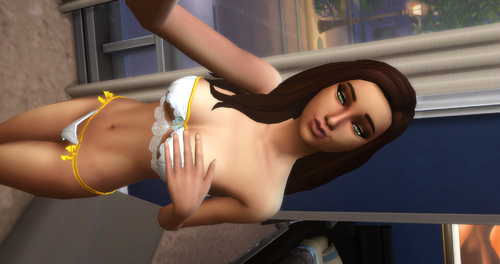
For some time I enjoyed taking screenshots in Sims 4 more than actually playing the game, but something that always bothered me, was that there is no real photo mode like in other games. Sure you can get far with the cinematic cam, but even the cinematic cam is limited (can't rotate the camera and thus not take 'vertical' or tilted screenshots) and sometimes its just buggy (messing up rotations, clipping objects while moving the camera). I was looking for mods, that would add a better camera or an object that would work as camera, but I had no luck. So some day I found out, that you could set camera points while being in first person mode and it would save everything I could ask for. So instead of mods or objects, I figuered out, that sims would be the perfect camera and after messing around for some time I created a rig for blender, that is 95% accurate and now I want to share this rig, to help this community to create even better screenshots, than it already does.
So, how does this work?
You need:
- Blender
- Sims 4 Studio
- Basic knowledge of creating poses and exporting/importing poses from/into posepacks.
- Download the rig and extract it from the zip and move the files of the tray folder to your own tray folder.
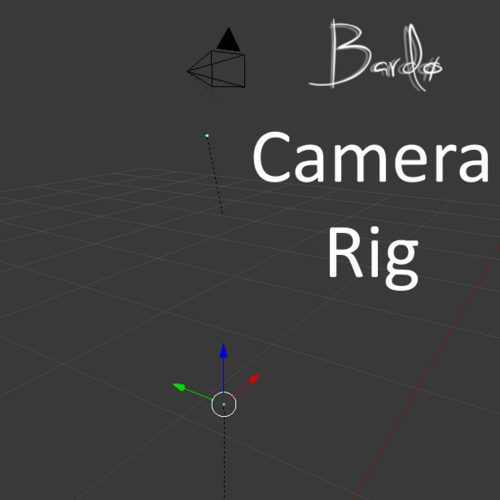
- Open up a pose in blender, delete the already existing camera and append the camera_rig + camera into the scene. If the rig looks like on the first thumbnail, then you did it right.
- Move the camera_rig so, that it wouldnt be in the shot later.
- Now move the camera by moving the 'b_neck' bone of the camera_rig.
- If you want, you can rotate the 'b_neck' bone, to rotate the camera
- To get a preview of the shot, just press 0 on the numpad and then alt+F10. If you're playing Sims 4 fullscreen, press alt+F11 aswell. Make sure you don't see the rectangle of the camera by zooming in, but stop zooming in as soon you don't see the rectangle anymore.
- If you have 'b_neck' still selected, you can move and rotate the camera, while being in preview. Press 0 to leave the camera, press alt+F10 to get back the interface and press alt+F11 to leave fullscreen mode.
- As soon you are happy with your shot, LocRot the camera_rig, just like you would with every other rig and save.
- Make sure every rig is saved separately and import them into your posepack. I always put a 'CAM' behind the name of the pose with the camera_rig.
- Get into the game. Open your gallery items and add the sim "CAMERA RIG" to your household (enable custom content). The sim CAMERA RIG will act as camera.
- Let the camera-sim pose the 'CAM'-pose. Depending on how much the 'b_neck' bone was moved/rotated around, the camera-sim might look completely messed up, thats totally fine.
- Now get into the first person mode (shift+tab), don't move around with your mouse or zoom in ( if you did, just press ctrl or re-enter the first person mode).
- You should see that the view is kinda like the preview in blender, but the FOV is not right. Don't worry you did nothing wrong.
- Now you have to set a camera point by pressing ctrl+5/6/7/8.
- Leave the first person mode and move the camera-sim away or make the camera-sim pose, if the sim is supposed to.
- If every sim is posing like they're suppose to, get into the cinematic cam by pressing tab and press shift+5/6/7/8.
- If you did everything right, you should now (almost) see the same shot, you saw in blender.
- Take screenshot.
I hope this rig will help you guys to create the screenshots you always envisioned.
Alternate download (Google Drive - No adfly or some other virus infested sites)
To get an even better result, set the resolution of your scene in Blender to the same resolution of your game. You do this here:
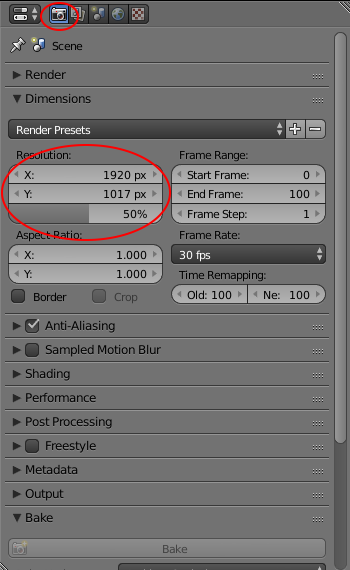
I hope, I didn't mess up this tutorial, if so please forgive me, it was 5 a.m when I started this.
Edited by Bardø
What's New in Version 1.2 See changelog
Released
- Found out that not all sims are able to act as camera sim (I guess the position of the eyes has to do something with that), so I added the tray files of a camera sim who you have to add to your household (enable custom content in gallery to see her) and let act as camera + the rig itself was slightly updated aswell.